

PowerPoint can remove all speaker-note text at once through File > Info > Check for Issues > Inspect Document in the Windows desktop app. Save a separate copy first, inspect Presentation Notes, and choose Remove All beside that result.
Hiding the Notes pane doesn't delete its stored text. For one slide, select and delete that slide's notes. In the Mac app or a browser, work through the slides when the Windows inspection tool isn't available.
In this guide
Save a sharing copy before deleting anything
Open the presentation and use File > Save As to save a second file with a clear name, such as a sharing copy. Keep the original as your presenter version so your script remains available for the next talk.
Keep that original available to view notes privately during the PowerPoint show while distributing the cleaned copy.
Microsoft recommends using its hidden-data inspection tool on a copy because some removed content can't be restored with Undo. Make the copy before running the removal.
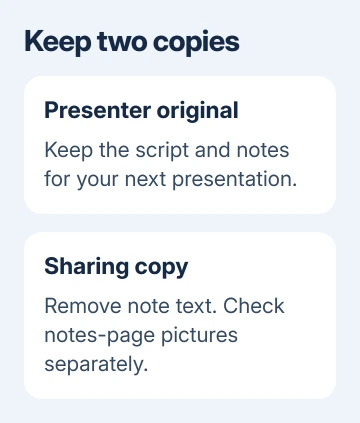
Check the title bar or filename after saving. Make sure you're editing the sharing copy, so you don't accidentally remove notes from your presenter version.
Decide whether the recipient needs an editable .pptx or only the slides. A PDF containing only slides may suit the recipient, but exporting one doesn't clear notes from the PowerPoint original.
For that separate output, the PowerPoint PDF export guide explains the export choices. Keep the distinction clear when sending both a PDF and an editable presentation.
Remove every slide's note text in Windows
In the sharing copy, open File > Info. Select Check for Issues, then choose Inspect Document. This opens Document Inspector rather than the ordinary slide editor.
- In the inspection list, select Presentation Notes.
- Clear other inspection categories if notes are the only material you want to remove.
- Select Inspect and wait for the results.
- Find the Presentation Notes result.
- Select Remove All beside that result, then close the inspector and save the presentation.
Use the Remove All button beside Presentation Notes. Other results can refer to comments, document properties or hidden content, and those are separate choices.
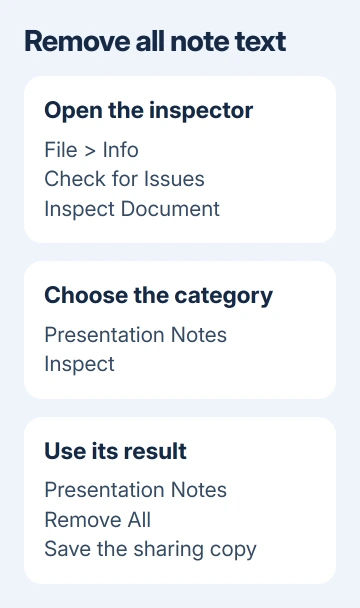
These steps apply to Windows desktop editions including Microsoft 365, PowerPoint 2024 and PowerPoint 2021. It isn't a button hidden inside the normal Notes pane.
After saving, reopen the inspection tool and inspect Presentation Notes again. A result showing no note text confirms you cleaned this copy, rather than another presentation you had open.
Check note-page pictures separately
Document Inspector removes text added to the Notes section, but it can't remove pictures added there. A result showing no note text doesn't mean every notes page is empty.
Open View > Notes Page in desktop PowerPoint and review the pages for images or other material you don't want included. Select an unwanted picture itself and delete it from the sharing copy.
The slide thumbnail is the preview of the slide itself. Delete private pictures someone added to the notes area, leaving the normal slide preview in place.
For a long deck, review the slides where you know images, coaching notes or supporting material were added. If the file must be free of private note-page content, check every slide rather than stopping after page one.
I'd do this visual check even after a successful text inspection. The text removal leaves those pictures behind, and it's easy to miss when the Notes pane looks blank.
Delete the notes on a single slide
Return to Normal view and select the slide in the thumbnail list. Open its Notes pane if it isn't visible, then click inside the note text so your cursor is in the right editing area.
Select the text in that pane and press Delete or Backspace. On Windows, Ctrl+A selects the note text when your cursor is inside it. Check the pane afterward and save the presentation.
Keep the focus inside the note text before selecting all. The same shortcut selects something else when you've clicked a slide thumbnail or an object on the slide.
Move to the next slide and check its own notes if you need to remove more. Each slide has separate speaker text; clearing the selected slide doesn't clear the rest of the deck.
If the goal was to print a presenter script rather than delete it, the notes-page printing instructions explain that output. Notes Pages and slide-only printing serve different audiences.
Clear notes on Mac or in PowerPoint for the web
Use the manual notes-pane route when your edition doesn't offer the Windows Document Inspector workflow. Make your separate copy, switch to editing view, then select the first slide thumbnail.
On Mac, use Normal view and open the Notes area. Click inside the note text, press Command+A, then Delete. Select the next slide and repeat for each slide that contains notes.
For a browser copy, switch to editing view in PowerPoint for the web. Select Notes to reveal its text area. Click into that slide's note text, select it, and delete it. Continue through the slide list.
These manual changes remove the text you select. For note-page pictures or other content outside that text area, open the copy in desktop PowerPoint and check the actual notes pages.
The speaker-notes controls show how the Notes area differs across editions. Selecting Notes again to hide the area leaves the saved text in place.
Confirm the file you're about to send
Save and reopen the sharing copy, then check several slides that previously had plenty of notes. Confirm that the original presenter file still has its script and that the attachment you're sending is the cleaned copy.
Removing speaker notes doesn't remove separate comments or hidden slides. If those also contain private material, review the relevant inspection results and slides before sharing the file.
Report a failed inspection to Microsoft Support with your PowerPoint edition, the message and whether you can edit the copy. For an organization-protected file, ask its owner for a sharing copy you can edit.
The Short Version
In Windows, remove Presentation Notes from a copy through Document Inspector. Check note-page pictures separately. On Mac or the web, delete text inside each slide's Notes pane. Reopen the saved sharing copy before sending it.
Checked November 15, 2026.
 If you have any business, I can build it online






