
Windows 11 can hide the part of a filename that tells you its format, such as .pdf or .jpg. In File Explorer, select View > Show > File name extensions to display it without changing the files themselves.
That setting is useful before renaming a document or checking a download. A file called invoice.pdf.exe is an application, even when the start of its name suggests a document. Read the ending before opening an unfamiliar file.
In this guide
Turn on File name extensions in Explorer
Open File Explorer with Windows+E. Open a folder containing a document or picture you recognize, then select View on the command bar. Move the pointer over Show and select File name extensions.
The menu item should have a check mark when enabled. Look at the filename again: a Word document might now read report.docx, and a JPEG photo might read holiday.jpg. Those endings were present even when Explorer hid them.
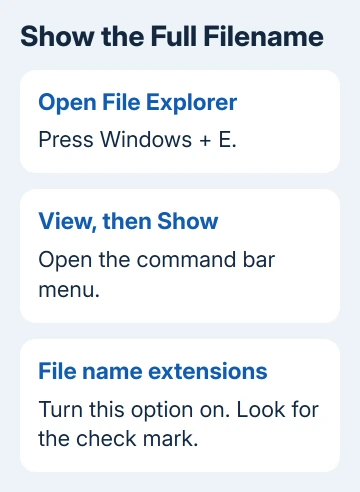
Microsoft explains how to show file extensions through this Windows 11 menu. It changes how names appear, without renaming files or installing another file manager.
Clicking the same option again hides the endings. If nothing appears to change, check a few ordinary files in that folder. A folder doesn't have a file-format extension just because it contains documents with extensions.
The view doesn't have to be Details. Icons and other Explorer layouts can show the full name too. Choose the layout you find easiest to read, then keep the extension setting enabled while checking the files.
Use Folder Options when the menu is hard to find
Windows 11 also has the older Folder Options control. In File Explorer, select See more (…) > Options, then open the View tab. Under Advanced settings, clear Hide extensions for known file types.
Choose Apply, then OK. Notice the wording: this option hides extensions when checked. Clearing it shows them.
The newer File name extensions menu works in the opposite direction because it names the display option rather than the hiding option.
I'd use the command-bar menu first because its wording is clearer. Folder Options is useful when following a guide for the earlier layout or when you want to confirm which setting is actually selected on the PC.
On Windows 10, open File Explorer's ribbon View tab and select File name extensions in Show/hide. The Windows 11 Show submenu isn't the route for that older ribbon layout.
The setting is separate from Hidden items. Turning on hidden items reveals files and folders marked as hidden; it doesn't replace the extension control. Leave that other option alone unless hidden files are what you're trying to find.
If pictures still appear as generic icons once you can read their full names, missing File Explorer thumbnails are a separate display problem. Showing an ending won't rebuild a thumbnail.
Read the complete ending before renaming
Start with a familiar example. In notes.txt, notes is the name and txt is the extension. In meeting.notes.txt, the last ending still identifies a text file; a period earlier in the name doesn't change its format.
Common document endings include .docx for Word documents, .xlsx for Excel workbooks, and .pdf for PDF documents. Pictures often use .jpg, .jpeg, or .png, while a compressed archive can use .zip.
An .exe file is an application, and .msi is a Windows installer file. A document-like word earlier in the filename doesn't change that. Keep the full ending visible while deciding whether a download is the file you expected.
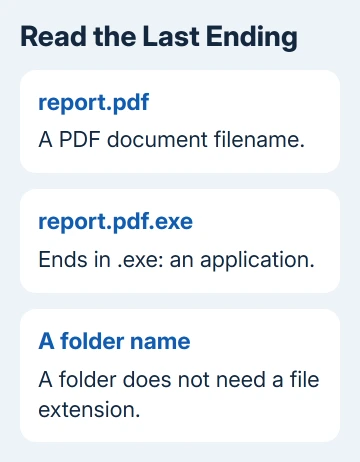
The icon is another hint, but the name and the source of the download matter too. An unfamiliar file doesn't become trustworthy because its icon resembles a document or because Windows has an app associated with its extension.
A filename that still has no period may simply have no extension. The visibility switch can't invent a missing one. Check with whoever supplied the file, or the app that saved it, before guessing which ending to add.
Rename the name without changing the format
Select the file and press F2, or use Rename from its menu. Change the descriptive part and keep the correct extension. For example, change draft.docx to final-report.docx when the document is still a Word file.
If Windows warns that changing the extension might make a file unusable, cancel when that wasn't your intention. Start the rename again and keep the ending.
This avoids leaving a valid file with a misleading name that its normal app won't recognize.
Changing photo.jpg to photo.png doesn't convert the picture. The saved data remains in its original format.
Use the app's export or save-format controls when you actually need another format, rather than editing the letters after the period.
For a Windows video, use a real Format Factory conversion instead of changing its filename ending.
The same applies to Office documents. Renaming a text file to .docx doesn't make it a Word document. Open it in the appropriate app and save a real copy in the required format if that app supports the conversion.
For a plain text file that must have a particular ending, check the completed filename after saving. A name such as settings.ini.txt still ends in .txt. Showing extensions makes that mistake visible before you use the file.
Check files that still look wrong
To inspect a file without opening it, right-click it and choose Properties. Read Type of file on the General tab. Compare that with the complete filename, especially when you're checking a file received from someone else.
The app listed beside Opens with is a different choice. It tells Windows which program to use for that file type. If the right file keeps opening in the wrong program, changing the default app addresses that behavior.
If the extension option won't stay selected on a managed PC, ask IT to check Explorer settings for your account.
On a personal PC, use Windows Get Help and report whether the check mark disappears or only specific filenames remain unchanged.
The Short Version
Open File Explorer and select View > Show > File name extensions. Read the final ending, preserve it during ordinary renaming, and use an app's export controls to convert formats. Hidden items and default apps are separate settings.
Checked November 15, 2026.






