

Phasmophobia can use the wrong microphone even while Discord hears you clearly. Select the same microphone in Windows and Options > Audio in the game, then check whether the problem is voice chat or the game's response to spoken commands.
Those are separate features. Friends hearing your voice doesn't mean the Spirit Box can recognize a question, and selecting Text recognition won't repair voice chat. Check which feature still works so you know which settings to change.
In this guide
1. Match the microphone in Windows and the game
Connect your headset before starting the game. Lower its microphone boom and release its hardware mute button if it has one. Check which input device is selected; choosing headphones doesn't necessarily select their microphone too.
In Windows 11, open Settings > System > Sound > Input and choose the intended recording device. Open its properties and run the microphone test. Speak normally, then listen to the recording if the test offers playback.
In Windows 10, open Settings > System > Sound, choose the microphone under Input, and watch Test your microphone while speaking. A moving indicator confirms Windows is receiving some input from that device.
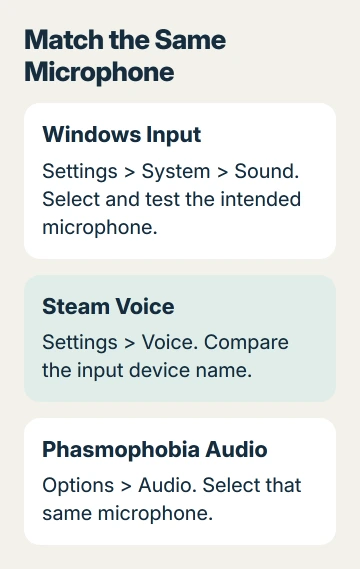
Open Phasmophobia > Options > Audio and choose that same microphone. A webcam, VR headset, controller, and USB headset can all provide different inputs, so compare the device names carefully.
The v0.17.1.5 hotfix fixed a Steam voice-recognition fault. It also tells PC players using Voice mode to set their intended microphone as the Windows default.
If Windows receives nothing, use the Windows microphone repairs before changing game recognition languages. If Windows receives your voice but the game doesn't, continue with its access and voice settings.
2. Give desktop apps microphone access
On Windows 11, open Settings > Privacy & security > Microphone. Turn on Microphone access, Let apps access your microphone, plus Let desktop apps access your microphone.
On Windows 10, open Settings > Privacy > Microphone. Enable device access through Change, then enable the app and desktop-app microphone switches.
Desktop games use the desktop-app permission. They don't always appear beside individual Store-app switches. Check the desktop-app switch even if Phasmophobia isn't listed by name.
Return to the game and try voice chat with someone who can tell you whether they hear you. Compare that with your microphone test. A ghost's response isn't the only way to tell whether your mic works.
If your work or school PC has locked controls, ask its administrator whether microphone access is restricted. Microsoft says desktop microphone access has a separate switch.
When audio also fails in a meeting app, the Zoom input test offers a separate way to hear what that app receives. Working audio elsewhere points your next check back toward the game.
3. Separate voice chat from Voice Recognition Mode
Open the game's voice options and check Voice Recognition Mode. Voice is the name used for the recognition engine formerly labeled VOSK. System Voice is the former Windows Voice option.
Text gives you selectable interactions instead of relying on spoken recognition. It can keep an equipment interaction usable while you repair recognition, but your friends still need a working voice-chat connection to hear you.
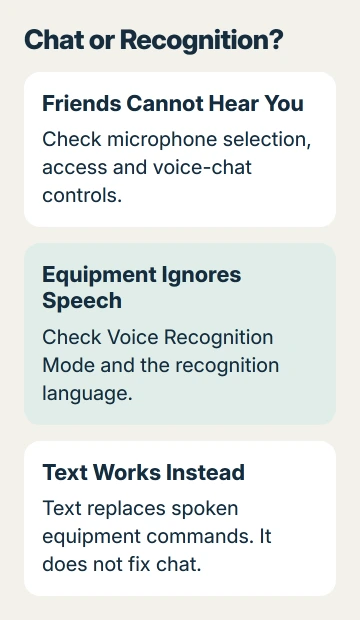
I'd use Text temporarily when friends can hear me but equipment won't respond. That lets you work on recognition while leaving the microphone alone, since it's already carrying your voice.
Check the audio and control settings for your selected voice-chat mode too. If push-to-talk is enabled, use its assigned control while speaking. Even a working mic won't transmit continuously if your mode requires you to hold a button.
Avoid changing every voice option together. Test one change with the same microphone and the same equipment interaction, then keep the result that tells you which feature remains broken.
4. Use System Voice's language checks only for that mode
Kinetic Games' System Voice instructions apply specifically to System Voice, rather than every recognition mode. The page supports that route on Windows 10 and warns that Windows 11 results may vary.
For that route, open Windows language settings and add English (United States) or English (United Kingdom) with speech support. On Windows 10, the language area is under Settings > Time & Language > Language.
Open Settings > Time & Language > Speech and select the installed speech language. Follow the support page's speech-recognition options, including online speech recognition and recognition of non-native accents where offered.
Match the game's Voice Language with the Windows speech language. The support instructions also mention Cortana language settings, but that older app isn't present on every current Windows installation.
Don't try to reinstall Cortana just to match an old screenshot. If its settings are absent, use Voice mode rather than treating that missing screen as a microphone hardware fault.
The same support page checks Steam > Settings > Voice for the intended input. This is another place to compare device names when Steam and the game appear to disagree about the active microphone.
A headset that works here but fails in Squad voice chat needs its Windows default recording device and supported audio format checked separately.
5. Remove microphone conflicts and unintended elevation
Close other apps currently using the microphone, then retry. If a voice changer or virtual audio mixer is active, temporarily select your real microphone in both Windows and the game. That lets you test without the extra audio software.
If another app keeps control of it, press Windows + R, enter mmsys.cpl, and open Recording. Select the microphone, open Properties > Advanced, and switch off Allow applications to take exclusive control of this device.
Apply the change and test again. This option is in the classic recording-device properties; it isn't a switch on the Windows microphone privacy page. Note its original setting and restore that setting if it doesn't help.
Check the Steam shortcut and Phasmophobia.exe > Properties > Compatibility for Run this program as an administrator. Run both without that compatibility option.
If IT installed the game, ask them before changing its setup. For a personal PC, restart Steam and the game after correcting their compatibility settings.
If the fault remains on an updated game, contact Kinetic Games through its support center. Report your Windows version, microphone model, recognition mode, and whether Windows testing, player chat, or only equipment recognition fails.
The Short Version
Choose matching Windows and game inputs, allow desktop microphone access, then distinguish chat from recognition. Use Voice or Text when System Voice is unsuitable, and check competing audio apps before replacing a working headset.
Checked November 15, 2026.
 If you have any business, I can build it online






