Yes, a Chromebook can run another browser through a compatible Android app or Linux installation. Check the Play Store first for the simpler route. Downloading a Windows installer doesn't make it work on ChromeOS.
The choices depend on your Chromebook and whether a school or employer manages it. Android apps, Linux programs and Chrome extensions are different choices, so pick the route your device actually supports before downloading anything.
In this guide
Check which kind of browser your Chromebook can run
Select the time, open Settings, then choose Apps > Manage Google Play preferences. If this option is available, your Chromebook supports Android apps. Follow any Play Store setup prompts before searching for a browser.
Google's Android app instructions explain that some Chromebooks don't support this feature. Work and school devices can also restrict it, even when the hardware is capable.
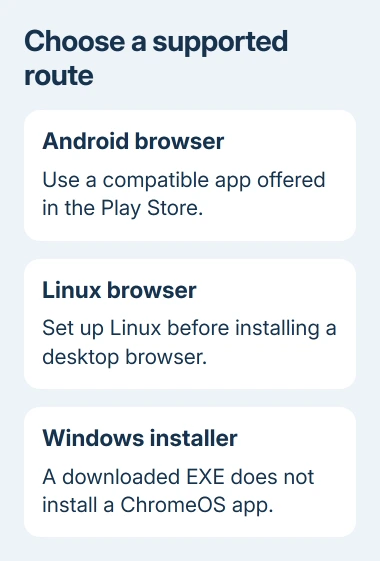
An Android browser is the mobile app running in a ChromeOS window. A Linux browser is a desktop program running inside ChromeOS's separate Linux environment. Neither route replaces ChromeOS with Windows or another operating system.
A Chrome extension adds something to Chrome. Installing an extension with another browser's name or logo doesn't necessarily install that browser. Look for the browser's app listing or its maker's Linux installation instructions.
I'd start with the Play Store when it offers the browser you want. Linux takes extra setup and has its own updates, so choose it when you need a desktop browser.
Install a browser offered in the Play Store
Open Launcher, then Play Store. Search for your chosen browser and open its listing. Check the publisher against the browser maker's official information before selecting Install.
Use the listing shown on the Chromebook itself. A browser available on your Android phone isn't automatically available on your Chromebook, and installing it on the phone doesn't install it on the laptop.
Wait for installation to finish, then select Open. Later, use Launcher to find the installed browser. Open a familiar public website first so you can check that it launches and loads pages before signing into important accounts.
If the browser is missing or unavailable, read the compatibility message. The developer can limit which Chromebooks receive its app. An APK from elsewhere won't resolve a developer's or administrator's restriction.
The Play Store availability explanation distinguishes unsupported apps from a missing Play Store. If other apps install normally, focus on that browser's compatibility instead of resetting the whole Chromebook.
For a managed device, ask the administrator whether the browser's Android app is permitted. Give them its exact name and publisher. They may approve a supported app or direct you to the browser required for school or work.
Check the Android browser's window and permissions
Launch the browser from its own icon. Type a website into that browser's address bar. This checks the app you installed, rather than a Chrome tab that happened to be open already.
Some Android apps offer Phone, Tablet or Resizable window choices in the app's top controls. Use an available layout that suits the Chromebook's screen. The options depend on the app; a mobile layout isn't a failed installation.
The new browser keeps its own browsing information. Use its supported account-sync or import tools if you need existing bookmarks. Check which account you're signing into before letting it sync personal or work data.
If a meeting site opens but its camera doesn't work, permission is a separate step. The Chromebook camera access checks cover the device's master access control and the app or website permission.
Test the specific feature you installed the browser for. Loading a homepage doesn't check whether a particular work site, browser extension or video call works in the Android version. Keep Chrome available while making that comparison.
Use Linux when you need a supported desktop browser
For Firefox's documented ChromeOS route, check for an x86 processor and ChromeOS 80 or newer. Mozilla's ChromeOS instructions cover that desktop setup.
In Settings > About ChromeOS > Developers, find Linux development environment and select Set up. Follow the prompts and allow setup to complete. The Terminal window that opens lets you run commands inside Linux.
If the Linux option is absent or controlled by your organization, stop at that restriction. The Linux setup instructions note that access depends on the device and administrator.
One supported way to install Firefox uses Flatpak, a tool for installing and updating Linux apps. In Terminal, install it with:
sudo apt install flatpakRead the installation prompt and confirm when you're ready. Then add the Flathub app repository, which tells Flatpak where to find applications:
flatpak --user remote-add --if-not-exists flathub https://dl.flathub.org/repo/flathub.flatpakrepoRight-click the Terminal icon and choose Shut down Linux, then reopen Terminal. This finishes the setup described in the ChromeOS Flatpak instructions.
Install Firefox using the repository you just added:
flatpak --user install flathub org.mozilla.firefoxReview the permissions and installation prompt. Once installation finishes, run flatpak run org.mozilla.firefox. Check that a Firefox window opens, then load a website in it to check that browsing works too.
Keep the new browser useful after installation
Keep Android browsers updated through the Play Store. For the Flatpak installation, run flatpak update in Terminal and review the updates offered. ChromeOS updates and a separately installed browser's updates are different tasks.
Files and sign-ins can also differ between Android and Linux browsers. Check where a downloaded document was saved before trying the download again. Keep important bookmarks or other local information backed up before removing an app.
For Office work, our Microsoft Office on Chromebook guide explains the supported browser workflow and the desktop features a Chromebook can't add by changing browsers.
If installation fails, send the browser's support team the Chromebook model, ChromeOS version, Android or Linux route, and exact error. On a managed Chromebook, ask its administrator about the blocked step first.
The Short Version
For an additional browser, try a compatible Play Store app or a supported Linux desktop installation. Check device support and administrator restrictions. Installers made for another operating system won't add that browser to ChromeOS.
Checked November 15, 2026.
 If you have any business, I can build it online