Wi-Fi drivers come from Windows Update or the PC maker's support site. Check the optional driver list first, then get the matching manufacturer package if needed. Keep an offline installer ready for a PC without internet.
Check the adapter's name, rather than the laptop's appearance. Wi-Fi, Ethernet and Bluetooth can need separate drivers even on a shared card. Choose the Wi-Fi driver package for the device Windows lists.
In this guide
Identify the wireless adapter and installed version
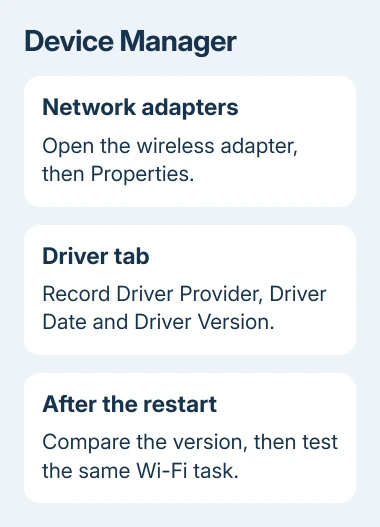
Open Device Manager from Start's right-click menu. Expand Network adapters, find the entry containing Wireless or Wi-Fi, and open Properties. Intel, Realtek, Qualcomm and MediaTek are examples of names you might see.
On the Driver tab, note Driver Provider, Driver Date and Driver Version. Keep the adapter's full name too. Compare these details with the driver download offered for your computer.
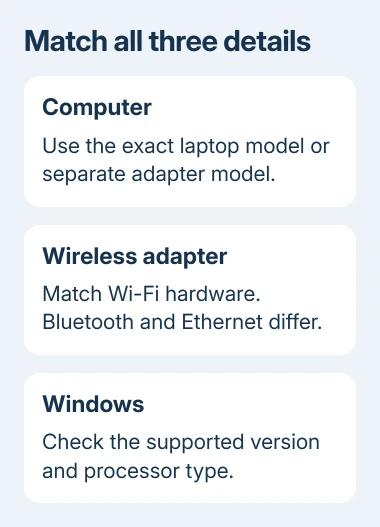
Also open Settings > System > About and note the Windows edition and System type. Match the driver package to your Windows release as well as the processor type. A download for another system isn't suitable simply because it mentions Wi-Fi.
If the adapter has a warning symbol, read Device status on its General tab. Record the code before changing anything. A missing adapter needs the Wi-Fi detection checks rather than an update to an unrelated Ethernet device.
I'd keep the current version in a note before installing. Then you can tell whether a package changed the driver and give support a useful comparison if the connection gets worse afterward.
Install the wireless update Windows offers
On Windows 11, open Settings > Windows Update and select Check for updates. Let available updates complete. Then open Advanced options > Optional updates and expand Driver updates if that category appears.
Select the offered driver that matches the wireless adapter, then choose Download and install. Save work and restart afterward. Microsoft describes optional drivers separately in its automatic and optional driver instructions.
On Windows 10, open Settings > Update & Security > Windows Update. Select Check for updates, then View optional updates if offered. Expand Driver updates, choose the matching wireless entry and install it.
October 14, 2025 marked the end of Windows 10's ordinary free support. Driver controls don't extend that support. If a new package excludes Windows 10, ask the maker about your model instead of forcing a Windows 11 package onto it.
When the optional list is empty, Windows has no optional driver to offer there right now. Don't install a separate updater simply to fill an empty list. Check the manufacturer's package next for a specific connection fault.
A new adapter can already have an included driver; the Windows hardware setup guide distinguishes that automatic setup from optional packages and extra features.
Try the adapter's Update driver command
Under Device Manager > Network adapters, right-click the wireless device. Choose Update driver > Search automatically for drivers. Check whether Windows installed a driver or says the current one is the best available.
The Device Manager driver instructions also cover manual installation. That search doesn't check every driver package on your laptop maker's support pages.
Older Windows 10 dialogs can call this Search automatically for updated driver software.
After an installation, restart and reopen the adapter's Driver tab. Compare its version with your note. Then connect to the same network and try the task that was failing, such as reconnecting after sleep.
If the version hasn't changed, move to a manufacturer download. If Windows installed a new driver but the fault remains, the adapter may need another package or a different network repair. Repeating the search won't change that result.
Download the package for the exact computer model
Use your laptop or desktop maker's official support site. Find the computer using its exact model or product identifier, select the installed Windows version, and locate the wireless or WLAN driver. WLAN means wireless local-area network.
For a desktop with a separately purchased USB or PCIe Wi-Fi card, use that card maker's support page. Use the motherboard maker's package for Wi-Fi built into the motherboard.
Compare supported adapters and operating systems with your notes. Similar laptops can contain different wireless cards. A Bluetooth-only package won't update Wi-Fi, even if Bluetooth and Wi-Fi share the same card.
Run a downloaded installer on the PC, follow its prompts and restart. If the download contains driver files instead, extract them first. In Device Manager, use Update driver > Browse my computer for drivers and select that folder.
For a Lenovo, the model-specific Wi-Fi guide also covers its supported update tools. Keep the package tied to the actual machine instead of using a driver recommended for a similar product name.
Update a PC that has no working Wi-Fi
Use a working Ethernet connection if available, or download the matching package on another computer. Copy the completed download to USB storage, transfer it to the affected PC, and run the local copy.
Choose the driver for the affected PC, even if the other computer runs a different Windows version. Its browser may suggest downloads for that computer, so check the product and operating-system selection before saving the file.
Have that installer available before uninstalling any network device. Microsoft's Wi-Fi repair instructions recommend a backup driver when reinstalling, because the computer may need it to reconnect.
After restarting, check that Windows shows Wi-Fi. Join your network, enter its password if needed and open a website. Check both the driver and internet access; a working driver won't fix an internet service outage.
Undo a driver that made the connection worse
For trouble caused by the update, use an administrator account. Open the adapter's Properties > Driver > Roll Back Driver, complete the prompts and restart. Windows needs a saved copy of the earlier driver to put it back.
If Roll Back Driver is unavailable, ask the PC maker for the earlier supported Wi-Fi driver package. Give them the model, adapter, old and new versions, and whether the problem affects every network or just one.
For a sleep or shutdown stop error, the Driver Power State Failure checks also compare peripherals and the exact failing power action.
A driver update can't correct a rejected Wi-Fi password or restore an internet provider's outage. If the adapter works on another network, tell support that result before repeating driver installations or resetting Windows.
The Short Version
Record the adapter and version, then check Windows Update or install the matching manufacturer package. Use USB transfer for an offline PC. Restart, compare versions and test Wi-Fi; roll back an update that caused trouble.
Checked November 15, 2026.
 If you have any business, I can build it online