An international keyboard layout can make a Chromebook's quotation-mark key wait for another letter instead of printing punctuation. Switch the input method to the regular US keyboard first, then try the key again.
If the next letter gains an accent, check the layout. If the key fails in every app even with the correct layout, check the keyboard next. Curved quotation marks appearing only in a document usually come from that app.
In this guide
1. Switch away from the international input method
Look beside the time for the keyboard language indicator. Select it and choose the ordinary US input method, rather than an international version. Type an apostrophe, a space, and then Shift plus the apostrophe key in a text field.
On a US keyboard, that last combination makes a double quotation mark. A different physical keyboard may put the symbol somewhere else, so match the selected input method to the keyboard printed on your keys.
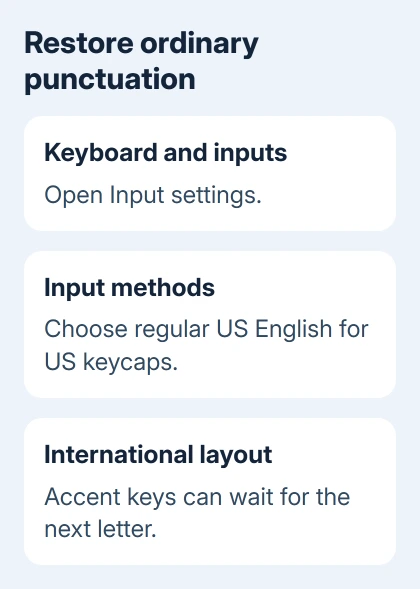
An international layout uses punctuation keys to build accented characters. The first press can wait for a letter to finish the character. That waiting state is called a dead key; it doesn't mean the physical key is broken.
Google says international inputs use accent combinations. The input method you choose controls what appears when you press each key.
Press Ctrl + Shift + Space to move through your available keyboard languages. Ctrl + Space switches back. With several layouts installed, watching the shelf indicator is easier than pressing the shortcut and guessing which one is active.
If the regular layout restores both marks, keep it selected for ordinary English typing. Add it in the next step if it's missing from the list. If switching changes nothing, try the app comparison after checking the available inputs.
2. Add your keyboard's regular layout
Select the time, open Settings, then choose Device > Keyboard and inputs > Input settings. Under Input methods, select Add input methods, choose the language and keyboard layout you need, and select Add.
Select the new input method in the list. The current one is marked Enabled. For a keyboard with US keycaps, choose regular US English when you want the punctuation printed on those keys to work without accent combinations.
Turn on Show input options in the shelf in these input settings. The indicator keeps the active input visible, which helps when an accidental shortcut changes it while you're typing.
Older ChromeOS layouts may group these controls under Languages and inputs. Searching Settings for input helps you reach the keyboard input controls when the sidebar labels differ.
Try the affected key once in a fresh text field. If the apostrophe and quotation mark now work, the input method caused the problem. Keep the working layout. This doesn't call for a Chromebook reset or keyboard replacement.
The Chromebook language guide separates typing layouts from menu language. Choose the input control when only typed punctuation is wrong.
3. Keep international accents without mistaking them for damage
An international layout can be useful when you regularly type accented letters. For example, its apostrophe key followed by a supported letter can produce an acute accent, while Shift plus that key starts a different accent combination.
That behavior explains why an apostrophe seems to disappear until the next keystroke. It also explains why changing the document's font doesn't repair it. The keyboard layout decides which character to send before the app displays it.
Keep both regular US and international inputs available if you need both kinds of typing. Switch to the regular layout for ordinary punctuation, then return to the international layout for accented text.
I'd keep the shelf indicator visible rather than repeatedly changing language settings. It makes the next accidental switch much easier to spot, especially when two input methods use the same physical keys.
Check your selected international variant against the accent-key chart. US International and other layouts assign some symbols differently. Instructions for another layout can make a working keyboard seem inconsistent.
Leave the regular input selected if you don't need accented typing. If punctuation works everywhere except one app, keep the working system setting and check that app next.
4. Separate a missing mark from an app changing its shape
Type the same short sentence in another app or an ordinary website text field. Compare whether the mark is missing, replaced by a different character, or simply drawn with a curved shape.
A straight quotation mark that turns curly after typing is different from a key that produces nothing. Check the affected editor's punctuation or smart-quote setting when only that editor changes the shape.
A different symbol in every app still points toward the active keyboard layout. Return to the shelf indicator and match it to your physical keyboard before changing browser data or reinstalling an app.
For a temporary typing route, open Settings > Accessibility > Keyboard and text input and turn on On-screen keyboard. Select the text field, then tap the punctuation on the on-screen keyboard.
Tell support if tapping works while the physical key doesn't. The on-screen keyboard still uses an input method, so check its selected layout too rather than assuming every difference is a hardware fault.
5. Get a physical key checked when the layout isn't the cause
Restart the Chromebook normally and repeat the short punctuation check. Save your open work before the restart. If other keys also fail, use the Chromebook key repair checks.
That guide covers the built-in keyboard test and the hardware checks. A single troublesome punctuation setting doesn't call for the same repair as several keys that never register.
When an organization locks the input controls, ask its administrator which layouts are allowed. Tell them what the keyboard indicator shows, which symbol appears, and whether the on-screen keyboard behaves differently.
For a physical key failure on a personal Chromebook, tell its maker your model and what happened in each app. Ask for a keyboard assessment when the correct input method still leaves the same key unresponsive.
The Short Version
Choose the input method matching your physical keys. International inputs can wait for an accent instead of showing punctuation immediately. Check the editor if it alone changes the marks, or the keyboard if the key never works.
Checked November 15, 2026.
 If you have any business, I can build it online