

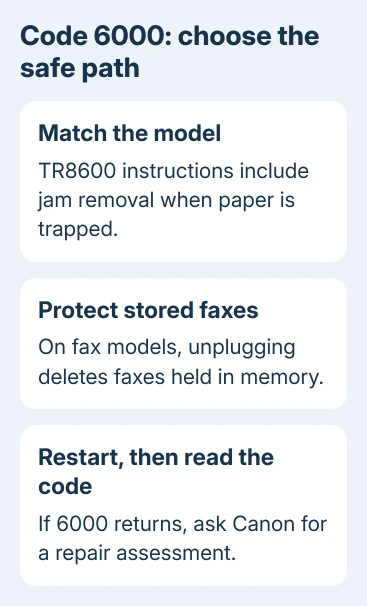
For Canon printer error 6000, restart the printer and, on models such as the TR8600, clear any jammed paper first. Save stored faxes before unplugging a fax model. If 6000 returns, request service.
The code alone doesn't name a part to replace. Match the procedure to the full printer model before opening covers or moving parts inside. A Windows connection error isn't the same problem as code 6000 on the printer.
In this guide
1. Match code 6000 to the printer model
Read the complete support code on the printer or computer message and note the model from the printer label. A model name containing 6000 isn't the same as support code 6000. Keep the full message available while checking the manual.
For TR8620 and TR8660, use the TR8600 series manual. Canon says to clear any paper jam before restarting, then request repair if 6000 remains.
On the E460 series, the steps for this code are shorter: turn the machine off, unplug it, reconnect power and restart it. If the error stays, the manual's next step is a service center. Don't assume its covers match the TR8600.
For a different displayed number, use the Canon support-code guide to separate paper, cartridge and service errors. A different warning needs the matching repair, even if restarting makes its message disappear temporarily.
2. Choose the jam route that matches the paper location
On a TR8600, look for paper at the output slot and rear tray. If a sheet is visible there, use the model's 1300 jam procedure. If it isn't visible, the manual separates cassette, automatic two-sided and inside-printer jams.
The TR8600 jam index connects each location with its instructions. That matters because pulling from the wrong opening can tear a sheet and leave the rest trapped inside.
The automatic document feeder holds originals for copying or scanning. It isn't the tray supplying blank printing paper. For a trapped original, choose the document-jam instructions rather than the print-paper route.
If a jam happened during printing and you need to switch off the TR8600, tap Stop on its touchscreen first. Then follow the shutdown and opening steps for the affected location. Wait for moving parts to stop before touching anything.
If you can't see trapped paper and the sheet you removed is complete, continue with the restart for code 6000. If the error returns and you can't reach any trapped paper, arrange service instead of taking the printer apart further.
3. Remove torn paper using the TR8600 procedure
Use this section for a TR8600-series printer with paper remaining inside. For other models, use their matching cover-opening diagrams. Open the linked inside-printer procedure so its labeled parts are visible before starting.
Switch off and unplug the printer for this procedure. On fax-capable models, unplugging deletes faxes stored in memory, so finish fax activity and save or print needed stored faxes before disconnecting power.
Open the scanning unit / cover. The inside-printer jam instructions mark a white belt that must not be touched. Leave that belt alone throughout removal.
Check whether paper is trapped under the print head holder. For this model, the instructions allow moving the holder slowly to the right or left by holding its top, in whichever direction makes the paper easier to remove.
Hold the trapped sheet with both hands and ease it out slowly. For paper inside the printer, the manual says to pull at about 45 degrees. If the sheet is rolled, unroll it enough to remove it rather than yanking a tight wad.
Check for scraps under the holder and in the empty spaces to its left and right. Compare the removed paper with the original sheet, including its corners. A missing corner means some of the sheet may still be in an accessible area.
Close the scanning unit gently when all paper is removed. I'd stop and arrange service if the paper won't come free with the described movement, rather than pulling harder against the mechanism.
4. Reconnect power and check the printer itself
After the jam procedure, reconnect the power cord and turn on the printer. For an E460 without a jam-removal step in its 6000 entry, use the same off, unplug, reconnect and on sequence specified for that model.
Let startup finish and read the printer's display or the computer's updated support message. Wait for the ready screen with 6000 gone before sending another document. If a different code appears, follow the instructions for that code.
On the TR8600 inside-jam procedure, queued jobs are canceled, so send the required print again once the printer is ready. Start with a short document and watch whether paper feeds and exits normally before resending a large batch.
When startup succeeds but the computer can't connect, use the Canon printer communication checks. The Windows printing checks cover a computer-side failure after the device error clears.
If 6000 comes straight back during startup, note that timing. If it appears only when a sheet starts moving, note the tray and whether paper becomes trapped. These details give the service team something useful to work with.
5. Request repair when the same code returns
If restarting doesn't clear the code, the official next step is a Canon service center. Give support the complete model, code 6000, whether paper was removed and whether the error returns at startup or during feeding.
Keep the serial number and purchase details ready for support. Ask for a repair assessment before ordering parts. The instructions for code 6000 don't identify a broken part just from the code.
For a fax model, tell support whether stored faxes remain and get packing advice for your model. Keep the printer in its normal position while arranging service rather than turning it over to search for hidden paper.
The Short Version
Match 6000 to the complete model. Clear an actual jam using that model's instructions, then switch off, unplug, reconnect and restart. Protect stored faxes first on fax models. A returning 6000 needs a repair assessment.
Checked November 15, 2026.
 If you have any business, I can build it online






