

Quest 2 microphone trouble with Link often comes from Windows or the game listening to a different input. Select Headset Microphone (Oculus Virtual Audio Device) while Link is connected, then check microphone permissions.
Sound playing through the headset doesn't mean its microphone is also selected.
In this guide
1. Unmute the headset and compare standalone voice
Open the Quest's quick settings and unmute its microphone. Try voice in a standalone app with microphone permission. If that works, the microphone is picking up your voice before you connect to the PC.
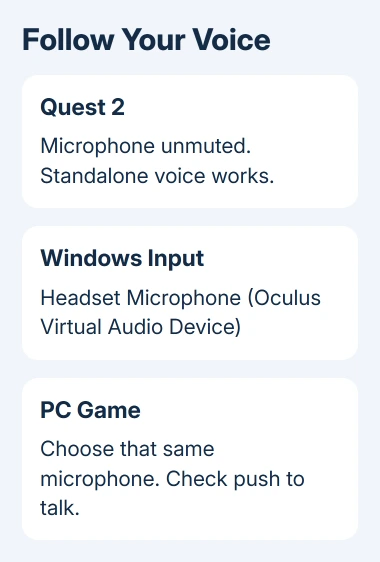
If standalone voice works, focus on Link, Windows and the PC app. If it fails there too, check that app's microphone permission and try another standalone voice app before treating this as a PC-only fault.
Remove any accessory covering the microphone openings. Don't push a pin into them. A blocked opening and a muted microphone can both make every connected app seem broken, regardless of which PC input you choose.
Restart the headset and computer once, then reconnect through Link or Air Link. Keep the session connected for the Windows checks so you're selecting the headset's available virtual input rather than an old disconnected entry.
2. Select the Quest microphone in Windows
In Windows 11, open Settings > System > Sound. Under Input, select Headset Microphone (Oculus Virtual Audio Device). Depending on the driver, the words can appear in a slightly different order.
Open the microphone's properties, choose Start test, speak normally, then end the test. Play back the sample when Windows offers it. Raise Input volume if it's low, but check the recording rather than relying on the slider's position.
In Windows 10, open Settings > System > Sound and choose the Quest microphone under Choose your input device. Speak and watch Test your microphone. The input-level indicator should respond to your voice.
A volume slider sitting at 50% is a setting, not a recording of sound. It can stay there while the microphone receives nothing. Microsoft's microphone troubleshooting steps explain selecting an input and checking its level.
If Windows hears you, move to the game's voice settings. If its test stays silent, check permissions and the recording device before changing individual games.
3. Allow the PC apps to use your voice
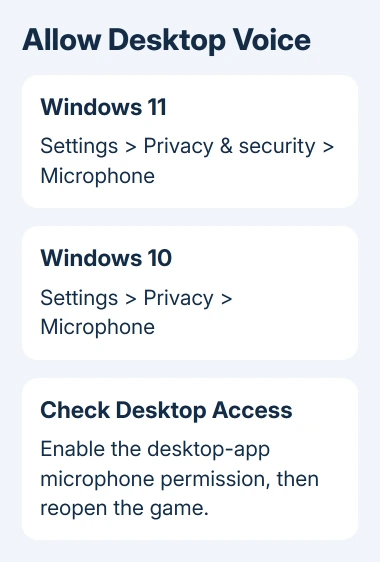
On Windows 11, open Settings > Privacy & security > Microphone. Turn on Microphone access and Let apps access your microphone, then check Let desktop apps access your microphone.
On Windows 10, use Settings > Privacy > Microphone. Under Allow access to the microphone on this device, choose Change if necessary and turn access on. Also enable Allow apps to access your microphone.
Scroll to Allow desktop apps to access your microphone and switch it on. A PC VR game or the Link app may use desktop-app access rather than appearing as a separate Microsoft Store app toggle.
Restart the game after changing permission. Return to its voice check or join the same private voice session you used for comparison. If the PC's test works but the game remains silent, check the game's selected input next.
On a managed computer, a disabled permission control can require the administrator's help. Ask them to check desktop microphone access for the Link app and game; changing an unrelated privacy setting won't unblock that permission.
4. Enable the virtual recording device
Press Windows+R, type mmsys.cpl, and press Enter. Open Recording. Find the Quest's Headset Microphone entry with Oculus Virtual Audio Device in its name.
If it's disabled, right-click it and choose Enable. Set it as the default recording device if the game uses Windows' default input. For communication apps, also check whether Set as Default Communication Device is available.
Open Properties > Levels for the selected microphone. Check its level and mute button. Close the dialog with OK, speak again and watch the recording meter next to that same device.
The Playback tab's headphones entry is the output, which sends sound to your ears. Choosing those headphones as the playback default doesn't select the microphone. Check the microphone entry while you're trying to get your voice working.
If the virtual microphone never appears while Link is connected, record that detail for support. Repeatedly changing defaults can't select a device Windows isn't listing.
5. Match the game's voice input to the working device
In the PC game's voice settings, select the Quest microphone from its input list. Some apps keep their previous selection after the Windows default changes, leaving them connected to a laptop mic.
Check the game's microphone mute, voice-chat enable switch and Push to talk setting. For push to talk, hold the assigned key while speaking. Even if a mic test hears you, the game can still require that key to send your voice.
For SteamVR or another PC voice app, check its own selected input too. Meta support's Quest 2 Link discussion identifies the virtual recording device and Windows desktop microphone access as checks for this symptom.
If another PC app hears you but one game doesn't, tell the game's support team. Name the input and say whether its meter moves when you speak. Keep the working apps and drivers installed while checking that game.
I'd confirm a clear Windows microphone test before buying an external mic.
6. Escalate a Link-only failure with useful details
Update Link and the headset using their normal update controls, then retry the Windows input check. Compare wired Link with Air Link if both are available. Write down which connection fails.
If standalone voice works but the virtual microphone stays silent with both PC connections, open the Help Center and contact Meta Quest Support. Describe the Link microphone fault and include both software versions.
Include the Windows version, recording-device name and test result. If several PC microphones fail, use the broader Windows microphone checks before treating this as a Link-only problem.
The Short Version
Connect Link with Quest 2 unmuted, then test its virtual microphone in Windows. Allow desktop microphone access and select that input in the game. Fix a silent Windows test before adjusting game voice controls.
Checked November 15, 2026.
 If you have any business, I can build it online






