

An ASTRO A50 microphone can stay silent while game audio works because Windows has selected the wrong recording device. Lower the microphone boom, put the base station in PC mode, then select the A50 microphone under Sound > Input.
The input name depends on the generation. A Gen 4 base uses ASTRO A50 Voice; newer PLAYSYNC models use A50 Mic Out. A voice that cuts in and out needs a different check: the microphone's noise gate can be blocking quiet speech.
In this guide
1. Lower the boom and select the PC connection
Rotate the microphone down toward your mouth. On newer A50 models, moving it fully upright mutes the microphone at the headset itself. An app's unmute button can't reverse that physical mute.
Check the base station next. A Gen 4 base has a PC mode switch. Set it to PC and attach the base to a computer USB port. A newer base with PLAYSYNC needs its PC USB connection selected instead.
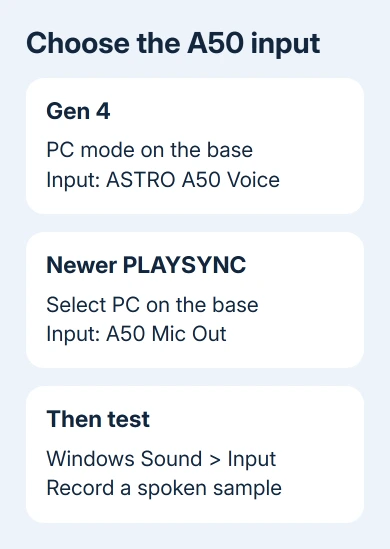
Don't copy an Xbox or PlayStation setup into Windows. The platform selected on the base controls which connection you're using, even when the headset is on and sitting beside the PC.
Take the headset off the dock and speak at normal volume after selecting PC. If sound reaches Windows, continue to the app check in section 4. If it doesn't, check the recording device before changing microphone processing.
For a separate desk microphone, USB and XLR connections need different controls. The A50 sends microphone audio to the PC through its base, so changing another microphone's settings won't fix it.
2. Choose the recording input for your A50 generation
On Windows 11, open Settings > System > Sound. Under Input, choose the A50 recording source. Keep the input and output lists separate: hearing the game through A50 Game doesn't mean the A50 microphone is selected.
For A50 Gen 4, select ASTRO A50 Voice as the recording input. Its setup instructions also use A50 Game for normal playback and A50 Voice for communications playback.
Select the recording microphone separately from those playback choices.
For the newer A50 with PLAYSYNC, select A50 Mic Out under Input. Its official PC setup uses A50 Game as Output. Read the names Windows actually shows rather than searching for the older Voice label on every generation.
On Windows 10, open Settings > System > Sound and choose the microphone under Input. The older interface shows Choose your input device rather than the Windows 11 device cards.
If several similar entries appear, unplug the base's PC USB connection briefly and watch which entries disappear. Reconnect it and select the matching input. That way, you won't test the laptop microphone or another USB headset.
On Gen 4, the older Sound control panel also has a Recording tab. If calls keep choosing another input, select ASTRO A50 Voice there. Use Set Default to make it both the recording default and the communications default.
3. Listen to a Windows microphone test
In Windows 11 Sound settings, select the chosen A50 input to open its properties. Under Microphone test, choose Start test, speak normally, then choose Stop test. Play the recorded sample where that option appears.
Microsoft says to test the selected microphone and adjust its input-volume slider if needed. Increase it if the sample is faint, then repeat the same spoken sentence so the comparison means something.
A clear recording means the microphone signal is reaching Windows. Leave the base and cable alone at that point. The remaining fault is in the calling app, its selected input or its permission to record.
If the input doesn't appear at all, plug the base into the computer itself, temporarily bypassing any dock or hub. Try another suitable USB data cable if the connection still isn't detected.
I'd check the input name before reinstalling anything. A working headset pointed at the wrong recording source can look exactly like a broken microphone during a call.
4. Give the calling app the same working input
Open the app's Audio, Voice or Devices settings and select the A50 input that passed the Windows test. A saved app choice can keep using the laptop microphone after Windows has switched to the headset.
Check the call's own mute control too. Then make a short test call or recording inside that app. When the Windows sample has your voice and the app sample is silent, check the program's settings.
In Windows 11, open Settings > Privacy & security > Microphone. Enable Microphone access and app access. Desktop calling programs need Let desktop apps access your microphone enabled.
In Windows 10, start at Settings > Privacy > Microphone. Check device access, app access and the separate desktop-app control. Quit and launch the calling program again when its access changes.
For other microphones failing at the same time, use the wider Windows recording checks. When every recording source fails, check Windows itself rather than one program's A50 selection.
5. Turn down a noise gate that clips your voice
A noise gate cuts out sounds quieter than a set level. Set too aggressively, it can remove the beginning of words or make soft speech disappear even though louder speech records properly.
On supported newer A50/A50X models, open G HUB or the G Mobile app and turn off Noise Gate for a comparison. Logitech's choppy microphone guidance gives that check before changing the headset.
Record the same sentence again. If it becomes complete, adjust the gate less aggressively for your room. If it remains choppy, try a direct PC port instead of a USB hub or docking station.
Those settings are for the supported newer models. Gen 3 and Gen 4 use ASTRO Command Center for their adjustable settings; installing G HUB isn't a universal fix for every A50 generation.
When the A50 still won't record
Use Logitech Support's A50 product page to open a microphone support case. Include your headset generation, PC mode, Windows input name, and whether the Windows recording was silent, faint or interrupted.
Include whether a direct USB connection changed anything. Ask for the firmware and service steps for that exact headset and base combination. Avoid a reset shortcut from another generation while those details are still unclear.
The Short Version
Lower the boom, select PC on the base, and choose A50 Voice or A50 Mic Out for the correct generation. Test in Windows before changing the app. For clipped speech on supported newer models, compare with Noise Gate off.
Checked November 15, 2026.
 If you have any business, I can build it online






