

A Windows 10 installer blue screen often involves incompatible drivers, damaged USB media, or unstable hardware. Unplug extra accessories, but keep the installation USB attached. Note whether Setup opens before the crash.
When it crashes determines what to try next. A crash while booting the USB calls for a different approach than an upgrade that returns to your old desktop with an error code.
In this guide
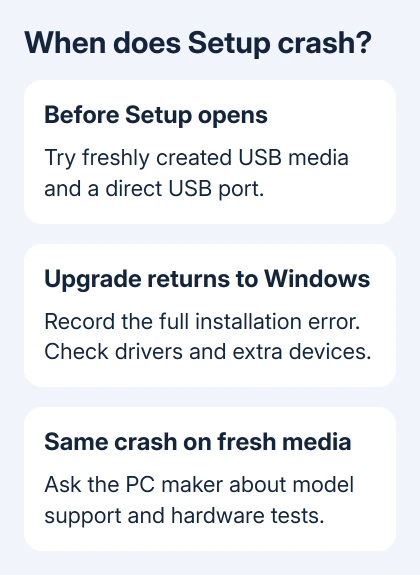
1. Note the crash code and the stage of installation
Take a photo of the stop code plus any filename ending in .sys. Record whether you started setup.exe inside Windows or booted directly from a USB drive. These start Setup in different ways, even though they use the same downloaded files.
A blue background with a language selector is normal Windows Setup, waiting for your choice. A crash screen shows a problem message and stop code. That's different from waiting at Setup, especially if the PC restarts after the error.
If an upgrade returns to the old Windows desktop, write down its full installation error as well. A code beginning 0xC1900101 usually points to a driver problem. It isn't the name of one particular broken device.
For a crash outside installation, use the stop-code troubleshooting steps. This page follows the failure through Setup, including a USB that won't reach the first installation screen.
2. Retry with only the hardware Setup needs
Shut the PC down. Disconnect the dock, printer, external storage, game controllers, and other unnecessary USB accessories. Keep the keyboard, mouse, display, power supply, and the USB drive you're actually installing from.
Retry Setup with fewer devices. If it passes the earlier crash point, an accessory or driver was involved. After installation, add the other devices back individually. Watch for the crash returning when you reconnect a device.
Microsoft's installation error guidance recommends removing extra hardware and checking drivers for upgrade failures.
On a laptop, keep the charger connected directly while the dock is removed. A low battery can interrupt Setup again and make the original crash harder to track down.
If the same stop code returns with only essential hardware, continue with the installation media. Repeating the unchanged attempt several times won't repair a damaged installer.
3. Rebuild a USB installer that crashes before Setup opens
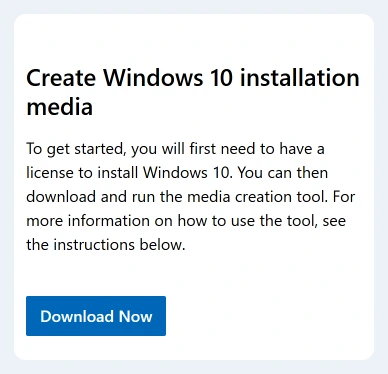
Use another working Windows PC to create fresh installation media from the official Windows 10 download page. Under Create Windows 10 Installation Media, choose Download Now, run the tool, and choose its option for creating a USB installer.
Use an empty USB flash drive. Its capacity must be 8 GB or greater. Creating the installer erases that flash drive, so copy anything needed from it before selecting it in the tool.
I'd use a different flash drive for this attempt if one is available. You'll be replacing both the installer files and the drive carrying them, rather than trusting the same questionable USB drive again.
Plug the installer into the PC, without a hub. Use the manufacturer's one-time boot menu to select it. The menu key depends on the model, so follow its instructions and leave unrelated firmware settings alone.
If the fresh USB reaches the language and keyboard screen, the original installation media or its connection was involved. If two independently created drives fail at the same point, move to the PC's drivers and hardware support.
4. Fix driver problems when the old Windows still starts
For an upgrade launched from a working desktop, return to that desktop before making changes. Open Settings > Update & Security > Windows Update and check the updates available to that installation.
Open Device Manager from Start. Check each device category for yellow warning symbols. Open the affected device's properties and read its error before choosing a driver update.
On the PC maker's support page, get chipset, storage, and graphics drivers that match your full model number and Windows version. A similarly named laptop can use different components, so matching only the product family isn't enough.
A filename on the crash screen can help the manufacturer identify the driver. Don't delete the named file from Windows. A driver file can appear in the crash without being something you can safely remove by hand.
If crashes also happen during ordinary use and show MEMORY_MANAGEMENT, follow the checks for that stop code. Don't buy new memory solely because Setup stopped unexpectedly.
5. Remove upgrade conflicts without erasing the PC
When Setup launches inside Windows, third-party security software and background programs can interfere with the upgrade. The old desktop needs to work for this section; it doesn't apply to a USB that crashes before loading Setup.
For a third-party antivirus, note how to reinstall it, then uninstall it through Control Panel > Programs > Programs and Features. Restart before retrying. Built-in Windows protection can cover that interval.
For an error that names an incompatible app, uninstall or update that app rather than clearing unrelated programs. Keep the error in your repair notes so you can compare the error from your next attempt.
If Setup offers a choice that removes personal files or partitions, stop and back up the existing installation first. Erasing Windows replaces far more than the part causing the crash.
6. Check model support when every fresh attempt crashes
Search the manufacturer's support site using your complete model number, then check its supported Windows versions. Newer hardware can lack Windows 10 storage or graphics drivers even when a Windows installer starts loading.
Ask the manufacturer about the recorded stop code, the installation stage, and any required storage driver. Don't randomly switch RAID, AHCI, or other storage modes: that can prevent the existing Windows installation from booting.
Run the maker's preboot memory and storage tests if provided, and save any error codes. If separate installers keep crashing or a hardware test fails, ask the maker for a repair assessment rather than another Windows reset.
For ordinary Windows 10 support, the final day was October 14, 2025. Repairing Setup doesn't extend that support. Check the PC's supported operating-system options before investing time in a fresh Windows 10 installation.
The Short Version
Save the code and crash stage. Remove extra hardware and remake USB media that fails before Setup opens. For a rolled-back upgrade, repair drivers and app conflicts. Ask the maker about compatibility and hardware if crashes continue.
Checked November 15, 2026.
 If you have any business, I can build it online






