

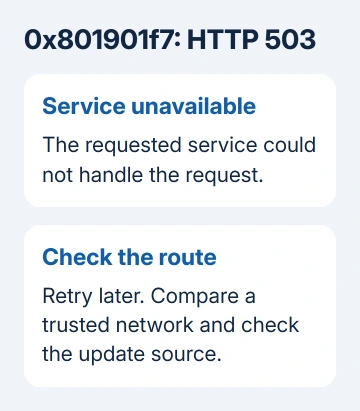
Windows Update error 0x801901f7 is a service-unavailable response. Retry later and check the update connection before deleting files. The code means HTTP 503: a server, proxy or update source couldn't handle the request.
The same code can appear while installing an optional Windows feature. Note whether it appears in Windows Update, Optional features or another app, because the failed request matters more than a generic list of update repairs.
In this guide
1. Retry the failed request after a restart
Save your work, choose Start > Power > Restart, then return to the place that showed the error. In Windows 11, open Settings > Windows Update and select Check for updates. Use Retry if the failed update offers it.
On Windows 10, use Settings > Update & Security > Windows Update. The settings path differs, but check the connection first for this error before making bigger changes to Windows.
Windows 10's regular free support ended October 14, 2025. Check your eligibility for Extended Security Updates separately; fixing the connection won't make an ineligible update available.
If the attempt now works, let the download and installation complete. A temporary service problem doesn't require a Windows reset. If it fails again, write down the code, time and update name, including its KB number when shown.
The error-code reference maps 0x801901F7 to HTTP 503. That explains the response; it doesn't tell you which server sent it or prove that every Windows Update server is down.
If the error appeared while adding an optional feature, retry that same feature after the restart. Don't assume a downloaded cumulative update will supply a separate feature's files.
2. Compare another connection before changing Windows
Check that the PC can open ordinary websites and finish any Wi-Fi sign-in page. Working browsing is useful, but updates use different service addresses, so successful browsing alone can't confirm that Windows Update can connect.
On a personal PC, disconnect a VPN temporarily if one is active, then repeat the failed update request. Reconnect it after the comparison. This checks whether the request works without the VPN changing its route.
If practical, compare a second trusted network, using your phone's private hotspot, for example. Keep mobile-data costs in mind before downloading a large update. Use the same update or feature request for the comparison.
If the second network succeeds, focus on the original network's proxy, filtering or router setup. If both return the same code, the service could still be unavailable, or a setting on your PC could affect both connections.
I'd compare the connections before deleting cached updates. An update that works immediately on another network points toward its original connection, making file removal a poor first choice.
For a PC whose connection broke after an update, the Windows internet-after-update checks address that separate problem. Restore a usable connection before judging the update request again.
3. Check whether a proxy or organization controls updates
Open Settings > Network & internet > Proxy in Windows 11. Windows 10 uses Settings > Network & Internet > Proxy. Note any setup script or manual proxy address before making a change.
On your own PC, correct a proxy setting only when you know it is obsolete or wrong. Don't remove an employer's proxy or update settings. A managed PC can depend on an internal server that isn't reachable away from its required network.
Microsoft's Windows Update connectivity guidance describes HTTP 503 as a failure to reach the configured source, and recommends checking the network and proxy.
For a work PC, give IT the exact code. Ask them to check the update source, its availability and proxy authentication. Say whether it fails on the company network, at home or through its VPN.
If multiple PCs on that network fail together, include that detail. If only this PC fails, say so too. Those results help IT choose between a shared update service problem and this machine's configuration.
4. Run the Windows Update troubleshooter
Search Start for Get Help, open the app and describe the Windows Update error. Follow its automated Windows Update checks and write down any problem it reports.
The alternative Windows 11 path is Settings > System > Troubleshoot > Other troubleshooters. Find Windows Update and select Run. Depending on the Windows build, this can open Get Help.
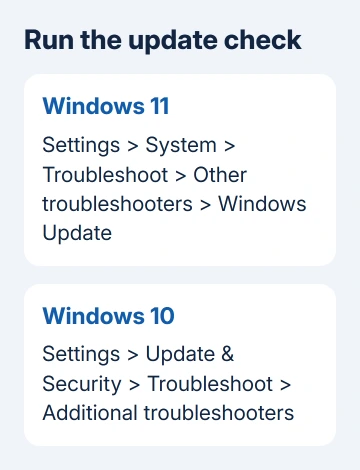
On Windows 10, open Settings > Update & Security > Troubleshoot > Additional troubleshooters. Select Windows Update > Run the troubleshooter. Restart when the process finishes, then check for updates again.
Finishing those checks doesn't mean your update is fixed. Return to the failed item and check its result. If the code changes, keep the new code because the next repair should fit the new failure.
If the tool itself refuses to start, use the Windows Update diagnostic startup checks. That is a tool problem to resolve separately from the original service response.
5. Separate update downloads from optional-feature failures
For a failing cumulative update, record its KB number from the Windows Update page or update history. For a failing optional feature, record the feature's exact name and whether normal Windows updates still download.
This distinction is especially useful when a feature downloads installation content after you select it. A successful monthly update doesn't confirm that the separate feature request can reach its source.
If the error came from a DISM command or feature installer, keep the exact command or installer message. Send support the command and error, without account credentials. Don't replace it with a guessed command for a different feature.
Don't erase the PC to address a persistent service-unavailable response. A reset changes a lot on your PC and can't bring an unavailable server back online. Have the source or network problem checked before reinstalling Windows.
6. Escalate a persistent service response with useful details
For a personal PC, use Get Help to request assistance with Windows Update. Supply the Windows version from Settings > System > About, update or feature name, failure time and results on the second connection.
For a managed PC, ask IT to review the Windows Update logs and responding service address. The HTTP 503 response tells them to check the configured source and connection rather than starting with Windows reinstallation.
Keep normal security protection enabled until the problem is fixed. Once the source is reachable again, retry the failed item and check that Windows reports a completed installation rather than another download error.
The Short Version
0x801901f7 points to an unavailable service response. Retry, compare a trusted connection, check proxy or managed-update routing and run the troubleshooter. Give support the failed update or feature and the exact response if it persists.
Checked November 15, 2026.
 If you have any business, I can build it online






