

VLC is a free offline music player for Android that can play audio files saved on your phone. Copy your songs onto the device, allow VLC to access music, and open its Audio library. Local songs play without a mobile connection.
Songs downloaded inside a subscription music app are different. Those downloads normally stay inside that service; installing another player doesn't turn them into ordinary MP3 files that VLC can open.
In this guide
Start with music files the phone actually holds
Open the phone's file manager and find one song you want to play. Check Music and Downloads, or find your Android downloads if you saved the song through a browser. On a Galaxy phone, the file manager is usually called My Files.
A local music file has its own filename and extension, such as .mp3 or .flac. A playlist entry or a favorite saved in a streaming service isn't the audio file itself. Start with one known song so an empty library is easier to understand.
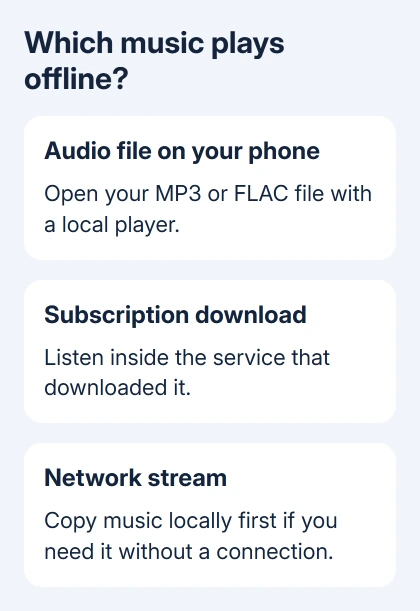
If your music exists only on a computer, copy it to the phone before setting up the player. If it's an offline download inside another music service, play it through that service's app and account instead.
VLC can also open network streams and shared folders. Those features need a connection to their source, so they aren't a substitute for keeping the actual songs on the phone before a trip.
Install VLC and allow access to your music
Open Google Play, search for VLC for Android, and check that Videolabs is shown as the publisher. Open VLC and follow the setup prompts.
Allow audio access when Android asks. Newer releases can call it Music and audio; older phones can use a broader media or storage permission. Follow the request shown on your device.
If you previously denied access, open Settings > Apps > VLC > Permissions and allow the music or media permission offered there. Return to VLC afterward so it can read the files it couldn't see before.
You don't need to give a local music player microphone access just to listen to an MP3. Permission to read stored audio lets VLC find and open your songs.
During setup, choose the folder containing your songs if VLC offers folder selection. Keeping your albums in one Music folder makes the library easier to manage than scanning every download and messaging folder.
Copy songs from a Windows PC by USB
Unlock the phone. Attach a USB data cable between it and the Windows computer. Tap its Charging this device via USB notification and find Use USB for, then choose File transfer.
Google's USB file-transfer instructions explain this connection. A charge-only cable can supply power without giving Windows access to files, so try a data-capable cable if the transfer option never works.
In Windows File Explorer, open the phone under This PC, then open its shared internal storage. Copy the music files into Music, keeping album folders together if they're already organized that way.
Wait until copying finishes, eject the phone from Windows, and unplug the cable. Open VLC after the transfer so the app can scan the completed files rather than trying to play a song that's still being copied.
If the PC doesn't show the phone, keep it unlocked and recheck File transfer. Copying music and backing up Android do different things: copying a few songs doesn't back up your app data or messages.
Play an album and keep a useful queue
Open VLC's Audio section. The library groups music into Artists, Albums, Tracks, and Genres. Select an album or use Tracks to find the test song directly.
Tap a track to play it. The small player strip at the bottom opens the full audio player. Check that the title matches your intended song before deciding that the library order is wrong.
Use an item's menu to choose Play, Append, or Insert next. Append adds music to the current queue; Insert next puts it immediately after the song playing now. The files can stay in their existing order in storage.
For a collection you want to keep, choose Add to playlist and select or create a playlist. A playlist remembers the chosen music, but it doesn't make a separate backup copy of each song.
I'd test one complete album before copying a huge collection. It confirms the files play, the library sees the right folder, and the order makes sense without leaving hundreds of untested transfers to sort out.
Fix an Audio library that stays empty
First, open Browse in VLC and locate the same folder in local storage. If the song plays from Browse but doesn't appear under Audio, the file works. Check which folders VLC scans for its library.
Open More > Settings > Media library folders and select the music folder. Selecting a folder includes the folders inside it. To include only some of those subfolders, clear the main folder first, then select the ones you want.
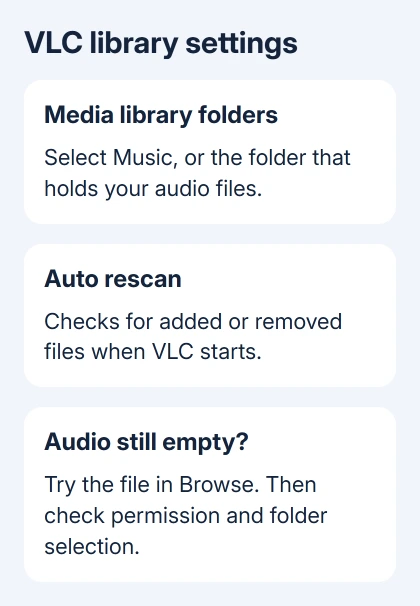
Enable Auto rescan if you want VLC to check for added and removed media at startup. Return to Audio and use Refresh from its menu when available, then look for the test track again.
If Browse can't find or open the file either, return to Android's permission page and the file manager. VLC can't read a normal local file from a memory card the phone hasn't connected to, or from cloud storage that needs account access.
If the phone cannot read a removable card, keep your original music files safe. Formatting an SD card erases its contents, so it isn't a first fix for missing songs in a player.
Confirm offline playback before relying on it
Turn on Airplane mode, then check that Wi-Fi is also off. Open a song from the local Audio library and let it play. A track that continues without a network connection is ready for offline use.
Try another album as well, especially if some entries came from a network source. Seeing a title in a player doesn't mean its audio has been copied to the phone; this offline test checks the files you'll actually need.
If one file fails while other local songs work, copy that file again from the original and retest. If it fails in another player too, ask the file provider for a working copy rather than resetting the phone.
If VLC still can't read any of your music, send its support team your VLC and Android versions, the file type, and where the files are stored. Say whether Browse plays the file. That tells them whether scanning or playback needs attention.
The Short Version
Keep ordinary audio files on the phone and allow VLC to read them. Copy songs by USB and select their library folder. Before leaving home, check playback with Airplane mode enabled and Wi-Fi off.
Checked November 15, 2026.
 If you have any business, I can build it online






