

Windows 11 can be activated from Command Prompt with a valid product key: install the key with slmgr /ipk, restart, then request activation with slmgr /ato. You'll need a license you already own; the commands don't supply one.
A digital license usually doesn't need a key entered again. Check activation first, especially after reinstalling Windows. The instructions differ for purchased keys, existing digital licenses, and work PCs.
In this guide
Match the edition to the purchased key
Open Settings > System > Activation. Read the edition name together with Activation state. A Home license and a Pro installation aren't interchangeable, even when both say Windows 11.
If the state is already Active, you don't need to run activation commands. Expanding the state gives more information about the license. Our activation status guide explains those messages.
If Windows previously activated on this computer, connect to the internet and check whether the same edition was reinstalled. A digital license can activate that edition without asking you to recover an old printed key.
After a motherboard replacement, use the activation troubleshooter with the Microsoft account linked to the license. Entering the same key repeatedly won't tell you whether that license can move to the replacement hardware.
For a new key, check the purchase email, packaging, or seller's record. Keep all 25 characters private. Share the activation error with support, but hide the full key in any public discussion.
Open Command Prompt with administrator access
Select Start, search for cmd, then select Run as administrator. Approve the permission request. If Windows asks for administrator credentials, use an account that has administrator access.
Check that the window title shows you're running as an administrator. Installing a key changes system licensing. A regular Command Prompt can show some license details, but it can't run every activation command.
Windows Terminal can also host Command Prompt. When the first Terminal tab is PowerShell, select Command Prompt from its tab menu. Open Terminal as administrator so its Command Prompt tab has permission to run these commands.
I'd use the full cscript command here because it prints the result in the same window. That makes an error code easier to keep than a dialog that disappears when you close it.
Install your purchased Windows 11 key
Enter this command, replacing YOUR-25-CHARACTER-KEY with your actual key, including its hyphens:
cscript.exe //nologo %windir%\system32\slmgr.vbs /ipk YOUR-25-CHARACTER-KEYPress Enter and read the result before continuing. A success message means Windows accepted and installed your key. It doesn't mean the online activation request has already succeeded.
If the key isn't valid for the installed edition, the command returns an error instead. Compare Home or Pro in Settings with the edition shown on the receipt. Don't try unrelated keys as a way of discovering which edition was purchased.
Microsoft's SLMGR command reference explains that /ipk replaces an existing installed key when the new one is accepted. It also recommends restarting Windows or its licensing service afterward.
Choose Start > Power > Restart, then sign back in. Restarting is the straightforward option for a personal laptop because it avoids manually stopping a Windows service. Save any open work before doing it.
If your purpose was a Home-to-Pro upgrade, the Windows Pro upgrade procedure covers the edition change. Installing a key doesn't replace the edition check: make sure Windows is running the edition you intended.
Request activation and confirm the result
Open an administrator Command Prompt again and run:
cscript.exe //nologo %windir%\system32\slmgr.vbs /atoWith a matching retail key installed, this asks Windows to activate online. Keep your internet connection active and read the message it returns. If activation fails, save the exact error code rather than running the command over and over.
Return to Settings > System > Activation. Check that Activation state now reads Active. This confirms activation in Windows itself; installing the key was only the first part.
To display licensing information in the prompt, use:
cscript.exe //nologo %windir%\system32\slmgr.vbs /dliAnother read-only check is:
cscript.exe //nologo %windir%\system32\slmgr.vbs /xprThe second command displays activation expiration information. Retail licenses and multiple-activation-key licenses normally don't expire. Organization-managed activation can instead have an expiration and renewal cycle.
When the command returns an activation error
An edition mismatch needs the correct edition or a suitable license. A blocked key needs help from the seller or activation support. A network-related error needs a working connection before another online activation attempt can succeed.
For a previously activated PC, select Troubleshoot on the Activation page when available. Follow its hardware-change route if that is what happened. Have the account linked to the original license ready.
Work-managed computers can use Key Management Service (KMS), an activation system run by the organization. With a KMS client key installed, /ato tries that system rather than activating a retail license.
Connect through the required work network or VPN and ask IT about activation. Don't replace its server address with a public KMS address. The organization must supply its own license and connection details.
For a personal PC, open Windows Get Help and request activation support. Provide the edition, error, where you bought the key, and any hardware change. Ask the seller to resolve a rejected key within its return period.
The Short Version
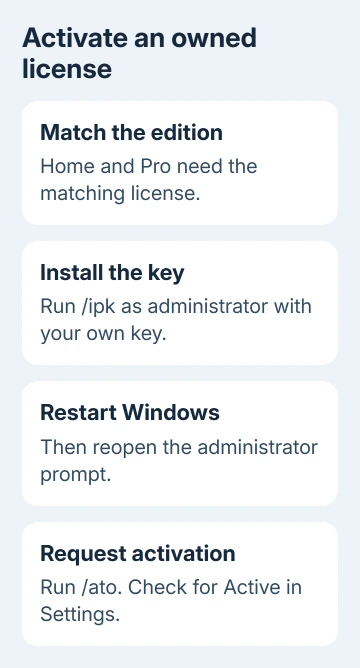
Match the edition to your license. Open an administrator prompt, install your key with /ipk, restart, and run /ato. Confirm Active in Settings. Digital and work-managed licenses need their account or organization checks.
Checked November 15, 2026.
 If you have any business, I can build it online






