

When Windows 11 won't start after KB5094126, try its recovery tools before reinstalling. Start with Startup Repair; if the June update just installed and Windows still won't start, try the recovery menu to remove the latest quality update.
KB5094126 was released on June 9, 2026. A recovery-key screen, black desktop and startup loop need different checks. Error 0xc0430001 when starting from an updated installer needs a separate file repair, covered in section 6.
In this guide
1. Match the screen and check the update's timing
For a BitLocker recovery screen, find the matching recovery key before changing firmware settings. The screen's key ID identifies the key required for that encrypted drive. An ordinary Windows password doesn't unlock that recovery prompt.
Use the BitLocker key recovery steps to check the account or organization holding it. On a company PC, give IT the key ID and device details rather than experimenting with security settings.
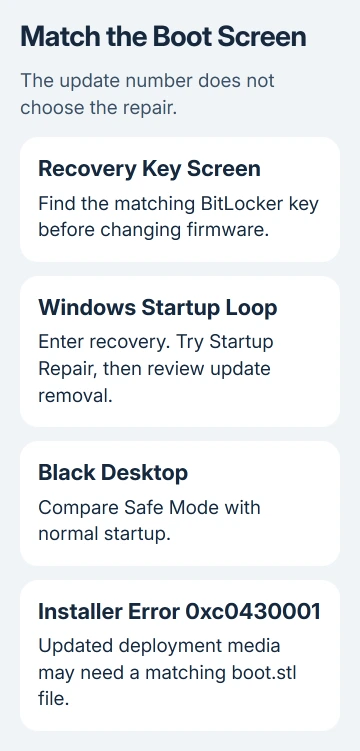
For a restarting PC, photograph the stop code or message. For a black screen, note whether it appears before sign-in or after the desktop would normally load. Support needs that screen description along with the update number.
If Windows still opens, check Settings > Windows Update > Update history. Confirm the installation date next to KB5094126 and whether a later cumulative update has installed since then.
A June update appearing far down the history doesn't make it the cause of a new November fault. If a different update immediately preceded the failure, work from that date and package instead.
The June update bulletin identifies builds 26200.8655 and 26100.8655. Include the update package, Windows build and installation date when asking for help.
2. Reach Windows Recovery without starting an installation
Repeated failed starts can open Automatic Repair. Select Advanced options to enter the recovery tools. The blue recovery menus are separate from the blue BitLocker screen asking for a key.
If the sign-in screen responds, hold Shift while choosing Power > Restart. A working desktop also offers Settings > System > Recovery > Advanced startup > Restart now.
If startup reaches neither screen, you can open recovery by interrupting two starts. At the Windows or maker logo, hold power until the PC switches off. Repeat once, then leave its third startup uninterrupted.
Use interrupted starts only for a PC already failing to boot. Don't interrupt a firmware update, an active repair or an installation progress screen that is still advancing.
When built-in recovery won't open, use Windows installation media made on another computer. Start from that media and choose its repair option. Choose repair so you can reach the tools without starting a clean installation.
Microsoft says its Windows recovery environment contains the startup and update-removal tools. Reaching that menu gives you repair choices without committing to erasing Windows.
3. Let Startup Repair attempt the startup fix
Choose Troubleshoot > Advanced options > Startup Repair and follow the prompts. Enter the drive's recovery key if requested. Let the tool complete its work and restart the computer.
Startup Repair checks for damaged system files and problems with Windows startup settings. It doesn't remove all installed updates, and it can't fix every failure involving the PC's firmware.
If the sign-in screen returns, sign in and back up needed files onto separate storage. Then check Update history and the current Windows build before deciding which update or driver needs further attention.
If the repair reports it couldn't fix the PC, record that result. Return to Advanced options rather than restarting the same repair repeatedly. Choose the next repair based on whether the failure followed a newly installed quality update.
I'd keep a photograph of the original error and repair result together. It makes the support conversation much easier if the next restart produces a different message.
4. Remove the latest quality update only when it matches
If the failure started immediately after that cumulative update, choose Troubleshoot > Advanced options > Uninstall Updates > Uninstall latest quality update. Follow the confirmation prompts and allow Windows to restart.
That choice targets the latest removable quality update. It isn't a picker for any historical KB number. If newer updates are installed, don't assume this button will remove the June package.
With the desktop working, look for a specific update in Settings > Windows Update > Update history > Uninstall updates. Select the appropriate listed update and use Uninstall when available. Some packages can't be removed there.
Treat security-update removal as temporary because its protection is removed too. Once Windows starts, check for a current supported update and review the PC maker's firmware advice rather than staying on an older build.
If the failed update can't be uninstalled, return to the recovery options and ask support about a suitable restore point or further repair. Avoid deleting update files or partitions by hand.
5. Use Safe Mode for a black screen or repeated desktop freeze
For Windows that reaches startup but fails as the usual desktop loads, open Troubleshoot > Advanced options > Startup Settings > Restart. On the numbered startup screen, select the Enable Safe Mode entry using 4 or F4.
Safe Mode loads fewer services and drivers than normal startup. If it reaches a usable desktop, tell support that it works there but fails during normal startup. That difference alone doesn't tell you which update caused the problem.
Write down whether the same error happens there. Leave Safe Mode with a normal restart, then take the comparison to support if normal startup still fails. If you can reach a working desktop, back up your files before further repair.
A named storage-driver failure needs its own route. The AMD SCSI boot recovery guide covers that separate driver incident rather than this cumulative update.
6. Fix 0xc0430001 on updated installation media
The June bulletin describes a separate problem for administrators adding dynamic updates to an existing installation image, the files used for a Windows installer. Missing boot.stl can prevent startup from that media and produce 0xc0430001.
For that installer problem, copy boot.stl from the matching device's Windows\Boot\EFI folder into the corresponding location on the installation media before deployment. The file must match the image's Windows version and architecture.
This repair applies to the prepared installer. It won't fix every PC with a startup error. Don't copy a file from an unrelated Windows version to an existing system drive. Ask the deployment administrator to rebuild or correct that media.
Get model-specific help if recovery still fails
Send the PC maker your model, any known firmware version, stop code and repair results. Ask about startup failure after the installed update and which firmware matches the device before changing Secure Boot settings.
Give Microsoft Support the build, update date, BitLocker state and Safe Mode result. If repairs fail and needed files have no backup, arrange data recovery before a reset or reinstall goes ahead.
The Short Version
Choose recovery from the failed screen and try Startup Repair. Remove a quality update only when its timing matches. For desktop failures, compare Safe Mode. Give support the exact package, build, model and repair results.
Checked November 15, 2026.






