
Windows 10 error 0xc000000e means Windows can't reach a device it needs to start. Remove unnecessary external drives and try Startup Repair. After a drive replacement or clone, check the boot target before rebuilding boot files.
The code is often searched as 0xc00000e, with one fewer zero. Read the recovery message too: a missing device, a named boot file, and a disk absent from the computer's startup settings each need a different check.
In this guide
1. Remove external drives and check the startup disk
Shut the computer down. Disconnect USB storage, memory cards, and external disks that aren't needed to start Windows. Leave the keyboard and mouse connected, then switch the computer on again.
If Windows starts, reconnect external storage one device at a time at the desktop. If reconnecting one device brings back the error, check the boot order: the computer may be trying that drive instead of Windows.
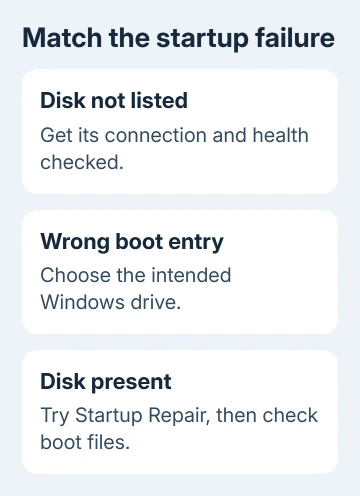
If the error remains, open the computer's firmware setup, its built-in startup settings. Use the key shown at startup or follow your model's instructions.
Read the storage information to see whether the internal drive appears. Write down what's listed before changing settings.
If the drive isn't listed, have its hardware and connection checked. Software boot repair can't write files to a disk the computer can't see. For a laptop, have its manufacturer or a technician examine the SSD connection and drive health.
After a clone, check which disk the selected Windows Boot Manager belongs to, where firmware shows it. Don't randomly switch UEFI, Legacy, AHCI, or RAID settings. Windows needs the mode it was installed to use.
Our boot device selection guide covers a computer that keeps choosing the wrong startup drive. Continue with recovery when the intended disk is present but Windows won't load.
2. Open recovery and run Startup Repair
Try the recovery option on the error screen to reach the Windows Recovery Environment, the repair tools that run when Windows can't start. There, choose Troubleshoot > Advanced options > Startup Repair and follow the restart prompt.
If the built-in recovery environment won't open, start from Windows installation media. On the setup screen, choose Repair your computer rather than proceeding with installation, then open the troubleshooting and advanced options.
For an encrypted device, get the BitLocker recovery key before recovery. The tools may require that key to unlock the drive and access Windows. A request for the key is separate from the 0xc000000e error.
Microsoft's Startup Repair instructions describe damaged boot configuration and other startup problems. Let the tool finish, then try a normal start without the installer USB connected.
If Windows opens, back up important files before further changes. If repair fails, record the result and continue. Repeated repair attempts won't identify which disk or partition it couldn't use.
3. Make installer media when recovery is unavailable
On another working Windows PC, open the official Windows 10 download page. Under Create Windows 10 installation media, select Download Now to get the media creation tool.
Run the tool, choose its option to create media for another PC, and follow the language and architecture choices.
Creating the installer erases the USB drive. Save its existing files somewhere else before running the tool. Keep that USB separate from any disk holding the only copy of files from the broken computer.

Insert the prepared media into the affected computer and select it from that model's one-time boot menu. Booting from USB is different from opening the USB's setup program inside a working copy of Windows.
At Windows Setup, use Repair your computer to reach recovery tools. If the PC boots to the same error immediately, check that it actually started from the USB. The boot-menu key varies by manufacturer and model.
October 14, 2025, was the end of Windows 10's free support. Boot repair doesn't change its update support. Once the files are safe and the PC works, review supported operating-system options separately.
4. Repair boot files only after identifying Windows
Use this step if Startup Repair failed, the disk appears in firmware, and you can read the partition containing Windows.
In recovery, open Troubleshoot > Advanced options > Command Prompt. Drive letters here can differ from those shown during normal use.
Run these commands one line at a time to list the volumes and leave DiskPart:
diskpart
list volume
exit
Use the list to identify the volumes, the separate storage areas on your disks. Don't format or delete a partition. Check likely drive letters for the Windows folder, for example:
dir C:\Windows
dir D:\Windows
Check another drive letter if needed. An encrypted volume needs unlocking; if the disk can't be read or contains several Windows installations, get help checking it before choosing a repair command.
The BCDBoot repair procedure recreates boot files from an existing Windows installation. If D:\Windows is the confirmed installation, its basic repair command is:
bcdboot D:\WindowsReplace D: with the drive letter you confirmed contains Windows. A successful result reports that boot files were created. Restart, remove the installation USB, and try the intended Windows Boot Manager entry again.
I'd stop for help if the Windows installation or system partition isn't clear. Multi-disk and dual-boot PCs need the destination checked too. Adding /s or /f from an unrelated example can target the wrong setup.
5. Get the drive checked when the error survives repair
A successful boot-file command followed by the same error means you need to check disk access and the selected boot entry again. A drive that vanishes intermittently needs a hardware check, even if it was visible during one repair attempt.
For a failed clone, ask the cloning tool's support to check whether the required boot and system partitions were copied and whether the replacement disk is bootable on its own. Keep the original disk unchanged until the replacement works.
If automatic repair itself keeps looping, our Startup Repair failure guide explains its next recovery choices. When the data matters and no backup exists, ask a repair shop to preserve or recover the files before resetting or reinstalling.
Give the technician the full message, disk model, recent clone or firmware changes, and repair results. Ask for disk-health and boot-partition checks. Once your files are safe, consider a clean installation.
The Short Version
Remove extra storage, check disk detection, and try Startup Repair. Use installation media if recovery won't open. Repair boot files from the confirmed Windows installation; missing or unreadable disks need hardware and recovery help.
Checked November 15, 2026.






