

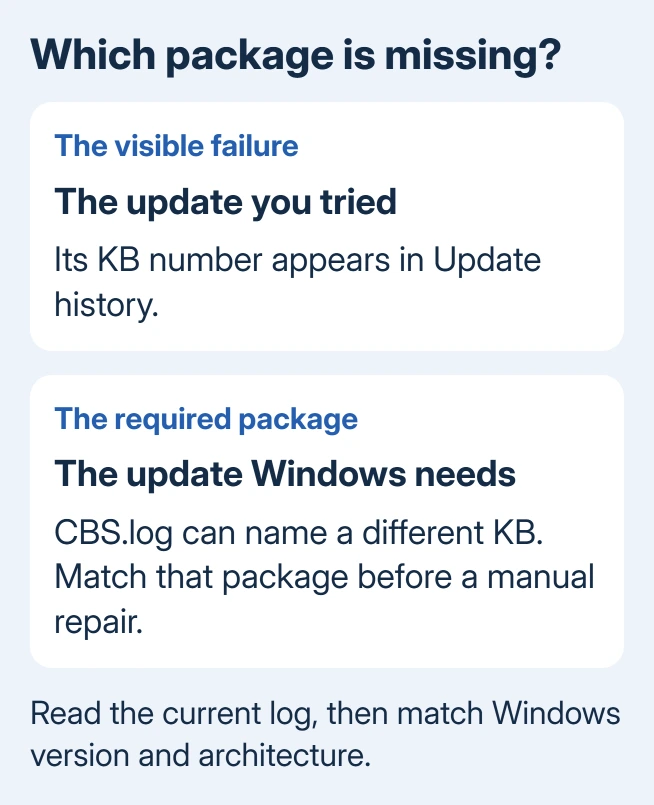
Error 0x800f0831 points to damaged update files, often a missing required package. Repair Windows' update files first. If that fails, check the servicing log: the package Windows needs can differ from the update shown as failed.
That difference matters. Downloading the same failed update again won't supply an older package that's missing. After the repair, use the log to work out which package Windows needs instead of guessing a KB number.
In this guide
1. Repair the files Windows uses to install updates
Save your work, plug the laptop into its charger, and open Start. Type Command Prompt, right-click the result, and select Run as administrator. Accept the permission prompt, then enter this command:
DISM.exe /Online /Cleanup-Image /RestoreHealth
DISM repairs the component store, the Windows file collection used for updates and repairs. If the percentage stops moving, wait until the tool finishes. Note its final message before entering the next command:
sfc /scannow
SFC uses those repair files to check protected Windows system files. Restart Windows when both commands have finished, then try the update again. A successful installation ends the repair here.
Microsoft recommends this repair in its common update error guidance for 0x800f0831. If DISM reports that source files couldn't be found, keep that separate error code for the later support check.
On Windows 11, open Settings > Windows Update. On Windows 10, open Settings > Update & Security > Windows Update. Check that the update finishes installing; a successful scan alone doesn't mean the update problem is fixed.
2. Find the package named in the current servicing log
If the same code returns, note the failed update's KB number in Update history. Try its installation once so the log has a fresh entry. Then press Windows + R, enter C:\Windows\Logs\CBS, and press Enter.
Open CBS.log in Notepad. This is the Component Based Servicing log, which records how Windows installs its own packages. Search for 0x800f0831, then read the nearby lines from the failed attempt.
Look for an entry containing manifest missing for package or Failed to resolve package. The manifest is the package's list of contents and installation information. Copy the complete package name and the surrounding timestamp.
A package name can contain its own KB number. That's the update to check next, even when Windows Update shows a different KB as failed. Don't copy the example KB from a support article into your own repair.
If the latest log doesn't clearly name a package, stop before removing or reinstalling packages. Give support the log instead of choosing a similarly dated update. The broader update error guide covers cases where a different code appears.
3. Download the matching package, with the right architecture
Back up the system disk before removing or reinstalling Windows packages. The package repair procedure applies to supported Windows clients as well as servers.
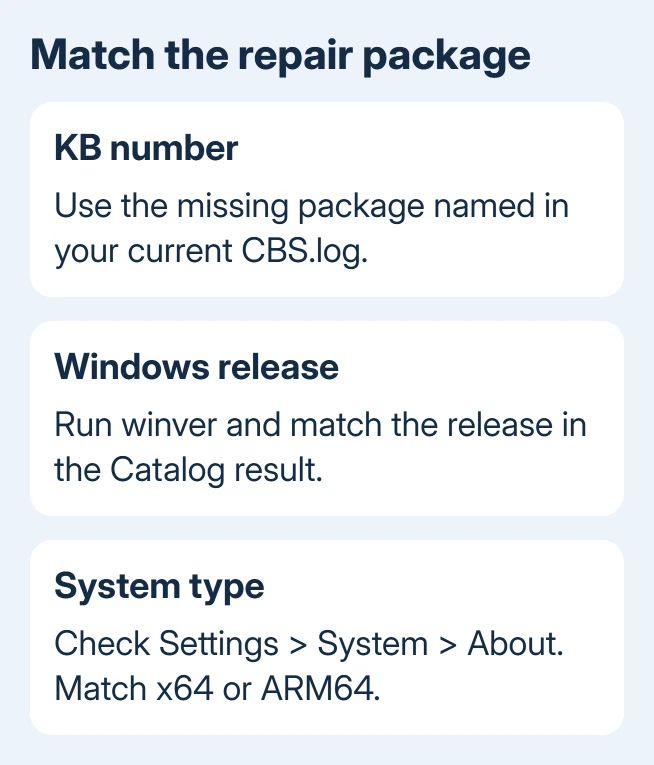
Open Settings > System > About and note System type. Press Windows + R, enter winver, and note the Windows version. These details distinguish an x64 package from an ARM64 package and one Windows release from another.
Search the Microsoft Update Catalog for the KB identified in your log. Read the product, version, and architecture in the result before downloading. Save the matching MSU package in C:\temp.
An MSU is an update package. For this manual repair, expand it to reach the matching CAB file inside. In an administrator Command Prompt, use this command, replacing the example filename with the file you downloaded:
expand -F:* C:\temp\DownloadedPackage.msu C:\temp
Use the CAB whose Windows version and KB match the required package. Keep its full filename. If the download contains several packages and you can't identify the correct one, pass the files and log to an administrator.
4. Reinstall the package only when the log supports it
For a physical PC or a virtual machine outside Azure, the repair is to install a fresh copy of the update Windows needs. Removal comes first only if that update is partly or fully installed already.
If that update is already partly or fully installed, run this in the administrator Command Prompt. Replace MatchingPackage.cab with the CAB filename from the previous step:
DISM /Online /Remove-Package /PackagePath:C:\temp\MatchingPackage.cab
Restart if prompted. Then install the matching CAB with:
DISM /Online /Add-Package /PackagePath:C:\temp\MatchingPackage.cab
Restart the PC and retry the update that originally failed. This restores the package Windows couldn't find so the original installation can continue. An error about a permanent or inapplicable package needs support review.
I'd leave manual removal to IT when the log is unclear or this is a managed PC. Azure virtual machines have a separate in-place upgrade route in the same support procedure; don't apply the physical-PC removal sequence to them.
5. Use Windows repair when package servicing still fails
On an eligible Windows 11 PC, open Settings > System > Recovery. Look for this section: Fix problems using Windows Update. Select Reinstall now. This downloads a repair version while keeping your files, apps, and settings.
Keep power and internet connected through the repair. This control differs from Reset this PC, which offers different choices about installed apps. Our Windows 11 repair guide explains that recovery route in more detail.
The option can be missing on managed devices and older Windows 11 installations. Windows 10 doesn't have this recovery control. In those cases, ask Microsoft Support or your administrator for a repair installation that keeps apps and files.
Send them the Windows version, failed KB, DISM result, and fresh CBS.log. Ask them to check the missing package or incomplete package registration named there. That tells them which part of the update installation needs repair.
The Short Version
Try DISM followed by SFC. For a repeat 0x800f0831, find the missing package in CBS.log and match its Windows version and architecture. Try the manual repair only with a clear package match; otherwise, use support or Windows recovery.
Checked November 15, 2026.






