

Motorola notifications can reach the notification drawer without popping up over the current app. For an affected notification category, select Default rather than Silent and enable Pop on screen where that control is offered.
If an app's alerts don't appear anywhere, check its main notification permission first. If they disappear from the locked screen, check lock-screen visibility. Swipe down to see whether an alert arrived before choosing a fix.
In this guide
1. Allow notifications for the affected app
Open Settings > Notifications on a recent Motorola phone. On the moto g power 5G (2023) with Android 13, choose App settings. Open the affected app's controls and enable its main notification switch.
Older Motorola versions place these controls under Settings > Apps & notifications > Notifications. Another route is Apps & notifications > See all apps, followed by the app and Notifications.
The most direct route, when an alert is already visible, is to touch and hold that notification. Open its notification settings. This takes you to the app or category responsible for the alert instead of a similarly named app.
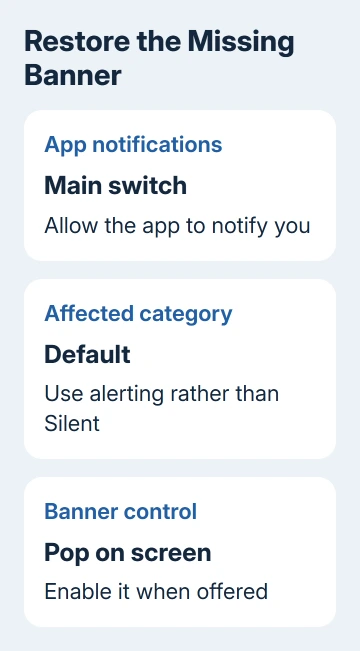
An app may separate messages, reminders, promotions, and other events into categories. Check the type you actually need. Enabling promotional alerts won't repair a disabled incoming-message category.
Have a contact send a fresh message, or create a new event that should notify you. Check both the unlocked screen and the notification drawer. An old dismissed notification won't return just because its permission changed.
If the new alert appears in the drawer but doesn't interrupt the screen, continue with its category controls. If it never arrives, check both the app's main notification permission and its own notification options.
2. Restore an alerting category and its popup
Touch and hold an affected notification and choose Default when the phone offers Default and Silent. Default allows the alert's normal sound and notification behavior; Silent makes that event less likely to interrupt you.
Open the category's settings and turn on Pop on screen if available. Depending on the phone, you may need to tap the app name and then the particular notification type before seeing that switch.
Motorola describes these choices in its notification controls. Pop on screen controls the banner across the top of an unlocked screen. To test it, keep the phone unlocked with another app open.
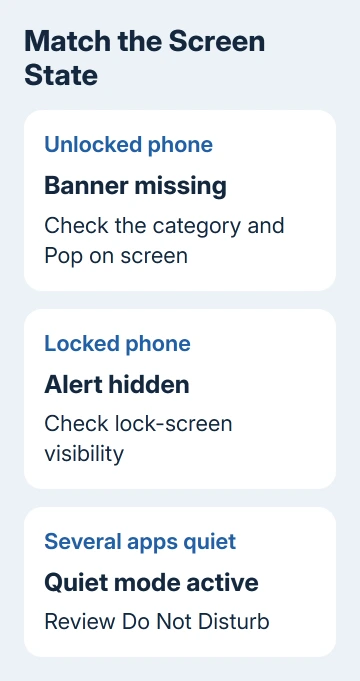
Check both the sound and the screen. An alert can be audible without showing the banner you wanted, and changing the ringtone doesn't enable a category's popup control. Check the visual switch rather than raising volume repeatedly.
Not every app or Motorola version offers every notification behavior. If the app has no popup control for that event, check its own settings and the help for your exact model. Don't search for a missing switch in unrelated permissions.
When one conversation is quiet but the app's other conversations alert normally, check that conversation's notification settings too. The app-wide switch can be on while a particular conversation uses quieter settings.
3. Check Do Not Disturb when several apps go quiet
Pull down the expanded Quick Settings panel. Look for an enabled Do Not Disturb tile. Turn it off for a short comparison, then have a new notification sent. If banners return, review that mode's rules before turning it back on.
Touch and hold the Do Not Disturb tile to open its settings. On older Motorola software, the settings path is Settings > Sound > Do Not Disturb. Android 13 models can use Sound & vibration > Do Not Disturb instead.
Check any schedule that turns the mode on automatically. A phone that behaves normally during the day but stops interrupting at bedtime may be following a schedule rather than forgetting your app permissions.
Check which alerts the mode allows and which it hides. Choose which people or apps should interrupt you instead of disabling a useful quiet schedule permanently just to recover one important alert.
Test at the time the problem normally occurs. If Do Not Disturb is already off and only one app is affected, return to that app's category settings rather than changing every phone-wide notification setting.
4. Restore lock-screen visibility separately
Open Settings > Notifications and look for the lock-screen notification choices. On older software, start with Settings > Apps & notifications > Notifications. Choose whether the locked phone should display those alerts.
Hiding sensitive content can leave the alert visible while concealing message details. Use that choice if you want to know a message arrived without leaving its contents readable while the phone sits on a desk.
Check the app's own lock-screen choice as well if other apps appear correctly. On software with category-level visibility, the affected category can have its own lock-screen behavior.
Some models also use Settings > Display > Lock screen > Privacy. If Notification Style offers List and Chip, List shows alert details; Chip shows app icons you can tap to expand.
Lock the phone and generate another new alert. Then unlock it and check the notification drawer. An alert present in the drawer but hidden while locked means the phone received it, but the lock-screen settings hid it.
Use the Motorola screenshot controls if you need to show support which setting is missing. Hide private message content before sharing the picture.
5. Check arrival history before changing more settings
On supported models, open Settings > Notifications > Notification history and enable Use notification history. This helps with future alerts that are cleared or snoozed; it doesn't recreate an earlier history that wasn't being recorded.
After the next missed alert, return to that screen and compare its record with what you saw. If the alert arrived without a banner, check how the phone displays or silences it. If it arrived late, check the app's delivery instead.
Check inside the affected app for a signed-out account, stalled syncing, or its own muted-alert setting. Phone notification permission can't create an alert that the app never sends.
If several apps still behave incorrectly, restart the Motorola phone, then send another new message to check the result. Keep a note of the model, Android version, app, and whether the screen was locked.
Ask Motorola Support to check the notification category and interruption controls for that exact model. If just one app misses alerts, tell its developer your app version and whether the drawer or notification history recorded the alert.
The general Android notification instructions also explain app permissions and lock-screen choices. Follow the menu names for your Motorola model if its settings are arranged differently.
The Short Version
Allow the app's notifications, choose Default for the affected category, and enable Pop on screen when offered. Check quiet mode and lock-screen choices separately. History helps distinguish a received quiet alert from a missing one.
Checked November 15, 2026.
 If you have any business, I can build it online






