

A Brother printer showing No Toner after replacement usually needs its cartridge refitted inside the drum. For Replace Toner, check the cartridge is correct and unused. That message asks for a replacement; it isn't a detection error.
The printer's own display matters more than a computer notification. Start there, because reinstalling a Windows driver won't clear a cartridge warning that the printer itself still shows.
In this guide
1. Read the exact warning on the printer
Note your printer model alongside the full warning. On models such as the HL-L2460DW, No Toner, Cartridge Error, Replace Toner, and Replace Drum call for different actions.
No Toner means the toner or combined toner-and-drum assembly isn't installed correctly. Cartridge Error also calls for reseating the cartridge. A persistent Replace Toner message needs the replacement and part-number checks instead.
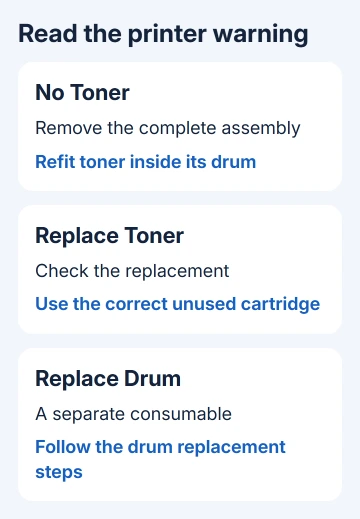
Replace Drum refers to the drum, a separate part that holds the toner cartridge. A new toner cartridge doesn't renew that part. Don't reset the drum counter as a way to clear a toner message.
Read the printer's model label and look for that exact model in the cartridge box's compatibility list. Similar-looking cartridges aren't interchangeable just because both fit inside a Brother printer family.
If the printer now shows Ready and only the computer reports the old warning, try a small print job. If it prints, check the computer's status display next instead of taking the cartridge apart again.
2. Refit the toner inside the drum
Open the cartridge access cover as your model's manual shows and remove the complete drum-and-toner assembly. On common black-and-white models with a separate drum, refit the toner inside it, not just the combined unit.
Release the toner cartridge from the drum with the locking lever. Check that the new cartridge's protective cover has been removed, then put the toner back into the drum until it locks securely.
Slide the combined unit back into position, then shut its access cover. Wait for the display to update. Ready means the printer has accepted the installation and you can check a printed page.
Use the Brother toner replacement steps for the release lever and cartridge preparation. Keep your own model's manual beside you when its assembly differs from that example.
Avoid touching the drum's photosensitive surface while handling the assembly. Hold the parts by their handles and use the release points shown in your model's manual instead of forcing a cartridge that won't lock.
Color laser printers can use a drawer and separate color positions. Match the reported color to its slot and use that model's removal order. A black-and-white printer's lever location isn't a reliable instruction for every color model.
Brother's error and maintenance guide explains what to do when the warning stays: No Toner can require another new cartridge, while Cartridge Error that survives reseating needs customer service.
3. Check the cartridge number and the part replaced
For Wrong Toner, compare the cartridge's supply order number with the number specified for your exact printer. Fit the correct cartridge to fix this message; changing the drum counter won't help.
Read both labels rather than relying on the seller's short product title. If the packaging lists a different printer family, ask the supplier to check your full model and the cartridge they shipped.
A replacement described as new should be a new cartridge, not a partly used cartridge borrowed from another printer. Tell the supplier exactly what was supplied when asking for a replacement or checking the warranty.
Also check that you replaced toner rather than the drum. The toner contains the powder; the drum is the separate assembly it locks into on these models. New packaging can make that distinction easy to miss.
I'd check those details before trying hidden button sequences. A counter change doesn't fix a cartridge that isn't seated or a replacement part intended for a different printer.
If the number is correct and the cartridge is fitted securely, follow your model's cleaning instructions next. A persistent No Toner warning still calls for refitting or replacing the cartridge, not resetting its life counter.
4. Clean the corona wire for a persistent toner warning
On models whose manual includes this step, the green sliding tab cleans the corona wire, a wire used to charge the drum during printing. It is different from the green lever that releases the toner.
Remove the assembly using your model's maintenance instructions. Move the tab along its track repeatedly, then return it to its marked home position before reinstalling the assembly.
Leaving the tab away from home can put a vertical mark in the output. Line up the marks rather than leaving the tab wherever the last pass stopped.
Close the cover and check the panel again. If Ready returns, print a short document and inspect its quality. If the warning persists, check whether the model's replacement troubleshooting page includes a firmware update.
The HL-L2460DW manual also lists a firmware check. Use the model's Downloads section and follow its updater's power and connection instructions.
5. Choose the next step from the remaining message
If No Toner remains with the assembly fitted correctly, the next step is to try a new toner cartridge. For a cartridge just purchased, ask the supplier about replacing it before paying for another one yourself.
If Cartridge Error remains after reseating, contact Brother Customer Service or a Brother dealer. Give them the printer model, cartridge number, warning, and whether it changed after the toner was separated from the drum and refitted.
For Replace Drum, follow the Brother drum replacement procedure. Reset its counter only as part of the correct drum replacement instructions.
Once the panel is ready, a job that still won't print needs checks on the computer side. Microsoft's printing troubleshooting steps help check that side of the connection.
The Short Version
For detection errors, refit the toner inside its drum. For a replacement warning, check the unused cartridge and clean the wire as instructed. Match the remaining warning to the cartridge replacement or service steps.
Checked November 15, 2026.
 If you have any business, I can build it online






