

Acer laptop keyboard issues after sign-in can come from Filter Keys ignoring short presses. Turn it off in Windows accessibility settings. Letters becoming numbers suggest Num Lock on models with an embedded number pad.
Dead keys, wrong symbols, and failed brightness shortcuts need different checks. Match the symptom before removing drivers. Use an external or on-screen keyboard when you need to type during the repair.
In this guide
1. Restart and get a working way to type
Save any open work with the mouse, then choose Start > Power > Restart. A restart reloads Windows and its device drivers. Test a few ordinary letters in Notepad when the desktop returns, rather than testing only a shortcut.
If the keyboard remains unusable, connect a wired USB keyboard to the laptop itself. Avoid a dock for this comparison. If that keyboard works, you can keep using the PC while checking the built-in one.
For the on-screen option in Windows 11, open Settings > Accessibility > Keyboard and turn on On-screen keyboard. In Windows 10, use Settings > Ease of Access > Keyboard, then enable Use the On-Screen Keyboard.
At the sign-in screen, the accessibility menu also provides the on-screen keyboard. Use it to enter your normal sign-in information. It bypasses the physical keys; it doesn't bypass the account's password or PIN.
Check whether typing works at sign-in but stops on the desktop. If it does, start with the Windows settings checks. Keys that never respond, including before Windows starts, also need the firmware comparison later in this guide.
2. Turn off Filter Keys when presses are ignored
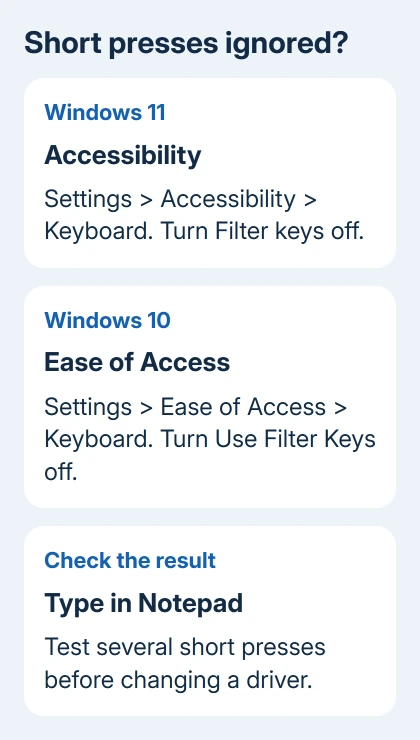
In Windows 11, open Settings > Accessibility > Keyboard and switch Filter keys off. In Windows 10, open Settings > Ease of Access > Keyboard and turn off the switch under Use Filter Keys.
With Filter Keys active, Windows can ignore quick taps or repeated keypresses. That's useful when someone needs that accessibility feature, but an unwanted setting can make ordinary typing seem dead or make a key work only when held down.
Microsoft says the keyboard accessibility controls also offer Sticky Keys. If shortcuts act as though Shift, Ctrl, or another modifier key is still held down, check Sticky Keys separately rather than assuming the entire keyboard has failed.
Test short keypresses in Notepad after changing the switch. If letters return, leave the working driver alone. Otherwise, continue with the symptom checks instead of changing every accessibility option.
If Filter Keys keeps turning on accidentally, open its options and check the keyboard shortcut that enables it. Disable that shortcut if you don't use the feature. The switch names and layout vary between Windows 10 and 11.
3. Correct numbers or symbols that replace letters
On some compact Acer keyboards, letter keys also carry small number-pad labels. With Num Lock enabled, those keys can produce numbers. Press the marked Num Lock key or the model's documented Fn combination to turn that mode off.
Acer's numbers-instead-of-letters explanation gives Fn + F11 for many notebooks and netbooks. Check the markings on your own keyboard; that combination isn't a universal shortcut for every modern Acer.
If the number pad is separate, Num Lock mainly controls that pad rather than changing ordinary letters. A mismatched quotation mark, @ symbol, or punctuation key is more often about the selected Windows keyboard layout.
Click the language indicator beside the clock and choose the layout matching the physical keyboard. Windows + Space cycles through installed layouts when the keyboard works. For example, a US keyboard should use the appropriate US layout.
Check the sign-in layout if a password suddenly seems wrong; Windows can select a different one there. After signing in, test harmless text with the corrected layout instead of repeatedly entering the password.
If only brightness, volume, or lighting keys fail, check the marked symbols and your model's Fn behavior. No single Acer shortcut unlocks every keyboard, and a lighting shortcut can't add a backlight the keyboard doesn't have.
4. Repair the keyboard's Windows device entry
Use this step when the whole built-in keyboard still fails in Windows after the settings checks. Keep the external or on-screen keyboard available so you aren't depending on the device entry you're about to remove.
Right-click Start, open Device Manager, and expand Keyboards. Identify the built-in keyboard entry before making changes. Disconnecting the external keyboard briefly can help show which entry belongs to it.
Right-click the internal keyboard's entry and choose Uninstall device. Confirm that device removal, then restart Windows. Windows tries to reinstall that device's driver as it starts; test the built-in keys again when sign-in appears.
Don't remove every item under Human Interface Devices or choose to delete unrelated drivers. Remove only the keyboard entry so the other devices you use to control the laptop stay available.
For pending updates in Windows 11, open Settings > Windows Update. In Windows 10, open Settings > Update & Security > Windows Update. Install applicable updates, restart if Windows asks, and test the keyboard afterward.
If Device Manager displays a warning symbol, open Properties for that entry and write down the Device status code. That code gives support a specific driver error to check, along with your description of the keys that won't work.
5. Check whether the keyboard responds before Windows
Restart the Acer and tap F2 when its logo appears to enter BIOS setup. BIOS is the laptop's firmware settings screen, which runs before Windows. Try moving between its menus with the keyboard without changing any settings.
If F2 doesn't open setup, try the same entry with the wired external keyboard. A missed startup key can be a timing problem, so one failed attempt isn't enough to decide the built-in keyboard is broken.
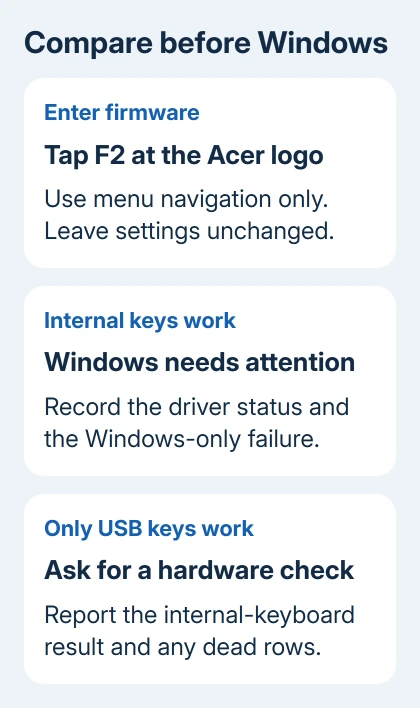
If the internal keys work in firmware but fail in Windows, tell support where the keys work and share the Device Manager result. If only the external keyboard responds there, the internal keyboard or its connection needs closer attention.
Several dead keys in one area, sticky keys, or a recent spill also justify a physical check. For dry debris, follow the safe laptop-keyboard cleaning steps.
For a spill, shut down and arrange service instead of repeating typing tests. Ask Acer or a technician to inspect the keyboard and connection. Give them your model, affected keys, and whether the USB keyboard worked in firmware settings.
I'd save an Acer factory reset for when you've confirmed Windows needs recovery. It removes apps and settings without repairing a damaged key switch or loose keyboard connection.
The Short Version
Restart and check Filter Keys, Num Lock, and the selected layout. Reinstall only the affected keyboard device if needed. Compare the internal and USB keyboards in firmware before deciding whether to arrange service.
Checked November 15, 2026.






