Wine can lose microphone input when its launcher lacks permission or its audio engine, which handles sound, fails. Check Privacy & Security > Microphone for the launcher. If it's allowed, test the input before resetting permissions.
A missing prompt and a silent microphone aren't always the same fault. In a confirmed Sikarugir engine bug, some owners saw no prompt, while another already had permission and still couldn't record.
In this guide
1. Check that macOS can hear the microphone
Open Apple menu > System Settings > Sound > Input. Choose your intended microphone from the input list, then speak. Look for a response on the input meter; working headphone playback doesn't tell you the microphone works.
On macOS Monterey or earlier, use System Preferences > Sound > Input. The window looks different, but you still need to select your microphone and check that the level responds to your voice.
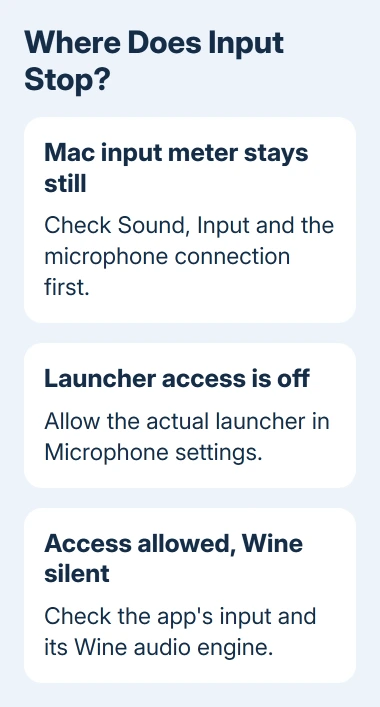
If the level doesn't move, check the microphone's physical mute control, connection and input volume. Try the built-in microphone if your Mac has one. This checks for an external microphone fault before you change Wine settings.
If the built-in input works but a USB microphone doesn't, reconnect the USB device directly and check whether it appears in Input. If neither works in a normal Mac recording app, fix that wider sound problem first.
For a working microphone that's simply too quiet, use the Mac microphone level checks. Raising input volume won't make macOS display a missing permission request.
If the input level responds normally, continue. That tells you macOS can receive sound from this device; the launcher and Windows program still need to receive that sound.
2. Allow access for the app that launches Wine
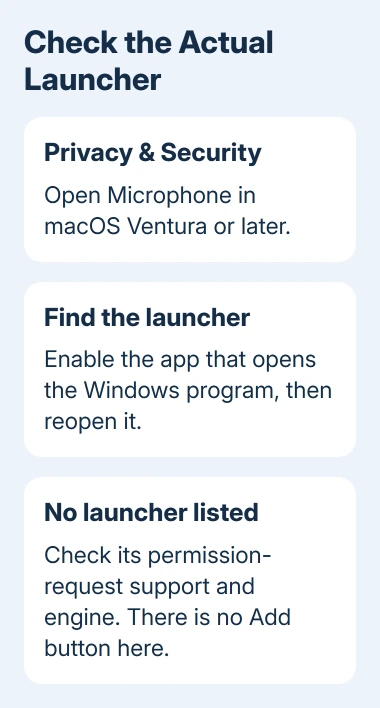
Quit the Windows program and its launcher. On macOS Ventura or later, open System Settings > Privacy & Security > Microphone. Look for the wrapper or launcher you use, rather than assuming it must be listed as Wine.
A game opened through an app wrapper, the Mac app that runs it, may appear under the wrapper's name in the privacy list. Starting it through Terminal can involve Terminal instead. Match the entry to how you start the program.
On Monterey or earlier, use System Preferences > Security & Privacy > Privacy > Microphone. Unlock the pane if requested, then enable the relevant app. On newer macOS, turn on its switch and follow any quit-and-reopen prompt.
Apple's audio input permission steps require quitting the recording app, changing access, and trying again. Allowing a different recording or meeting app doesn't grant this launcher permission too.
Reopen the Windows program through the same launcher and start its microphone test or voice function. If a permission request appears, allow it for the intended app and repeat the test.
If the launcher is absent from Microphone, there isn't an Add button for inserting Windows executables. The Mac app needs to ask for permission successfully. Check the launch method instead of repeatedly opening this empty list.
3. Check the launch method before clearing permissions
Write down the launcher or wrapper name, its version, and the Wine engine version it uses. Different Mac launchers use Wine, but they don't all request permission the same way.
Open the program through the launcher's normal app entry, then activate the actual voice or recording feature. Simply opening a game that isn't using its microphone yet may not trigger a permission request.
Check its input-device selection and mute or push-to-talk controls. Choose the microphone you confirmed in Sound settings. If a local microphone test exists, use it before joining another call or game session.
If another Windows program already installed in the same wrapper can record, focus on the failing program's device and voice settings. If nothing in that wrapper can record, check the launcher or its audio engine next.
The missing Mac permission-list guide covers resetting an app's existing permission record. I'd identify the launcher first; a reset can't supply microphone-request support that its launch method lacks.
Keep this comparison inside the same wrapper. Allowing access for a different launcher can help its own programs, but it doesn't change the permission record for the launcher that still fails.
4. Check Sikarugir's confirmed audio-engine regression
For Sikarugir, compare the engine version with issue 275. Owners reported working microphone input with WS12WineSikarugir10.0_6, then failures with later tested engines, including 10.0_8 and 11.0_1.
The reported failure can appear in logs as Couldn't enable I/O on input element: ffffd581. Another message is Couldn't get unit format: ffffffce. The app can detect the microphone but still fail to start recording.
Those details matter when microphone access is already switched on. The original report included allowed access in the macOS log, yet the engine couldn't start input. Repeating privacy changes doesn't address that failure.
With an affected Sikarugir engine, back up the wrapper and saved games before changing engines or making a comparison wrapper. Ask the project's support channel which supported engine revision to use for the microphone bug.
Owners confirmed that 10.0_6 worked in that project. Don't look for a 10.0_6 setting in CrossOver, Heroic, or every other Wine launcher. Their engines and version labels differ.
On November 13, 2026, a collaborator planned to revert the audio change in the next engine revision. The issue didn't confirm a released repair, so ask whether the version offered now includes it.
The issue's binary patch targets one exact file and changes playback-device switching. I'd ask for a supported engine update rather than apply that patch yourself. A maintainer needs to check that the patch matches the build.
5. Report the failure with the right comparison
If the Mac meter works, permission is enabled and the app uses the correct input, report the missing sound to the launcher's support team. Include the macOS version, Mac model, launcher version, engine and Windows program.
Say whether the permission entry is absent, present but disabled, or enabled. Add whether a native Mac recording app works and whether every Windows program in that wrapper fails. That helps the maintainer work out which part is failing.
For the Sikarugir case, include issue 275 and the two audio-error lines if your log contains them. Remove account names, private paths and tokens before sharing logs. Ask whether the maintained engine includes the audio-input repair.
When a local recording works but voice chat doesn't
If the local test records your voice but other people can't hear it, check the game's voice-channel, mute and connection settings next. At that point, the missing macOS prompt is no longer the immediate problem.
The Short Version
Check Mac input, allow the launcher in Microphone settings, then test the Windows app. Ask launcher support if no request appears. With access allowed and Sikarugir input errors, ask about engine repair rather than another privacy reset.
Checked November 15, 2026.