

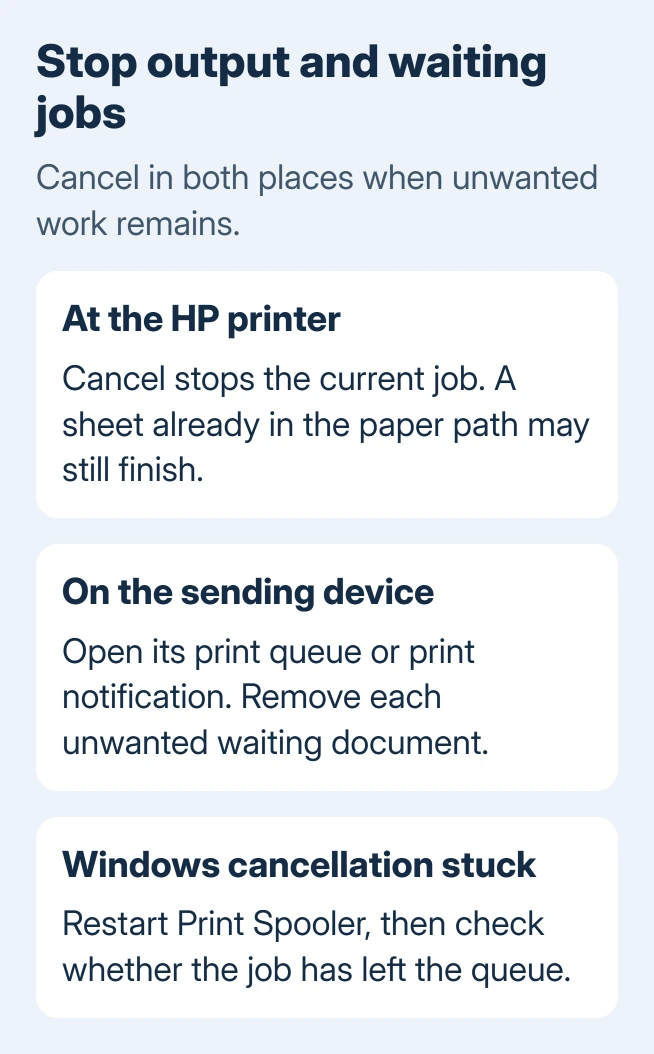
Press the HP printer's Cancel button, or its on-screen cancellation control, to stop the pages printing now. Cancel unwanted waiting jobs on the computer or phone that sent them.
The printer's button stops the current job, not every document waiting to print. A document that keeps returning needs attention at the sending device.
Use the sending device's cancellation steps before restarting the printer. That prevents a waiting job from being sent straight back after the restart.
In this guide
Stop the pages at the printer first
On an HP printer with physical buttons, press Cancel. On a touchscreen model, use its cancellation control when that control appears during printing. Use your printer manual's panel diagram to identify an unfamiliar stop control.
Let the printer finish moving any sheet that's already inside it. A page already being processed may still come out. Don't reach into the mechanism during printing.
HP says a second press of Cancel can be needed on the Deskjet D5500 series. Its manual allows a few moments for cancellation to finish. Other models can use different controls.
If another document starts immediately, that isn't necessarily a failed Cancel button. It can be the next job in the line. Cancel the unwanted jobs on the device that sent them so the printer doesn't receive them again.
I'd stop the paper at the printer first when a long document starts by mistake. Then you have time to cancel the remaining work without racing through settings while more sheets print.
Remove the unwanted document from Windows
On Windows 11, open Start > Settings > Bluetooth & devices > Printers & scanners. Select the HP printer and choose Open print queue. Find the unwanted document, open its menu or right-click it, and select Cancel.
On Windows 10, open Start > Settings > Devices > Printers & scanners. Select the HP printer, choose Open queue, then cancel the document. In the older queue window, you can use Document > Cancel for the selected job.
Confirm any cancellation prompt, then wait for the entry to disappear. If it shows Deleting or Canceling, give that request time to complete before sending a replacement document.
To discard everything in a modern Windows queue, open its three-dot menu and choose Cancel all if that control is available. In an older queue, use the Printer menu's cancellation option. Check the listed jobs before clearing all of them.
The Windows queue instructions cover cancellation and the service repair when it won't finish. If Windows says you lack permission for someone else's job, ask that person or the print administrator to remove it.
An empty queue can also mean the job was already sent to the printer. In that case, use the panel's Cancel control. Removing an entry from the computer can't pull back sheets that have already printed.
Remove a Mac print job from its queue
Click the printer icon in the Dock when it appears during printing. Select the unwanted job in the queue and click the cancellation control beside it. That cancels the document without pausing the whole printer.
If the icon isn't there, open System Settings > Printers & Scanners, choose the HP device and use Printer Queue or Open Print Queue, depending on macOS. Older Macs use System Preferences > Printers & Scanners.
Find the job by its document name before clicking the cancel control, shown as an X in many queue layouts. If several files have the same name, check their order and any job details shown to identify the one you want to remove.
Pause keeps the job for later; it doesn't cancel it. If you paused the queue while deciding what to do, remove the unwanted document and resume the remaining work when you're ready.
If the queue is empty but paper is still coming out, return to the printer's controls. If the document stays listed and won't cancel, use the stalled-queue checks rather than resetting the Mac's entire printing system immediately.
Stop an AirPrint job on its sending device
Open the App Switcher on the device that sent the job. With a Home button, double-press it. On a device without that button, place your finger at the bottom edge, slide it halfway up, then hold briefly before lifting it.
Swipe through the app cards to find Print Center, then open it. Select the unwanted print job and tap Cancel Printing. Print Center is a temporary view of active printing, so it won't always be available afterward.
If Print Center is missing, the phone may have finished sending its job. Use the printer's Cancel control for output still in progress. Don't search for a permanent Print Center app to install.
If you printed from the manufacturer's app rather than the normal AirPrint sheet, check that app's job controls too. The iPhone and HP setup guide covers the AirPrint connection used for that route.
Cancel an Android print notification
Pull down the Android notification shade from the screen's top edge. Find the printing notification, tap the relevant job, then tap Cancel. Use the phone or tablet that sent the job.
If several documents are waiting, check their names before canceling. Removing one notification's job doesn't necessarily remove all printing from that device, and it doesn't clear a different person's phone.
An HP app can have its own controls for a job you sent from that app. If the usual Android print notification isn't available, check the app you printed from and stop the pages printing now at the printer.
Once the unwanted job is gone, print only the corrected document. Repeated taps on Print while cancellation is pending can create more work to remove.
Clear a Windows job that stays stuck on Canceling
Save open work, then press Windows+R, enter services.msc, and press Enter. Find Print Spooler, right-click it, and select Restart. Reopen the HP queue and check whether cancellation has finished.
If cancellation stays stuck, follow the linked Windows procedure to stop the service and clear its spool folder. This removes queued printing, including other users' jobs on that PC. Leave unrelated Windows files alone.
For work printers shared through a server, ask the print administrator to clear the server's queue. Clearing your laptop's queue won't remove a job already waiting on that server.
If the queue clears but printing fails, use the printer failure checks. Cancellation and connection repair are separate tasks. Tell support your HP model, which device sent the job and what its queue shows.
The Short Version
Stop current output at the HP panel, then cancel waiting work on its sender. Use the Windows or Mac queue, iPhone Print Center, or Android notification. Restart Print Spooler if Windows cancellation stalls.
Checked November 15, 2026.
 If you have any business, I can build it online






