

The missing Samsung Keyboard microphone may have moved from its toolbar to the screen's navigation area. Turn on Keyboard button on navigation bar, then check the bottom-left corner while the keyboard is open.
A keyboard-shaped button there can also lead to voice input. If no voice option appears, enable a voice-typing service first. When the button is visible but dictation hears nothing, check recording access instead.
In this guide
1. Show the button in the navigation area
Open Settings > General management > Keyboard list and default. Turn on Keyboard button on navigation bar. Return to a normal text field, such as a new note, and tap it so Samsung Keyboard appears.
Look in the screen's bottom-left navigation area, outside the letter keys. Recent Galaxy software can put the voice-input control in that navigation area. Looking only at the toolbar over the letters can make a working button easy to miss.
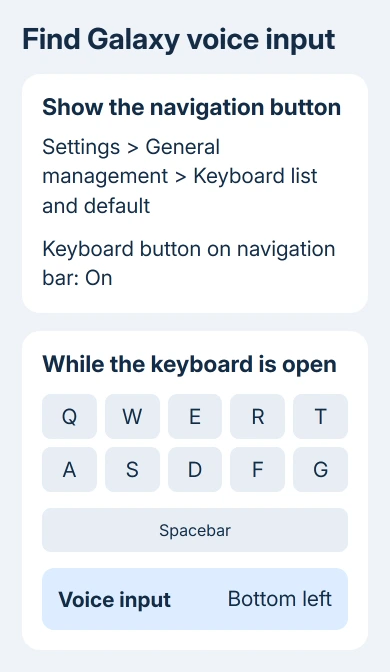
If the button looks like a keyboard instead of a microphone, touch and hold it and select voice input when offered. Try a short sentence in the note. Successful voice typing places the spoken words in the text field.
An owner on Samsung's community confirmed this navigation-button repair worked after an update removed their familiar microphone control. The answer also offered the spacebar shortcut described later in this guide.
When dictation works through that button, keep the keyboard settings as they are. If the button stays absent or voice input isn't offered, check the active keyboard and voice service next.
2. Confirm Samsung Keyboard is the active keyboard
In Settings > General management > Keyboard list and default, inspect Default keyboard. Select Samsung Keyboard if that's the keyboard you want these steps to change, then reopen the note's text field.
A phone can have Samsung Keyboard installed while another keyboard handles typing. Changing Samsung's toolbar options won't restore a button inside Gboard or a downloaded keyboard with a different layout.
If the whole keyboard fails to open, use the Android keyboard restoration steps first. Voice-input controls can't help until a text field can bring up an enabled keyboard.
Check which microphone button you're testing. A microphone printed inside a messaging app's text area may record a voice message instead of typing words. Use the keyboard's voice-input control when the goal is dictation.
If your usual keyboard is Gboard, use its voice-typing control and settings instead. Keep using your preferred keyboard if its own voice-typing feature suits you.
3. Enable and choose a voice-input service
Return to Settings > General management > Keyboard list and default. Turn on Google Voice Typing if you intend to use that service. Samsung phones can also offer Samsung voice input with Samsung Keyboard.
Open Samsung Keyboard settings > Voice input and select an available service. Reach the keyboard settings through General management or by tapping Samsung Keyboard in the keyboard list.
Samsung's keyboard settings instructions explain both how to enable typing services and how to choose voice input. Both matter: a voice option has to be available before the keyboard can open it.
Reopen the note and use the navigation-area microphone again. If the service presents terms or a permission request on first use, read it and make the choice needed to turn on dictation.
The voice-input screen should start listening, then put the words you say into your note. If it opens but doesn't hear you, continue to the microphone-access check rather than changing the navigation switch again.
The voice services and their names vary by Galaxy model, software, and region. Choose one of the services the phone actually lists. A missing Samsung-specific option doesn't mean Google Voice Typing must also be unavailable.
4. Use the spacebar shortcut when it's available
Open Settings > General management > Samsung Keyboard settings > Swipe, touch, and feedback. Choose Touch and hold spacebar, then select Voice input if that choice appears on your version.
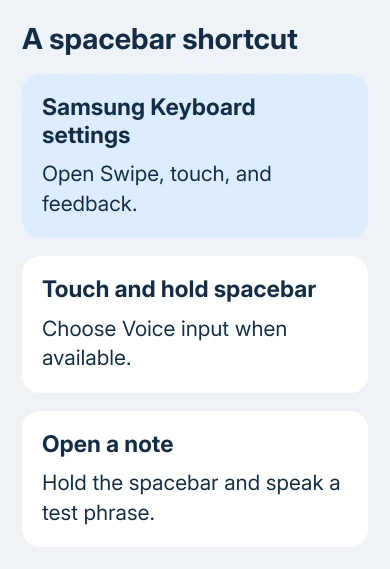
Reopen a text field, then hold down the spacebar. Voice input should open without hunting for a toolbar button. Speak a short test phrase and check the words before sending anything.
The new choice replaces the spacebar's previous long-press action. If you normally use that action to control the cursor, decide which shortcut is more useful for your typing. A normal tap should still insert a space.
I'd use this shortcut when the bottom-corner control is awkward to reach. It gives you a direct way into dictation without depending on where the toolbar button sits after an update.
If Touch and hold spacebar or Voice input isn't listed, keep using the button in that phone's navigation area. Don't reset the keyboard just to make a menu from another Galaxy version appear.
For missing prediction shortcuts or toolbar tools alongside the microphone, the Samsung Keyboard shortcuts guide covers those separate controls and the saved text-shortcut list.
5. Check microphone access when the button opens silence
A visible dictation panel that never hears speech is a recording problem. Check the phone's microphone privacy switch and any permission request from the selected voice-input service.
On Galaxy software with Microphone access in Quick settings, open that panel and check it isn't switched off. If the tile isn't shown, use Settings search for Microphone access rather than assuming its absence means permission is enabled.
For app permissions, open Settings > Apps, choose the voice-input app when it is listed, and inspect Permissions > Microphone. Allow the microphone access needed for voice typing, then return to the note and try again.
Record a short voice clip on the phone. If you hear clear speech in the recording but dictation stays silent, check the chosen service or its microphone permission. If both fail, check whether a headset has taken over recording.
Disconnect the headset and repeat the recorder check with the phone itself. If the recorder still captures no voice, get help with the phone's microphone; moving a keyboard icon won't repair a failed or blocked microphone.
6. Restart and report the exact missing control
Restart the phone after changing the keyboard and service settings if the control still doesn't appear. Reopen the same note afterward so you're comparing the same text field rather than a different app's recording button.
If it remains missing, open Samsung Members > Support and use the help or error-report option available there. Give the Galaxy model, One UI version, active keyboard, selected voice service, and whether the navigation button appears.
Include a cropped keyboard-and-navigation screenshot without private messages. Also report whether the voice recorder works, so support knows whether the control is hidden or recording has failed.
The Short Version
Show the navigation-bar keyboard button and look for voice input in the bottom-left corner. Choose an enabled voice-input service and use the spacebar shortcut if available. Check permissions only when dictation opens but can't hear speech.
Checked November 15, 2026.
 If you have any business, I can build it online






