

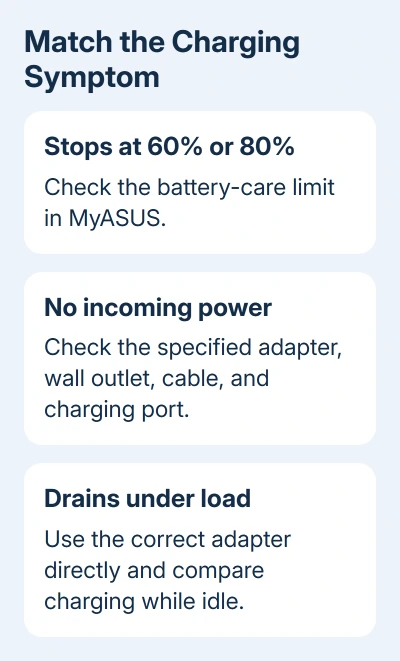
An ASUS laptop that stops charging at 60% or 80% may be following its battery-care setting. Check MyASUS first when Windows still runs on adapter power. For no power at all, check the outlet, adapter, and charging port.
Slow charging or a battery that drains during a game is a third case. Match the symptom before buying a replacement: a charge limit, an unsuitable adapter, and a failed power connection need different fixes.
In this guide
1. Check whether charging has stopped at a set limit
Read the battery percentage and compare it over time while the laptop is plugged in. A level that consistently stops at 60% or 80% points toward a charging limit, particularly if the computer otherwise works normally on its adapter.
Open MyASUS from Start and find the battery settings under Device Settings. Look for Battery Care Mode. Older supported models call the feature Battery Health Charging, sometimes in a separate app.
On the older three-mode control, Full Capacity Mode allows 100%, Balance Mode limits charging to 80%, and Maximum Lifespan Mode limits it to 60%. Choose the mode that fits the charge you need.
The available controls vary by model. Don't search for a missing three-mode layout when MyASUS offers a newer Battery Care control. Use the choices shown for your device.
Charging also pauses near a full battery to avoid constant top-ups. A reading in the mid-to-high 90s by itself isn't a charger failure. If the level is much lower and won't rise, continue with the power connection checks.
2. Connect the correct adapter directly
Shut down the laptop and reconnect the power cable at the wall outlet, the adapter brick, and the laptop. Try a working wall outlet directly. Remove a dock or hub from the charging path during this check.
Use the original ASUS adapter or a replacement that matches your model's specifications. A round barrel plug can fit even when its voltage, polarity (positive and negative connections), or power rating is wrong for your laptop.
For USB-C charging, confirm that the selected port accepts power and that the adapter and cable meet the model's requirements. Not every USB-C port charges a laptop. A small phone charger can connect without supplying enough power.
Windows can display a slow-charger warning when the power source or connection isn't suitable. Follow that warning by checking the required adapter and charging port, rather than changing the battery limit.
Stop using the equipment if a cable is damaged, a connector is scorched, or the battery is swollen. Those symptoms need service before further power attempts. Don't keep bending a damaged cable to make the charging light return.
If a known-compatible adapter restores charging, replace the faulty adapter or cable with the specified part. If neither adapter works, the laptop's charging connector or internal power circuit needs checking as well.
3. Compare charging with the workload stopped
Quit any games and demanding apps and let the laptop sit with the correct adapter connected. Compare the battery level again. A battery that rises at idle but falls during heavy use behaves differently from one that never accepts power.
ASUS recommends the original adapter and checking apps that draw power for slow charging. An unsuitable lower-power adapter is especially relevant when a travel USB-C charger replaced the supplied one.
Use the supplied adapter directly to compare. Don't add a monitor, dock, and shared charger at the same time. Keep the same apps running while you compare charging setups, so you can tell whether changing the power connection helped.
If charging remains poor at idle with the right adapter, continue with the battery check. If only a specific demanding workload drains the battery, send support the adapter rating and workload details rather than reporting a dead charger.
4. Run the battery check in MyASUS
Open MyASUS > System Diagnosis > Diagnostic Tool and select Battery problems. Connect the laptop to power, choose Checkup, then open Results when it finishes. Follow any error-specific instructions shown there.
If System Diagnosis isn't present, that model doesn't support the feature in MyASUS. Skip this check rather than treating the missing page as another fault. The available MyASUS features depend on the device.
Record any battery error and the exact model name. The laptop battery health guide explains the capacity figures separately; a worn battery and a failed adapter connection need different fixes.
If the check reports a battery problem, request a battery check from support. If it finishes but charging still fails, try the controller reset next. I wouldn't start with a Windows factory reset for this symptom.
5. Use the ASUS power-controller reset
The embedded controller is a chip that manages hardware functions, including power. Save open work, shut down, and disconnect external devices. Connect the power adapter before starting the reset.
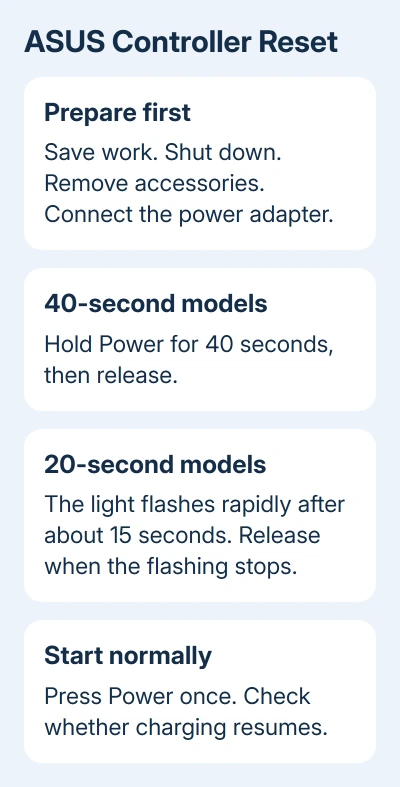
Hold Power for 40 seconds, then release it. Some models use a 20-second design: the power indicator starts flashing rapidly at about 15 seconds and flashes for about three to five seconds. Release after the flashing stops on those models.
Press Power normally to turn the laptop on, then check charging again. The ASUS controller reset procedure uses the connected adapter; don't substitute a generic unplugged power-button routine.
If the laptop responds to power but the display stays dark, use the ASUS black-screen checks. The charging state and the display failure need separate checks.
6. Refresh the battery devices if Windows misreports power
If the laptop still runs, you can also reinstall its battery and adapter entries in Windows, as the battery guide describes.
Open Device Manager, expand Batteries, right-click Microsoft ACPI-Compliant Control Method Battery, and select Uninstall device > Uninstall.
Do the same for Microsoft AC Adapter, then restart Windows. The devices reinstall automatically. Remove just these battery and adapter entries. Leave the other system devices alone.
If charging still fails, contact ASUS support with the laptop model, adapter rating, battery percentage, charging-light behavior, and MyASUS result. Ask them to test the adapter and laptop charging circuit together before replacing parts.
The Short Version
Check the MyASUS limit when charging stops at 60% or 80%. For no power or slow charging, use the specified adapter directly, compare at idle, run the supported battery check, and try the ASUS controller reset before arranging service.
Checked November 16, 2026.






