

Samsung Good Lock wallpapers are made in Wonderland, the module for moving backgrounds and lock-screen effects. Open Wonderland through Good Lock, choose a preset or create a design from a Gallery photo, then preview and apply it.
Choose the moving-wallpaper editor for a background that moves while you're looking at the phone. Choose the separate lock-screen effect editor to change how the image appears as the display wakes.
In this guide
Choose the Wonderland project that matches your idea
Open Good Lock, find Wonderland, and install the module if it isn't installed. Open Wonderland itself after installation. Good Lock collects several customization tools, so a different module won't show the wallpaper editor.
Look for Create your own moving wallpaper and Create your different lockscreen effect. The first builds the wallpaper's moving scene; the second changes how your chosen lock-screen image appears during a screen transition.
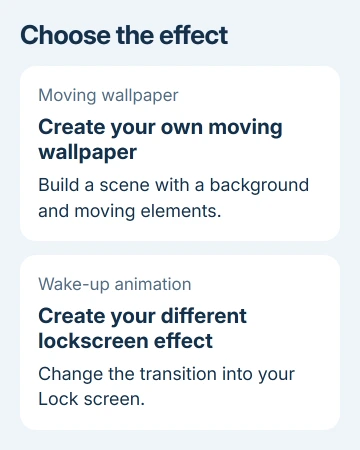
Samsung's Wonderland instructions describe both routes. Start with the moving-wallpaper option if you're adding floating elements to a photo or trying a background that responds to movement.
For an ordinary still photo without effects, the Samsung wallpaper steps are quicker. A ready-made video from Gallery also has its own live wallpaper route.
Use Wonderland's editor when you want to build the scene yourself. Keep the original photo in Gallery so you can start another project without needing to recover it from the wallpaper.
Start with a preset before building a new scene
Select Create your own moving wallpaper, then open one of the available presets. Preview it before editing. Watch how its existing effects behave on your phone before building a design.
Notice which parts move and which remain still. A picture can look animated because an added object moves over a fixed background; the whole photo doesn't need to slide around for the effect to work.
Choose a preset with a simple layout if you're learning the controls. With too many effects at once, it's harder to tell which setting makes something move awkwardly or cover your subject.
If the preview is what you want, save and apply it using the choices the module offers. Return to the actual Home or Lock screen to judge the result, to see how it looks behind the clock and icons.
If the preset isn't right, return to the editor and create your own scene. You don't need to change Good Lock's other modules first. I'd begin with one photo and one added element, then build from there.
Create a background from a Gallery photo
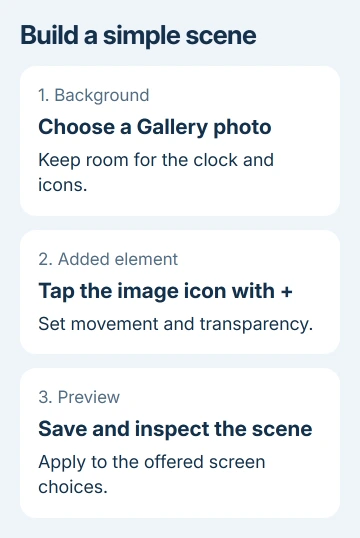
In the moving-wallpaper section, tap + to make a new design. Choose a photo from Gallery as the background, or select a solid color if the moving elements will be the main subject.
Pick a photo with room around the subject. The wallpaper sits behind icons on the Home screen and behind the clock on the Lock screen, so a face placed near the top can be covered even when the image itself looks good.
Check the crop in the editor before adding effects. Make sure your subject remains within the visible crop. A background made for a wide photo won't always keep the same composition on a tall phone screen.
If the photo isn't available, open it in Gallery first and confirm it's actually on the phone. A thumbnail from a cloud service isn't always the full local image the editor needs. Download the intended original, then return to Wonderland.
When permission is requested, allow access to the photo you want to use. If the module can see only selected photos, a new picture may need to be added to that allowed selection before it appears in the chooser.
Add movement without hiding the subject
Tap the image icon with a + sign to add another element. This can place an object over the background rather than replacing the background itself. Position it where it won't cover a face or an important detail.
Adjust that element's movement and transparency, then try the available effects. Transparency controls how much of the background shows through the object. Movement controls how the object shifts within the scene.
The module supports layered designs and motion that responds to tilt and touch. Start with a small amount of movement so the scene remains readable when you move the phone normally.
Preview the design after each meaningful change. Watch the scene's outer edges too: an element that looks well placed at rest can leave the visible area as the phone tilts.
If the picture feels crowded, remove or simplify an added element before adding another effect. Keep the background useful as a wallpaper, with clear space around the clock and app labels.
Save, apply, and check both screens
Save the design, preview it, and use the available wallpaper options to apply it. Before confirming, check whether you can apply it to the Home screen, Lock screen, or both, especially if you want a different picture on each.
Newer Wonderland versions can customize those screens separately. Older versions required the same wallpaper on both. Instructions written for an earlier release may describe fewer choices than your version now offers.
If the expected screen choice is missing, check for an update to Wonderland through the store that supplied it. Don't assume every Galaxy model and module version shows the same options simply because Good Lock opens.
For a wake-up animation, return to Create your different lockscreen effect and choose the image and effect there. Test it by turning the screen off and waking the phone, rather than expecting a continuous Home-screen animation.
Always On Display transitions depend on your model's display features. Check your phone's preview and available screen choices; a demonstration on another Galaxy can include effects your model doesn't offer.
When a design won't apply or the editor stops responding
Reopen Wonderland and try an unedited preset. If that applies, return to the custom project and check its selected image and added elements. If no preset applies, update the module and restart the phone before rebuilding your design.
For a frozen editor, follow the Android app recovery checks. On a Galaxy, app controls are under Settings > Apps > Wonderland; Storage > Clear cache removes temporary files.
Clear data can erase saved app information, unlike the temporary files removed by Clear cache. Keep copies of your original images and any projects you need before considering a reset or uninstall.
If it still fails, submit an error report in Samsung Members. Include the model, One UI and Wonderland versions, whether a preset works, and the action that fails.
That helps support check for an editor fault or an option your model doesn't support.
The Short Version
Use Wonderland inside Good Lock. Choose moving wallpaper for an animated scene, or the separate lock-screen editor for a wake-up effect. Preview a simple design first. Apply it using your version's destination choices.
Checked November 16, 2026.
 If you have any business, I can build it online






