The memory could not be read message in Windows 10 means a program tried to use a memory address it couldn't access. Start with the program identified by the box, rather than buying RAM or changing the page file.
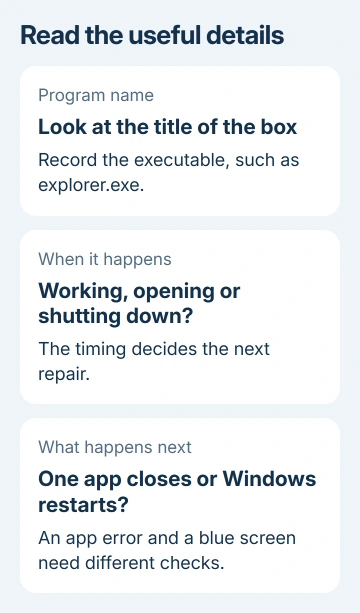
A box that appears only as Windows shuts down differs from an application crash while you're using it. Record the program name and when the message appears, then follow the matching checks.
In this guide
1. Reopen the named app and check when it fails
Save any other open documents, dismiss the error, and restart the program named in the box. If it returns, restart Windows and repeat the same action, such as opening a document or closing a game.
The long strings of letters and numbers are memory addresses, not repair steps. Note the title, often Application Error with an executable name, and when it happens: during normal use, sign-in, or shutdown.
For one affected program, begin with its update or repair options. If unrelated apps crash too, continue to the Windows and hardware checks. Several crashing apps don't necessarily mean your RAM is faulty.
This message also differs from a blue screen that restarts the whole computer. For that screen's specific stop code, use the MEMORY_MANAGEMENT guide instead of treating an ordinary application box as the same failure.
2. Treat the shutdown-only Explorer error separately
Microsoft describes an explorer.exe error during shutdown or restart through the Start power-user menu, opened with Windows + X or a right-click on Start. Explorer tries to use memory that has already been freed during shutdown.
In that specific case, Windows continues shutting down after the message. It doesn't affect how the computer works. If your symptom matches, you don't need to erase Windows to make the box disappear.
Try shutting down from the ordinary Start > Power > Shut down route and compare. Keep a record of whether the message occurs only through the power-user menu, so you can include that detail if you report it.
Don't extend that explanation to a desktop that keeps restarting, missing files, or errors while opening folders. Those need different checks. If the box interrupts normal work, continue with the next steps even if it names explorer.exe.
3. Update or repair the program that keeps crashing
Check the program's updater, or open Microsoft Store for its latest release. After updating, retry the task that triggered the box, such as exporting a video or opening the affected file.
For a Store app on Windows 10, open Settings > Apps > Apps & features, select it, and choose Advanced options. Use Repair when offered. Windows 11 puts this under Apps > Installed apps and the app's three-dot menu.
For a traditional desktop program, open Control Panel > Programs > Programs and Features. Select the program and look for Repair or Change. The available controls depend on its installer.
If Repair isn't available, check the maker's reinstall steps and save your local projects and settings first. Reset can remove the app's local data; don't use it before saving anything stored only in that app.
I'd repair the named program before running a whole-PC recovery. If only one file triggers the crash, also try a known-good file of the same type. That gives the app's support team a much more useful report.
4. Repair Windows system files in the right order
When several apps fail or the named program is part of Windows, use the built-in Windows file repair tools. These address damaged Windows components, rather than testing physical RAM.
Type cmd into Start. In Command Prompt's right-click menu, select Run as administrator. Accept the permission prompt, then run this command:
DISM.exe /Online /Cleanup-image /RestorehealthWhen DISM completes, enter the SFC command:
sfc /scannowDISM restores the component image used for Windows repairs. SFC then checks protected files and repairs damaged copies. Save both tools' final messages so you can give them to support if needed.
Restart Windows after the scans, then retry the failing action. If a tool reports that it couldn't repair files, pass that exact result to support rather than downloading replacement DLL files from an unrelated site.
5. Check for a background software conflict
With a clean boot, Windows loads without the nonessential software that usually runs in the background. Use it when a repaired app still crashes, particularly after installing an overlay, security package, or other background utility.
Press Windows + R, enter msconfig, and open the Services tab. Select Hide all Microsoft services, then Disable all. The hidden Windows entries won't be disabled by that button.
On Startup, choose Open Task Manager. Record which startup entries are enabled before disabling them. Close Task Manager, choose OK in System Configuration, and restart the PC.
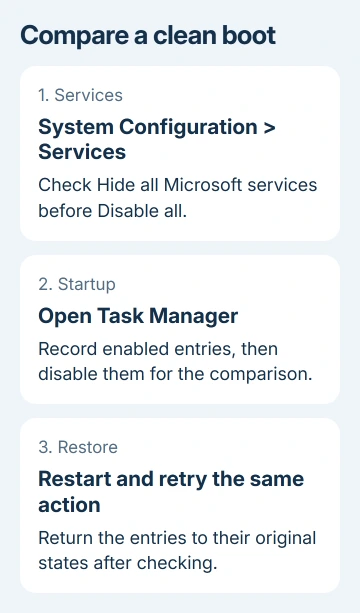
Retry the original task. If it works, enable groups of the disabled entries, restart, and try again. Keep narrowing the group that brings back the error until you can update or remove the conflicting program.
If the error persists, restore the entries you disabled and continue. Don't alter Advanced boot options or leave a work computer's security tools disabled; ask IT to run this check on a managed PC.
6. Test memory when several programs keep failing
Search Start for Windows Memory Diagnostic. Save all open work before choosing Restart now and check for problems, since the test runs outside your usual Windows session.
If the test reports hardware errors, arrange a memory check through your PC maker. Send the result and crash pattern. If no errors appear, you still need to follow up on the app or driver problem.
If Windows instead displays a low-memory warning with apps still running, check the page-file and committed-memory explanation. Running out of memory for apps is different from an app trying to use an address it can't access.
For one stubborn app, send its maker the executable name, version, Windows build from winver, failed task, and repair results. For crashes across apps, take those results and the memory test to the PC maker before buying parts.
The Short Version
Restart, update, and repair the program identified by the error first. Treat the shutdown-only Explorer case separately. For persistent crashes, continue with Windows file repair, a clean boot comparison, and memory testing.
Checked November 16, 2026.