An .exe - Entry Point Not Found box means the program found the DLL it wanted, but that copy is missing a function the program calls, so it's the wrong version. The last words of the message, the DLL's name, tell you which fix you need.
A Visual C++ file such as MSVCP140.dll means you need the latest runtime. A Windows file such as KERNEL32.dll means the program wants a newer Windows than yours, and the program's own file means repairing or reinstalling it.
In this guide
Read the message from the end
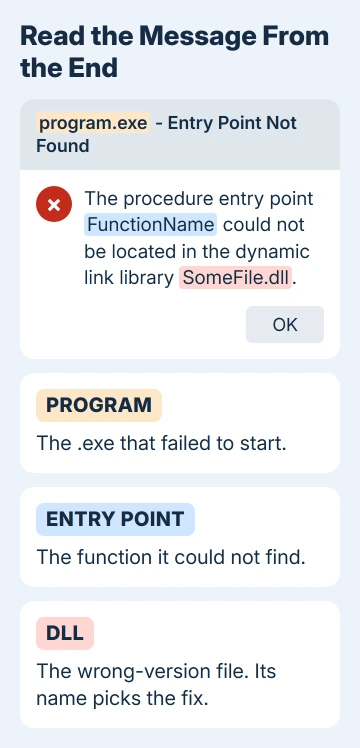
The box always follows the same pattern:
program.exe - Entry Point Not Found
The procedure entry point FunctionName could not be located in the dynamic link library SomeFile.dll.
The title names the program that failed. The entry point is the function it tried to call, and the DLL, short for dynamic link library, is a shared file of code that programs borrow from.
Windows found that file and opened it, but the function wasn't inside. That only happens when the file is older than, or different from, the one the program was built with.
Real cases show how much the DLL name tells you. GetProcessMitigationPolicy in KERNEL32.dll is a Windows 8 function that a program tried to call on Windows 7.
EventSetInformation in ADVAPI32.dll stopped Word on a Windows 7 laptop. And AVFoundationCF.dll belongs to iTunes itself, so that one pointed straight at the program.
1. A Visual C++ file: install the latest runtime
When the DLL is MSVCP140.dll, VCRUNTIME140.dll, VCRUNTIME140_1.dll or another name in that family, the Visual C++ runtime, the shared files many programs are built on, is older than the program needs.
The installed runtime has to be "at least as recent as the build tools used to build your app", so a new program can trip over a runtime that was installed years ago.
Download both the X64 and X86 packages from Microsoft's Visual C++ downloads page and run each one. Choose Repair if the installer offers it, or Install if it doesn't, then restart.
You need both on 64-bit Windows, because 32-bit programs use the X86 runtime. On an ARM64 PC, the X64 package carries the ARM64 files too.
I'd install both packages even if you're sure the program is 64-bit. They sit side by side, and the next program you install may want the other one.
That page is meant for developers, and it suggests checking with the app's maker about how they want the runtime updated. Its packages are still the official ones, the same files an app's own installer would add.
The MSVCP140.dll guide goes into the two packages in more detail.
The current runtime only supports Windows 10 and 11. On Windows 7 or 8.1, reinstall the program instead, so its own installer adds the runtime version it was built for.
2. A Windows file: check which Windows the program needs
When the DLL is KERNEL32.dll, USER32.dll, ADVAPI32.dll or another part of Windows, the program wants a function your copy of Windows doesn't have.
Reinstalling the program won't change that, and copying a system DLL over from another PC can stop Windows booting at all.
Open Run with Windows + R and enter winver. The box that opens shows your exact version and build. Compare it with the program's minimum requirements.
GetProcessMitigationPolicy needs Windows 8 or later. That's why the program in that example fails on Windows 7, in a thread where 1,400+ people asked the same question.
You've got two ways out: install the last version of the program that still supports your Windows, or move to a Windows version the program supports.
Running Windows 10 or 11? Install anything waiting in Settings > Windows Update as well, because your build may simply be older than the function the program wants.
An update to the program can fix it as well. When Word failed on Windows 7 with the ADVAPI32.dll message, one owner opened another Office app instead and ran Office's update from there.
They wrote that "the update applied solved this issue". In any Office app, the button is under File > Account > Update Options > Update Now.
3. The program's own DLL: repair or reinstall it
When your message shows a path into the program's folder, such as C:\Program Files\SomeApp\SomeApp.dll, or a DLL named after the program, its own files are out of sync. That's common after an interrupted update.
- On Windows 11, open Settings > Apps > Installed apps, click the three-dot button on the program's row and choose Modify or Advanced options.
- On Windows 10, go to Settings > Apps > Apps & features, select the program and choose Modify.
- Use Repair if the program offers it. For Microsoft Office, try Quick Repair first and Online Repair if that doesn't help.
- With no repair option, uninstall the program, restart, then download its newest version from the maker and install that.
Also look for a stray copy of the DLL in the program's folder. Windows checks the program's own folder before System32 when it loads a DLL, as its DLL search order shows.
So an old copy someone dropped there wins every time. If you put a downloaded DLL there yourself, move it out and reinstall the program.
4. msvcrt.dll or another core file: run SFC
One owner got this error for msvcrt.dll, with a garbled function name, in about eleven programs at once.
Microsoft's answer on it was blunt: "This issue may occur if you replaced the Msvcrt.dll file with a third-party version" that's missing a function Windows' own copy has.
When one Windows file breaks many programs like that, run System File Checker. Search Start for cmd, choose Run as administrator beside the result, and enter:
sfc /scannowRestart when it finishes. If SFC says it found nothing to repair, as it did for one later poster, Windows' own copy is healthy. Go back to steps 1 to 3 for each program.
If SFC finds damage it can't fix, run DISM and then SFC again.
If the message still comes back
Don't download the missing DLL from a DLL-download website. Those files are often the wrong version, which is exactly what causes this error, and you can't tell what else is in them.
Send the program's maker the full message, word for word, along with your Windows version from winver. They know which runtime and which Windows their version needs.
For Office apps or Windows' own files, Microsoft's support can take it from there.
The Short Version
Check which DLL the message names last. For MSVCP140.dll or VCRUNTIME140.dll, install the latest X64 and X86 Visual C++ runtime.
For KERNEL32.dll or another Windows file, match the program to your Windows version. For the program's own DLL, repair or reinstall it, and run SFC when one Windows file breaks many programs.
Checked November 19, 2026.