

Signing out of Outlook works differently in each app. Removing the email account disconnects that mailbox on Windows and phones. Office sign-out affects your Office account instead, so it doesn't stop someone opening your inbox.
For a short break on a shared computer, lock your Windows or Mac account instead. Use account removal when you're finished using that mailbox on the device, and check the version-specific steps before confirming it.
In this guide
Choose between locking the computer and removing mail
First decide what you want to stop. Closing Outlook hides its window, but the next person using your unlocked computer can reopen it. Locking the computer stops them using your session without making you rebuild your mail setup afterward.
On Windows, press Windows+L. On a Mac, press Control+Command+Q. Return by unlocking your own computer account. If someone else needs the computer, have them sign in to their own Windows or Mac account.
Removing a mailbox stops this Outlook installation sending and receiving its mail. Your email address stays open with its provider, Microsoft 365 isn't canceled, and removing the account doesn't erase all messages stored elsewhere.
Before removing it, finish any unsent work and check another device can display your important mail, or open the provider's webmail. Keep a copy of any messages held only on this PC, particularly older POP mail and local archives.
I'd lock the computer for lunch and remove the account before a device handover. Those are different jobs, and choosing the right one avoids an unnecessary setup later.
Remove the mailbox from new Outlook for Windows
In new Outlook, open View > View settings. The current account-management route is also available through File > Account info > Accounts > Your accounts if your app has that layout. Find the Email accounts section.
Beside the address you want to disconnect, select Manage. Under Account details, choose Remove. Read what the confirmation will remove, especially when several accounts have similar names.
Microsoft says its account-management controls remove the mailbox from Outlook without closing the address itself. Offline cached content for that mailbox is removed from this Outlook installation.
For Gmail, Yahoo, iCloud and other non-Microsoft accounts, a further choice can offer removal from this device or all devices. Choose the device-only option if you just want to disconnect this computer.
Remove from all devices has a wider effect, including Outlook's shared Microsoft Cloud data. Items that exist only there and aren't in your provider's webmail might be permanently lost. Don't choose it just to leave one PC signed out.
After removal, check the folders and account settings. That address should no longer appear among the app's active mailboxes. Other accounts can stay open, so Outlook won't necessarily be empty.
Disconnect an account in classic Outlook
Classic Outlook uses File > Account Settings > Account Settings. On the Email tab, select the intended account, then choose Remove. Confirm only after reading the warning about its offline cached content.
Removing the last or only account can show a warning that Outlook needs a new location for your data. Follow the linked Outlook Data File instructions to continue using the profile. Don't force removal by deleting files.
An Outlook Data File can contain locally stored messages. Removing the account isn't the same as deleting its data file. Keep the archive you need and ask IT for help with an unfamiliar work profile or a local-mail warning.
The File > Office Account > Sign out command handles a different identity. It signs Office out of connected services and can affect activation. It doesn't replace removing the mailbox or locking your computer.
If the login prompt disappears and you want to repair it rather than disconnect the mailbox, use the Outlook password-window repair. That procedure uses Office sign-out for a specific sign-in fault.
Remove the account on Mac, iPhone or Android
For current Outlook on Mac, select Tools > Accounts, then select the email address. Choose Manage > Remove Account. Check the address again before agreeing to the removal.
Legacy Outlook for Mac uses Tools > Accounts, followed by the minus control beneath the account names and Sign Out. Use that branch only when your installation has the older Accounts window.
In the Android or iPhone Outlook app, open Outlook's Settings > Accounts. Select the email account, then tap Remove Account. This removes it from Outlook on the phone; it doesn't remove it from a separate Mail or Gmail app.
Return to the app's account list afterward. If you still see the same address, check whether it is another configured account or a sign-in suggestion. A sign-in suggestion alone doesn't mean that inbox remains accessible.
If your organization manages your work mail, ask IT how to disconnect that device. Removing the account doesn't necessarily remove the organization's device-management setup, which has its own removal steps.
Finish a browser session separately
Outlook in a browser is separate from the installed app. In the signed-in mailbox, select your picture or initials, then Sign out. Close the browser windows when you've finished, particularly on a shared computer.
Removing an account from desktop Outlook doesn't end that browser session. Likewise, signing out of Outlook.com doesn't remove the account configured in Outlook on your phone.
The account menu is inside your signed-in mailbox. Check it on the actual mailbox, rather than opening a public Microsoft landing page and assuming that means you've signed out everywhere.
If Outlook keeps making you sign in again on your own device, follow the Outlook session-persistence checks. Removing the account each day won't correct a browser that erases its sign-in data.
If removal fails, send Outlook support the app version, operating system, account type and exact warning. Use the app's Help options or contact IT. Ask how to disconnect it while keeping local mail.
The Short Version
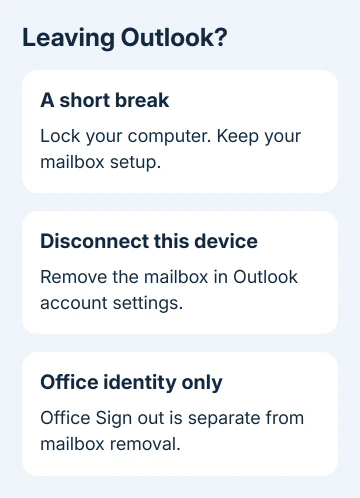
For a short break, lock your computer. To disconnect the device, remove its mailbox in Outlook account settings. Office and browser sign-out are separate actions. Read any all-devices removal warning before confirming.
Checked November 16, 2026.
 If you have any business, I can build it online






