The Links toolbar can move your Windows 10 app icons into a centered group without installing another program. Use the built-in Links toolbar as an empty spacer, drag the app group into position, then lock the taskbar again.
This centers the icons by hand. It doesn't move the Start button or give Windows 10 the automatic centered layout used by Windows 11, so you may need to adjust the group again as apps appear or disappear.
In this guide
Prepare the bottom taskbar for the change
Start with a normal desktop taskbar along the display's bottom edge. Save any work before rearranging things, and leave a few familiar apps pinned so you can judge the result against icons you'll actually use.
Open Taskbar settings by right-clicking unused taskbar space. Choose Bottom for Taskbar location on screen. This places the bar horizontally; the later steps move icons inside it.
Microsoft explains grouping and visibility in its Windows taskbar settings. Leave those alone while placing the icons unless a specific control is taking up space you want to reclaim.
For a Windows 11 PC, use its own taskbar alignment settings. The Windows 10 Toolbars method depends on a menu that isn't part of the ordinary Windows 11 taskbar.
1. Unlock the taskbar and add Links
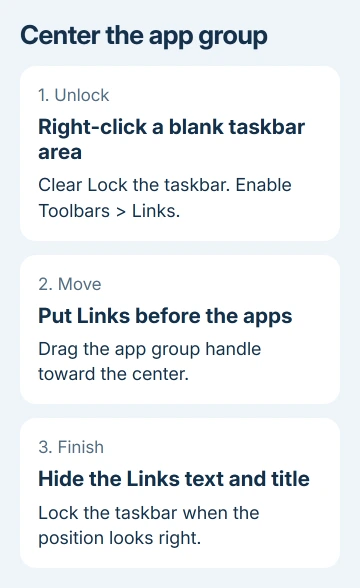
Right-click unused taskbar space. If Lock the taskbar has a check mark, select it to remove the check. The toolbar sections are now free to move.
Right-click the blank area again, open Toolbars, and select Links. A Links section should appear near the right end of the taskbar, before the notification area and clock.
Look for the small paired vertical grip marks beside it. Those marks are part of Windows and are the drag handles you'll use. Clicking an app icon instead will launch the app, rather than move the section.
If you see a menu for one app with options such as Pin or Close window, dismiss it. That means the right-click landed on the app, not an empty part of the taskbar.
If Links is already checked, don't add a second toolbar or create a new folder. Keep the existing Links toolbar and work with its handle. Right-click its own area to see options for its title and text.
2. Put the Links spacer before the apps
Grab the handle just to the left of Links and drag it toward the left side of the taskbar. Keep dragging past the pinned app group until Links sits after the Start and search controls but before the apps.
At that point, the app group moves to the right. That movement is expected: the toolbar has changed the space available to the apps. Use the empty toolbar area as your adjustable spacer.
Keep Show Text and Show title enabled temporarily if they help you recognize which section you're moving. These options belong to the Links toolbar's menu, rather than the general taskbar settings page.
If the handle won't move, check that the taskbar is still unlocked. If you're dragging the word Links or an app rather than the grip, release the mouse and start again from the grip.
I'd keep the title visible until the sections are in the correct order. Hiding it too early makes it easier to grab the app group when you meant to move the spacer.
3. Drag the app group into the middle
Find the handle immediately before the pinned app icons. Drag that handle leftward until the icon group sits around the middle of the screen. Watch the whole group rather than centering only its first icon.
The icons won't snap to the center with this method. Judge the left and right edges of the group against the screen's midpoint. Leave room for the clock and notification area, which remain on the right.
If the group moves too far, drag the same handle back. You don't need to unpin anything or restart Windows to adjust the position. Keep the Links section before the app group while doing this.
The taskbar can also reorder individual apps by dragging their icons. That changes the order within the group, not the group's position. Use the section handle whenever all the apps need to move together.
4. Hide the spacer label and lock the layout
Right-click the Links toolbar area and turn off Show Text and Show title. The Links label should disappear. Make any final adjustment to the app group's position while its handle is still available.
Right-click a blank area again and select Lock the taskbar. The drag handles disappear and the layout becomes harder to move accidentally. Open a pinned app to check that its button still works normally.
If the word Links stays visible, unlock the taskbar and right-click the Links section itself. The title option isn't always shown when you right-click a different section or an app icon.
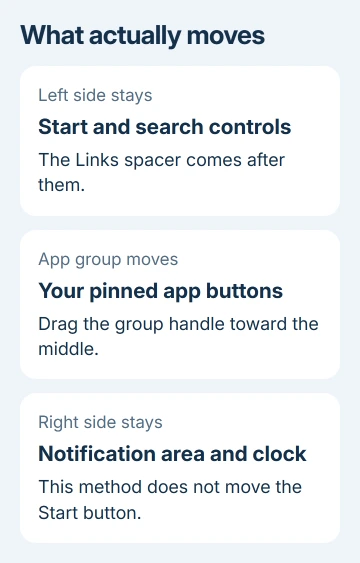
The finished result should have Start and search on the left, your apps nearer the center, and the notification area on the right. Only the layout has changed. You can still open and switch apps as before.
Adjust a layout that drifts or restore the original
Opening more apps can widen the group. A new screen resolution or different monitor can also change how centered it looks. Unlock the taskbar, reposition the app group's handle, then lock it again.
Keep a consistent set of pinned apps for a steadier layout. Judge the position with your usual apps open, rather than lots of extra windows. This method doesn't recalculate the center whenever a button appears or disappears.
If you use multiple monitors, these steps arrange the main taskbar. Don't expect matching spacers on every display. Start and notification controls also use space, so perfect visual symmetry isn't always possible.
To undo the change, unlock the taskbar, right-click an empty area, and deselect Toolbars > Links. Move the app group toward the left if needed, then lock the taskbar again. Your pinned apps remain pinned.
For a missing website button, recreate its Edge taskbar pin before rearranging the group. For a work PC with locked settings, ask IT whether taskbar customization is restricted.
The Short Version
Unlock the taskbar, enable Toolbars > Links, and move Links before the pinned apps. Drag the app group toward the screen's center, hide the Links title and text, then lock the taskbar.
Checked November 16, 2026.
 If you have any business, I can build it online