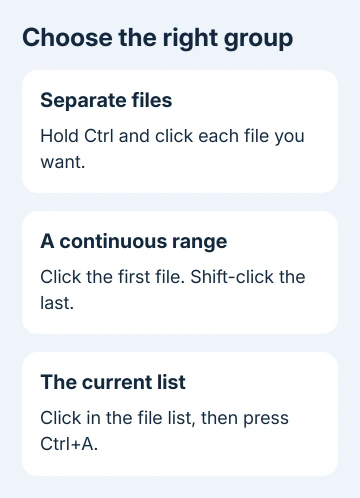
Ctrl-click selects separate files in File Explorer, while Shift-click selects a continuous range. Press Ctrl+A to select everything in the current file list, or turn on item checkboxes when holding keys is awkward.
Choose the method that matches the group you need. A few scattered photos are easier with Ctrl-click; a sorted block of documents is faster with Shift-click. Check the highlighted filenames before applying a command to the whole selection.
In this guide
Open the folder and choose a selection method
Press Windows+E and open the folder containing your files. Work in the main file list, where filenames or thumbnails appear, rather than the navigation pane containing drive and folder shortcuts.
Click one ordinary file once to select it. Double-clicking usually opens it, so build the group with single clicks. For Explorer configured to open files with a single click, use the checkbox method instead.
Selecting files tells Explorer which ones your next command should act on. It doesn't move them, create a folder or merge them into one document. After selecting the right group, choose a separate command such as Copy.
For files spread across different folders, start with the relevant folder or a search result that shows them together. Selecting files in one window isn't a way to keep adding unrelated files from every folder you open afterward.
The multiple-file-type search guide can produce a combined PDF and Word result list first. Review those results before selecting a group, since you might not need every file of that type.
Pick scattered files with Ctrl-click
Click the first file. Hold Ctrl and click each additional file you want, keeping Ctrl held while clicking. Release it after the last addition. The files don't need to be next to each other.
For example, this works for the first, fourth and seventh photo in a folder without selecting the pictures between them. The files you've already selected should stay highlighted as you add each new one.
To remove one mistaken choice, hold Ctrl and click that selected file again. Its highlight disappears while the other selected files remain. This is easier than clearing the whole group and starting again.
A plain click on another file normally replaces the current selection. If your group keeps collapsing to one file, check that Ctrl stays held during every additional click, rather than being pressed and released between clicks.
Avoid dragging while clicking: that can move the group instead of adding another file. With a sensitive touchpad, try checkboxes. They give you a clear target without coordinating each click with a held key.
Extend a range with Shift-click
Arrange the list so the desired files sit together. In Details view, click the relevant column heading, such as Name or Date modified, to sort it. The range follows the order currently displayed.
Click the first file in the range. Hold Shift, click the last file, then release Shift. File Explorer highlights both endpoints and the entries between them, including folders if any sit inside that block.
Don't use this method for two separated items when you want to exclude everything between them. Use Ctrl-click for that group. Shift selects the whole range, even when the files in the middle have different types.
For keyboard selection, select the starting item and hold Shift while pressing the direction keys. Each movement extends or reduces the highlighted range. This is useful when the desired group occupies several rows in Details view.
If the range isn't what you expected, make one plain click to start again. Check the sort order and both endpoints. A filename that moved after sorting can change which files fall between the first and last selection.
Select all, or use the keyboard without a mouse
Click inside the main file list and press Ctrl+A. All entries in that current list become selected. Inside a search result, that means the displayed matching items, rather than every file stored on the computer.
Check where your cursor is first. When the typing cursor is in the search box or address bar, Ctrl+A selects its text instead. Click back in the list before using the shortcut when you want files rather than a highlighted search query.
To choose separate files using only the keyboard, navigate to the first item. Hold Ctrl while using the direction keys to reach another item, then press Spacebar to select or deselect it. Continue until the group is complete.
Microsoft's Explorer keyboard instructions describe the range and individual-item methods. These controls are useful without a screen reader too.
I'd use Ctrl+A only after checking the folder or search result carefully. It's excellent for a whole delivery folder, but you'll usually need to pick individual files in a mixed Downloads folder.
Turn on item checkboxes in Windows 11 or 10
In Windows 11, select View > Show > Item check boxes. Checkboxes appear beside files and folders as you work with the list. Select the boxes for the items you want rather than opening each file.
Windows 10 uses a different route: View > Options > Change folder and search options. Open the View tab, select Use check boxes to select items under Advanced settings, then choose OK.
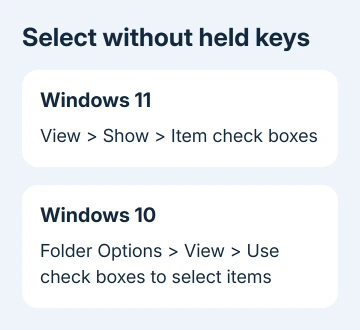
Checkboxes are particularly helpful on a touch screen or when a held Ctrl key is uncomfortable. A checked box makes it easy to see which files you've selected; uncheck one item to leave it out without rebuilding the group.
When Explorer itself is confusing, the File Explorer help guide covers navigation and display settings. Those settings change what you see; the highlighted or checked items still determine which files your next command acts on.
Check the group before copying or moving it
Look through the selected names, then press Ctrl+C to copy them. Open the destination and press Ctrl+V. Copying leaves the originals in place, making it the simpler choice when you're assembling a set to review.
To move the files instead, use Ctrl+X followed by Ctrl+V at the destination. Confirm the destination contains the intended files before continuing with other work. Keep deletion separate until you've checked the complete selection.
If selection fails even in an ordinary local folder, note whether Ctrl, Shift and checkboxes all fail or just one method. Give Windows support or IT those details to check why selection fails. Mention any touchpad or keyboard problem too.
The Short Version
Use Ctrl-click for separate files, Shift-click for a continuous block, and Ctrl+A for the current list. Item checkboxes offer a key-free alternative. Review the selected names, then copy or move the group as a separate action.
Checked November 16, 2026.