

Windows 11 often slows down because too many apps start with it, storage is running short, or one app is keeping the PC busy. Disable unnecessary startup apps first, then use Task Manager to find apps using a lot of your PC's resources.
Slow sign-in, sluggish menus, and one slow application need different changes. Choose the section for the delay you notice. After making a change, repeat your slow task and compare how it responds.
In this guide
Trim the apps that launch at sign-in
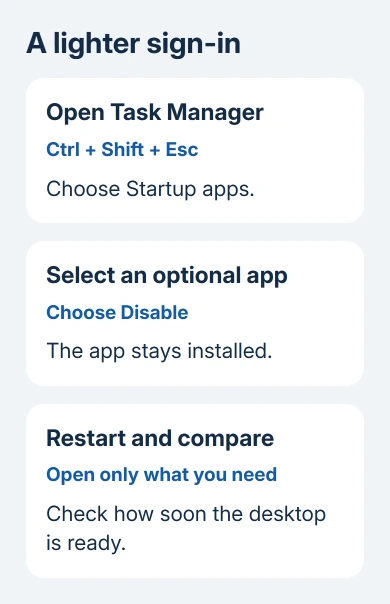
Press Ctrl + Shift + Esc to open Task Manager and select Startup apps. Review the enabled entries and their startup impact. Select an optional app that can wait until you launch it yourself, then choose Disable.
Chat clients, game launchers, and other optional utilities can usually wait until you open them. Disabling startup doesn't uninstall the app. It changes whether it launches automatically when you sign in.
Leave security software and unfamiliar hardware utilities alone until you know their purpose. A touchpad, audio, or accessibility tool can supply a feature you rely on even when its name looks unimportant.
Restart through Start > Power > Restart, then open only the programs you need. Compare how soon the desktop becomes usable with your usual sign-in. A cleaner startup helps most when that is the slow part.
The slow-startup guide covers boot-specific checks if the wait happens before the desktop is ready. Once Windows is responsive after sign-in, move on to the task that still feels slow.
Find the app using CPU, memory, or disk
In Task Manager, select Processes. Sort by CPU, Memory, or Disk while the slowdown is happening. CPU means processor use; memory is the working space apps need while they're open.
Look for a program that stays busy, rather than a brief burst while an app opens. A file copy, security scan, or update can keep the disk busy until the job finishes without anything being wrong.
Save your work and close an unnecessary app normally. Try the slow task again. If memory use drops and switching windows feels smoother, keeping fewer apps open at once may handle your usual work without the slowdown.
For a frozen app, Task Manager's End task can close it, but that program's unsaved changes can disappear. Don't end Windows processes at random to lower the numbers.
I'd follow the busiest app before changing ten Windows settings. If only one program is slow while the desktop and other apps behave normally, update or repair that program through its own support instructions.
Free storage without deleting useful downloads
Open Settings > System > Storage and check the system drive. Select Temporary files, allow Windows to finish counting, and review each category before choosing Remove files.
Pay particular attention to Downloads if it appears. That folder can contain documents and installers you still need. Select the categories you understand instead of treating every checkbox as disposable.
Storage Sense can manage future cleanup. Open its settings and review when it runs and which content it removes. Set those choices to suit the files you keep, then run cleanup when you need it.
Low free space can affect updates and everyday work. Recheck the available space afterward, then repeat the task that was struggling. A higher free-space figure is useful, but it doesn't repair a failing app by itself.
If Windows still runs from a hard drive, the SSD and HDD comparison explains why a storage upgrade can matter more than another visual tweak. Check upgrade compatibility before buying parts.
Adjust power and animation settings for the work
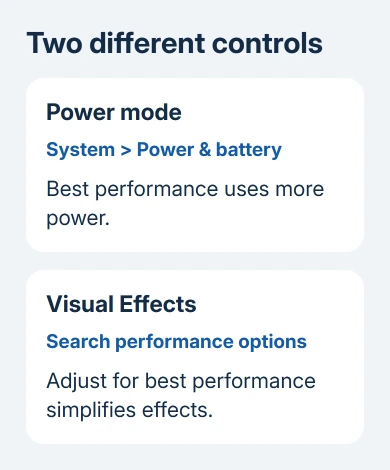
Open Settings > System > Power & battery. Where available, choose Best performance in the Power mode menu when plugged in and doing demanding work. Whether you see this option depends on your hardware and selected power plan.
This choice can increase battery use and make a laptop warmer. If you value quiet operation or long battery life, return to Balanced after the demanding task rather than leaving performance mode on automatically.
For slow animations and window effects, search Start for Adjust the appearance and performance of Windows. Open it and use the Visual Effects tab to select Adjust for best performance, then Apply.
Try opening and switching windows after the change. If the simpler appearance feels better, keep it. If text or window behavior no longer suits you, return to the same dialog and choose Let Windows choose what's best for my computer.
These settings change how Windows uses the PC's resources and displays menus and windows. They won't turn a slow internet connection into a faster download or make an unsupported game fit the hardware.
Finish updates and check for unwanted background work
In Settings, select Windows Update, then Check for updates. Install any updates available for this PC, then restart if asked. Under Advanced options > Optional updates, review any driver update relevant to the affected hardware.
Microsoft recommends a malware scan in its performance advice. Open Windows Security > Virus & threat protection and select Quick scan.
If an optional app keeps running, open Settings > Apps > Installed apps. Use its three-dot menu, then Advanced options when available. Under Background app permissions, choose Never only if you don't need its background work.
That permission isn't available for every program. Desktop apps may instead have their own startup or background switches. Check the app's settings rather than assuming Windows is missing a control.
After the scan and updates finish, test with your normal files and a reasonable number of open apps. If memory or disk use stays high, those readings help you decide which program or piece of hardware to check next.
If the PC stays slow with little open, send its maker the model, Windows release, and Task Manager readings. Ask about diagnostics and compatible memory or storage upgrades before buying another computer.
The Short Version
Reduce startup apps, find the busiest app, and review temporary files before clearing them. Try power or visual-effects settings for the kind of delay you notice. Finish updates and a scan before deciding the hardware needs an upgrade.
Checked November 16, 2026.






