

The factory reset menu on a Brother printer is usually under Initial Setup, with different final buttons for each model. Choose All Settings or Factory Reset for a full reset, or Network to erase connection settings.
Check the model label before confirming anything. A toner or drum counter reset is a different job, and a factory reset won't replace an exhausted cartridge or clear a physical paper jam.
In this guide
Decide which settings need clearing
Open the reset menu, but don't confirm anything yet. Several reset choices can appear together, and each one clears different information.
Brother says the MFC-L2700DW reset instructions distinguish these options:
- Machine Reset restores certain machine preferences, such as date, time, and ring delay.
- Network restores the print server's connection settings on the listed models.
- Address Book & Fax or Address & Fax clears the stored fax information listed for your model.
- All Settings restores the machine settings to their factory values.
- Factory Reset, where offered, is the reset intended before disposal.
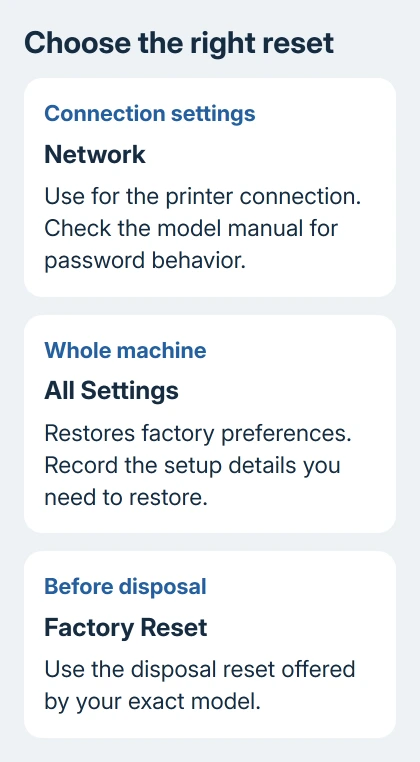
Check the model manual when a menu name is unfamiliar. Read its description before assuming a Network reset also removes the administrator password.
I'd use the smallest reset that solves the actual problem. Losing Wi-Fi credentials, fax destinations, and working preferences creates extra setup when only the network connection needed attention.
For a consumable warning, use the Brother toner reset options instead. Those steps change the cartridge's operating mode instead of returning the entire printer to factory settings.
Prepare the printer before the settings disappear
Record the Wi-Fi network name, any manually assigned IP address, and settings you need to put back. Save important fax destinations using the backup or export method listed for your model before choosing a reset that removes them.
Wait until the printer finishes printing, scanning, or faxing. The reset steps for these models tell you to unplug the interface cable. Disconnect the USB or Ethernet data cable, but leave the power connected for the reset.
Keep the full model name beside you, including its letters. An MFC-J430W, MFC-L2740DW, and MFC-L8930CDW don't use one shared confirmation sequence, despite all being Brother multifunction printers.
Read the final prompt before accepting it. A reset that asks for a two-second hold needs that hold; tapping the button and leaving the screen can stop short of the reboot that completes the operation.
Reset the listed touchscreen models
For HL-3180CDW, MFC-9130CW, MFC-9330CDW, MFC-9340CDW, and HL-L2380DW, use the touchscreen route in the matching factory-default procedure.
- Disconnect the interface cable.
- Tap Settings, then All Settings.
- Find Initial Setup, then open Reset.
- Choose All Settings, then tap OK.
- Tap Yes to confirm.
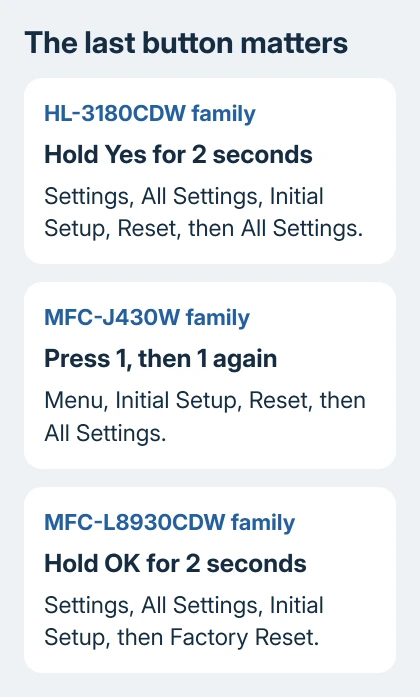
- Hold Yes for two seconds to reset the machine.
Let the printer finish restarting, then check its settings. Reaching the confirmation page isn't enough: the printer needs to reboot and restore its default settings.
Some inkjets end this route differently. On the MFC-J5330DW and MFC-J5930DW families listed in this reset procedure, select All Settings, then hold OK for two seconds.
Use the button named on your printer's prompt. Trying the Yes sequence on a screen that requests OK won't complete the reset.
Use Menu and the number keys on older models
For MFC-J425W, MFC-J430W, and MFC-J435W, the button-panel instructions use Menu and two separate confirmations.
- Disconnect the interface cable.
- Press Menu.
- Select Initial Setup using the direction buttons, then press OK.
- Select Reset, then press OK.
- Select All Settings, then press OK.
- Press 1 to confirm, then press 1 again to reset.
The MFC-L2680W, MFC-L2685DW, MFC-L2700DW, MFC-L2705DW, and MFC-L2707DW also use a Menu-based reset selection and two 1 confirmations. Their reset menu can offer several functions, so select the one you need first.
A prompt offering 2 to exit gives you a chance to cancel. Use it when the selected function or model doesn't match the job, rather than pressing through an unfamiliar menu.
Follow the direct Factory Reset route on newer machines
For MFC-EX575, MFC-L8730CDW, MFC-L8930CDW, and MFC-L8970CDW, the newer procedure goes directly through Initial Setup to Factory Reset.
Disconnect the interface cable. Open Settings > All Settings > Initial Setup > Factory Reset. When the display explains that the machine will reboot, hold OK for two seconds to confirm.
Skip Settings when All Settings already appears on the Home screen. That shortcut changes how you enter the menu. You're still performing the same reset.
Don't substitute this sequence for a different HL, DCP, or MFC model. Open its online manual and search for Reset Your Machine or Factory Reset when the listed controls don't match.
Reconnect and check the printer after the reboot
Restore the printer's network connection if the selected reset removed it. The Brother computer connection guide covers the separate USB installation and Wi-Fi setup routes.
Send one small document after reconnecting. Check that the computer selects the intended printer and that the machine produces the page. A reset can finish correctly while the computer still points to its previous network address.
If the fault remains, record the display message and model. Open that model's troubleshooting page on Brother Support, then ask whether the symptom needs firmware attention or service. Repeating a finished reset is unlikely to help.
The Short Version
On these Brother models, select Network or a full reset to suit the job, and follow its exact confirmation. Let the reboot finish, restore the connection if necessary, and check one printed page.
Checked November 16, 2026.
 If you have any business, I can build it online






