An Epson printer marked Offline on a Mac usually has a broken connection or a queue that can't reach it. Wake the printer, check that both devices use your home network, then open its queue and resume printing if it's paused.
A printer that copies normally but won't accept Mac jobs needs different treatment from one showing a paper or ink error. Start with the matching condition, and stop once a fresh page prints.
In this guide
1. Make the Epson ready before changing Mac settings
Look at the printer itself. Wake its display, load paper and deal with any jam, open cover or cartridge message. The Mac can't send a successful job until you've cleared the message on the printer.
On an all-in-one, copy a page from the scanner glass with the printer's buttons. A complete copy shows that the paper feed and printing mechanism can work without the Mac. It doesn't check the network connection.

If the copy also fails, follow the message on the printer first. Reinstalling Mac software can't clear trapped paper or repair missing ink on a copy. Keep the exact error code for support if it won't clear.
If the copy works, check the connection you actually use. A USB printer needs its cable connected; a Wi-Fi printer must have a router connection. Seeing the printer's name on your Mac doesn't mean it's still connected.
I'd check this before deleting anything. It's easy to spend time rebuilding a queue when the printer has simply joined an old network after a router change.
2. Restore their shared network connection
Open the Mac's Wi-Fi menu and read the selected network name. Compare it with the network shown on the Epson's display or network report. Check the report buttons in the manual for that Epson model; panels differ.
If the printer isn't connected, work through the Epson Wi-Fi report checks. That report can point to the password or router connection before changing Mac preferences.
Both devices need a network that lets them communicate. On a guest network, the Mac and Epson can each get online yet be unable to reach each other. Move the Mac to your normal home network and try a new print job.
Different 2.4 GHz and 5 GHz connections aren't automatically a problem when the router joins them into the same local network. Check the network name and router's guest restrictions rather than forcing every device onto one band.
For USB, reseat both cable plugs and connect directly to a Mac port, bypassing the hub. If your Mac needs a USB-C adapter, check that the adapter carries data. A cable supplying power alone can't transmit printing data.
Apple recommends checking connections in its printing troubleshooting steps. Confirm that a network printer and Mac share a network. Once that's right, check the queue next.
3. Resume the queue and remove the job holding it up
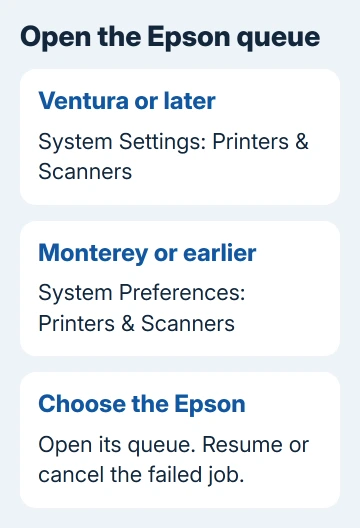
For a Mac running Ventura 13 or newer, open Apple menu > System Settings > Printers & Scanners. Select the Epson, then open its print queue. Recent macOS versions show jobs in Print Center.
For macOS 12 Monterey or earlier, use System Preferences > Printers & Scanners, select the printer and choose Open Print Queue. The settings window looks different, but you're checking the same waiting jobs.
If the queue is paused, click Resume. If one document has stopped with an error, select that job and cancel it. Submit a fresh, one-page document after the old job disappears.
Don't resend a long document repeatedly while the queue is stuck. Those copies can all print when the connection returns. Cancel the unwanted copies before testing again.
Also check which printer is selected when you open Print in the app. Several Epson entries can represent different connections or old installations. Choose the entry you just inspected, rather than relying on the last-used printer.
An empty Epson queue while your document appears in another queue means the job went to the other destination. Select the intended Epson in File > Print and send it again.
4. Add a fresh printer entry while keeping the old one
If the printer is ready and connected but the same queue stays Offline, add it again before removing the old entry. This gives you a way to compare the two without losing the original setup immediately.
In current macOS, open System Settings > Printers & Scanners > Add Printer, Scanner, or Fax. Wait for the Epson to appear, select it and check the Use field before clicking Add.
On Monterey and earlier, open System Preferences > Printers & Scanners and click the plus button beneath the list. Select the discovered printer and review its software choice there.
Use AirPrint when your model supports it and that option is offered. Models needing Epson software should use the driver intended for that model and macOS version. The Epson computer connection guide explains that choice.
Give the new entry a recognizable name, and choose that name for a one-page print from the app. If it prints, the old entry was the problem. Remove the unused entry after checking any special paper or finishing settings you rely on.
If the Epson never appears, return to its connection rather than choosing a similar model. A printer shared through another Mac also depends on that Mac staying available and continuing to share it.
5. Reset printing only after the smaller repairs fail
A printing-system reset removes your printers, completed-job details and saved printer settings (presets). Try it when a fresh queue hasn't helped despite a working connection. Note which printers you'll need to add again.
Open Printers & Scanners, Control-click in the printer list and choose Reset printing system. Confirm the reset, then add the Epson again. The same Control-click command is available in the older System Preferences printer list.
Print a short document through the rebuilt entry. If it works, add your other printers afterward. If it remains Offline, stop repeating the reset and gather the connection details for support.
Contact Epson support for your exact model. Give them your macOS version, connection type and any error on the network report. Say whether a local copy works and whether Add Printer lists the Epson.
For an office-managed printer, send that information to IT. Ask them to check printer access from your Mac's network, especially if other computers print successfully while yours can't discover it.
The Short Version
Clear the Epson's own error, confirm its connection, then resume or clear the Mac queue. Add a fresh printer entry if the working printer stays Offline. Reset the whole printing system only after those repairs fail.
Checked November 16, 2026.