

Old ink in an Epson ET-4760 doesn't automatically need draining. Use the cleaning procedure for faded pages after long storage; ask for service advice for wrong ink, mixed colors, or an ink conversion before printing again.
The ET-4760 has refillable tanks, not removable ink cartridges. Its user instructions provide refilling, cleaning, and transport procedures, but no tank-emptying procedure for owners. Choose the route for your actual problem.
In this guide
Decide whether this is old ink or the wrong ink
Write down what happened before the problem started. Long storage followed by streaky pages is different from putting a color into the wrong tank. A bottle's age alone can't tell you what needs fixing.
Check the bottle label, the tank color, and any message on the printer's screen. Keep the bottle available if you recently refilled. The exact product used and whether printing continued will help a technician decide what needs attention.
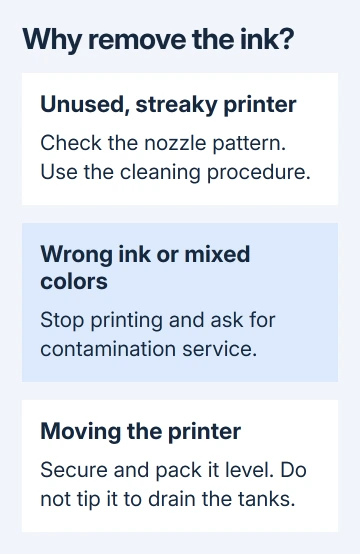
If the wrong ink or another liquid entered a tank, stop sending print jobs and ask Epson about contamination service. Don't treat repeated cleaning as a verified way to convert the machine to another ink type or correct a mixed tank.
If the ink is correct and the printer has simply been unused, continue with the print-quality checks. Our Epson color-printing guide helps distinguish a missing color from a computer setting that prints in grayscale.
I'd check which situation applies before buying a syringe or flushing liquid. Removing visible liquid from a tank isn't the same job as dealing with ink already inside the tubes and print head.
Check the printer's own pattern before changing the tanks
Load plain paper, extend the output tray, then choose Home > Maintenance > Print Head Nozzle Check > Print. This pattern comes directly from the printer, so document formatting doesn't affect the check.
Look for missing segments or gaps in the pattern. Gaps mean you should follow the print-head cleaning steps. With a complete pattern, emptying a tank isn't the sensible first response to a page that looks wrong in one app.
For a complete pattern, check that document's color settings, selected printer, paper type, and print quality instead. Compare a second document before treating the contents of the ink tank as the cause.
For gaps, choose X at the pattern result and follow the cleaning prompts. A complete pattern uses O. Compare the next nozzle check rather than opening a tank or adding cleaning fluid.
After up to three unsuccessful normal cleanings, power down the ET-4760 for 12 hours or longer. Try cleaning again; if quality still hasn't improved, continue to Power Cleaning.
Epson says to use Power Cleaning for a long-unused printer in its ET-4760 print-quality guidance. It is a stronger maintenance operation, so read its requirements before starting it.
Use Power Cleaning only for its documented purpose
Power Cleaning flushes the ink tubes for problems such as gaps after the tanks ran empty and were refilled. It doesn't empty the tanks or prepare the printer for a different type of ink.
Power Cleaning uses a lot of ink, which goes into the waste collection system. Each tank must be one-third full or more; too little ink during this process can cause damage. Check the visible levels even after a recent refill.
- Turn the ET-4760 off.
- Check each tank window for a level of one-third or more.
- Hold the power button and the help button together until Power Cleaning appears on the LCD.
- Follow the instructions on the screen to complete the operation.
- Run a nozzle check when it finishes and compare the missing parts of the pattern.
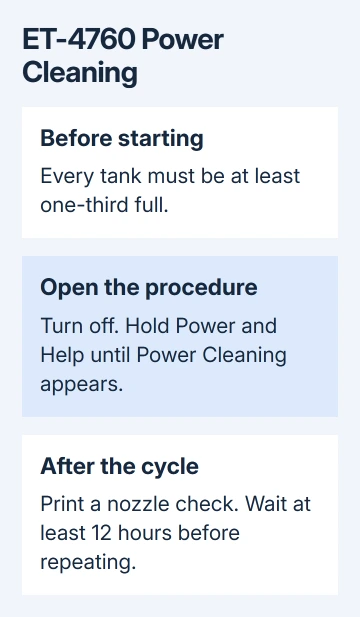
If the pattern hasn't improved, switch the ET-4760 off. Leave 12 hours or longer before repeating Power Cleaning. Don't run repeated cycles back to back to use up the old ink faster.
If the pattern still has gaps after following these cleaning steps, ask Epson support about the remaining missing colors or segments. Give them the model, ink used, idle time, and cleaning results so they can advise you on what to do next.
Handle a waste-ink message as a separate job
Ink used in cleaning has to go somewhere. A waste-ink or maintenance message is about the printer's waste collection system, rather than the ink still available in the front tanks. Record the exact message before buying parts.
A warning about an ink pad isn't a request to drain the supply tanks. Follow the support direction for that exact message. More cleanings won't clear a message calling for service and can use ink without improving the page.
The separate Epson maintenance-box guide explains how to check whether a message is about a replaceable box. Match the part and procedure to the ET-4760 rather than following a different EcoTank's arrangement.
Leave ink in the printer when preparing it for transport
Moving the ET-4760 doesn't require emptying its tanks. Its transport instructions tell you to secure the machine and keep it level. Tilting it, standing it vertically, or turning it upside down can let ink leak.
Turn it off, remove the paper, unplug power, and disconnect other cables. Check that the print head is parked at the far right, then follow the manual's tape and packing instructions for securing it before closing the scanner unit.
Close the tank caps and tank cover securely, close the output tray and paper support, and pack with cushioning. Don't put opened ink bottles in the box with the printer. Remove the transport tape before switching it on again.
For wrong-color filling, incompatible ink, or conversion, ask Epson's ET-4760 team about tank, tube, and print-head service. Request an estimate before buying parts or adding a different liquid.
The Short Version
For correct ink and poor printing, check the nozzle pattern and follow the cleaning procedure. Wrong ink needs service advice. Moving an ET-4760 requires secure, level packing rather than empty tanks.
Checked November 16, 2026.
 If you have any business, I can build it online






