No, Chrome on Android doesn't run desktop extensions, even with Desktop site enabled. For translation, pop-up blocking, passwords, or larger text, try Chrome's built-in controls. Those tasks don't always need an add-on.
An extension installed in Chrome on your computer doesn't become a working phone extension when you sign into the same account. Pick the version designed to work on your phone or computer.
In this guide
Check whether the add-on needs a desktop browser
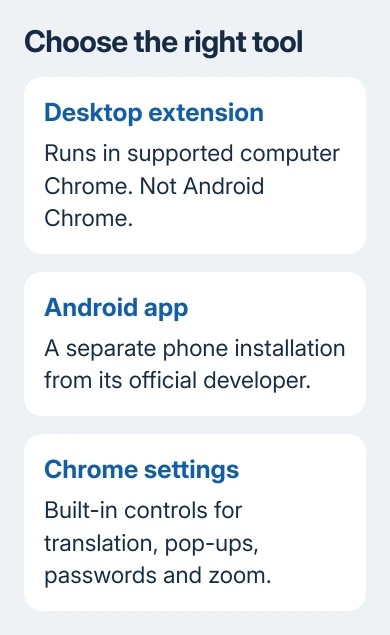
Read the tool's device requirements first. A desktop extension is a different product from an Android app. A password service can offer both under the same name, each with its own installation instructions.
Google says its extension compatibility rules limit extensions and themes to computers. Switching a mobile browser to desktop mode doesn't make them installable.
Desktop site changes the version of a webpage that the phone requests. It doesn't replace the Android Chrome app with Windows or Mac Chrome. An extension button missing from the mobile browser isn't a sign that you missed a hidden menu.
Avoid APKs claiming to install desktop Chrome extensions. An APK installs Android software; it can't add desktop extension support to Chrome. Use the developer's Android instructions for an actual phone app.
For a desktop add-on whose switch won't stay on, use the Chrome extension warning checks. That procedure needs a computer's extension manager and won't create one on Android.
Translate a webpage without adding an extension
Open the foreign-language page in Android Chrome. When Chrome offers translation, tap the language you want in its translation notice. Use the notice's settings to choose another language or always translate that language.
If Chrome doesn't offer translation, open its three-dot menu > Settings > Languages. Under Translation settings, check Offer to send pages in other languages to Google Translate. Enable that option to receive translation offers.
To choose the translation language, open Languages > Advanced > Translate into this language, then choose the language. This changes the translation preference; it doesn't require replacing the phone's whole Android language.
Return to the page and refresh it. If translation is still unavailable, the page's language might not be supported.
I'd try this first when you want an extension to help you read a foreign webpage. Translation is already part of Chrome, with no extra extension permission to approve or toolbar icon to manage.
Block unwanted pop-ups through Site settings
Open Chrome > three-dot menu > Settings > Site settings > Pop-ups and redirects. Turn Pop-ups and redirects off to block them. Chrome already blocks automatic pop-ups by default, so check the existing state before changing it.
A blocked pop-up can be part of a legitimate sign-in or payment process. If the site needs that window, use the exception offered for that specific page. Don't enable every site's pop-ups just to get one trusted page working.
Blocking pop-ups doesn't remove every advertisement embedded in a webpage. A normal ad displayed inside the page can remain. Check which behavior bothers you before deciding Chrome's control failed.
An alert that appears when Chrome isn't open can instead be a website notification. Treat its permission separately. Blocking page pop-ups doesn't revoke permission that was already granted to send notifications.
Remove a site's notification permission
Visit the site in Chrome. Open the three-dot menu > Site controls > Permissions, then check the notification permission offered for that website. Change it to stop that site's alerts if you no longer want them.
The menu can look different depending on your Chrome version. Keep the website address in view while changing the permission so you don't block a different site's useful alerts by mistake.
This is useful when the unwanted messages show a website name and come through Chrome. It doesn't turn off notifications from a separate Android app. Check the sender of an alert before looking for another browser add-on.
After changing the permission, watch for a new alert from the same sender. Existing notifications can remain in the panel until dismissed. An old alert doesn't mean the site still has permission to send another.
Use the Android password tools for sign-ins
Open Settings > Autofill and passwords > Google Password Manager in current Android Chrome. Some layouts show the manager directly in Settings. Check saved logins in the manager rather than searching for a desktop extension button.
Check which account the password manager is using. A login stored under another account can be missing from this one. Check that distinction before changing a working password just because Chrome didn't fill it.
For another password service, use that provider's official Android app and its Android autofill instructions. Its desktop extension and phone app can cooperate with the same account while remaining separate installations.
A VPN has a similar distinction. A computer's browser extension and a phone's VPN app can cover different traffic. The Chrome VPN add-on explanation helps separate browser-only coverage from a device VPN.
Make text larger using Chrome's own zoom
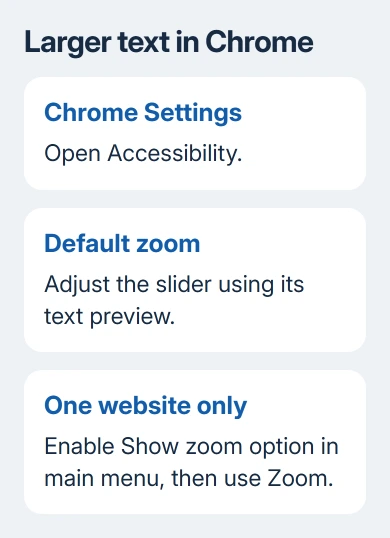
Open Chrome > three-dot menu > Settings > Accessibility and adjust Default zoom when that control is offered. Check the preview, then return to the page you were trying to read.
For one page, use Zoom in Chrome's menu. If it's missing, turn on Show zoom option in main menu under Accessibility. This lets you enlarge one difficult website while leaving the rest of your browsing at its usual size.
If the setting you need isn't present, update Chrome through Google Play and check the current Android instructions for that feature. A feature's availability can depend on the browser version.
For a specialist extension, run it in desktop Chrome or ask its developer about an Android app. Include your Android version and the feature you need, so they can explain whether their phone app supports that task.
The Short Version
Android Chrome doesn't run desktop extensions. Use its built-in translation, pop-up, notification, password, and zoom controls where they fit. For a specialist tool, choose its supported Android app or use the extension on a computer.
Checked November 16, 2026.