A Samsung TV showing No Signal over HDMI usually has the wrong input selected or a connection that needs checking. Press Home first. If the menu appears, check the input; if it doesn't, check the TV's power.
An ordinary Samsung computer monitor has different controls. Use its Check Signal Cable instructions for that screen. These steps cover a Samsung TV used as a computer display, including models with a One Connect Box.
In this guide
1. Check the TV menu and choose the connected input
Press Home or Menu on the remote. If the TV shows its own menu, it has enough power to display that picture. It can still be waiting for the wrong input or for video from a sleeping computer.
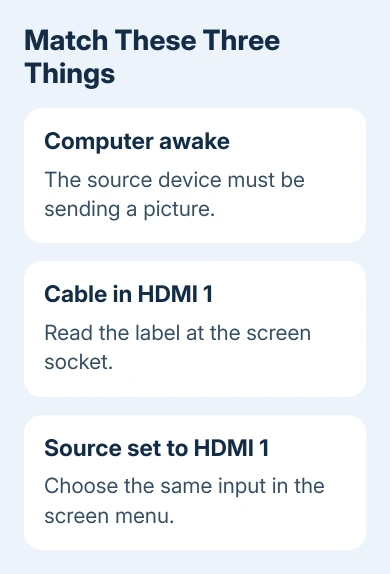
Read the HDMI number beside the cable connection. Choose that same number in the TV's source list. HDMI 1 can't show the picture arriving through HDMI 2. The remote's volume buttons can still work while the wrong input is selected.
Wake the computer and check its own screen when available. If its display is asleep or the machine hasn't started, the TV's warning may simply mean there is no video arriving yet.
If the Home menu never appears, check the TV's power connection and response to its physical power button. This isn't a reason to change the computer's resolution. The TV should be able to show its own menu independently of HDMI.
Samsung explains the difference between TVs with and without a One Connect Box in its black-screen procedure. Identify that difference before checking which cables belong to the TV.
2. Reconnect the HDMI path to the computer
Remove and reinsert the HDMI plugs at the computer and TV. Inspect them for damage while they're disconnected. A loose connection can stop the picture even when neither device has moved since the last successful use.
To check the connection, run HDMI directly from the computer to the TV or the One Connect Box's HDMI input. Leave out any external switch, receiver or dock if your computer supports a direct connection.
A One Connect Box is part of the TV setup on supported models. It isn't an optional receiver to remove from the normal video path. Connect the computer to its HDMI socket when that is where the TV provides the inputs.
Restart the computer or other source device after reconnecting it. Keep the TV on the matching input while checking for a picture. Keeping that input selected helps you tell whether reconnecting the cable made the difference.
If the direct path works, reconnect the equipment you removed, one item at a time. A picture that disappears only after adding one item points toward that item or its connection. Keep the direct working setup available while checking it.
3. Run the Samsung HDMI cable test when available
Certain Samsung TVs provide HDMI Cable Test. Older models may not have it, and some models require a TV software update before it appears. A missing test doesn't mean the HDMI input has failed.
Leave the source on the HDMI connection being tested. Open Settings > Support > Device Care > Self Diagnosis > Signal Information, then choose HDMI Cable Test when offered and start the test.
On models whose menus differ, follow the manual's route to Signal Information. Don't select an unrelated reset option because the TV doesn't show Device Care. A reset and a cable test do different jobs.
The test is intended for HDMI cables shorter than 6 feet. Results may be inaccurate with a longer cable. If your setup uses a long cable, compare a suitable short cable rather than treating the test as a final verdict.
Replace the cable if the test reports it as bad. If the new cable restores the picture, there is no reason to request TV repair for that cable failure. Otherwise, compare another source and HDMI socket next.
4. Check the extra connection on a One Connect model
Inspect the cable between the One Connect Box and TV. Depending on the model, the manual may call it the Invisible Cable. This is separate from the HDMI lead connecting your computer to the box.
Disconnect and firmly reconnect that cable at its two ends. Look for a kink, pinched section, break or heavy object resting on it. A damaged One Connect cable needs the correct replacement for the TV model.
There is an additional check only for models whose own TV power cord is plugged into a wall outlet. With the TV powered on, disconnect the One Connect Box as the model's instructions describe and watch for a message or picture.
On those models, a message or picture after disconnection means the One Connect Box needs replacing. If nothing appears while the TV has its separate wall power, the next step is TV service.
Skip that disconnection test when the TV doesn't have its own wall-connected power cord. A TV that receives power through the box needs the other checks; removing its power source can't demonstrate the same result.
5. Compare the PC output before requesting service
Try another working source on the TV, keeping a known-working cable and matching input. Then try another HDMI socket. Make a note of which combination shows a picture so you don't replace working parts.
On a laptop with a working internal screen, press Windows + P and select Duplicate or Extend. PC screen only leaves the TV unused. This output choice is available in Windows 10 and 11.
The Windows multiple-display controls explain those modes. A TV showing the extended desktop's wallpaper has a working signal, even if the app remains on the laptop.
If ordinary output works but a 4K or high-refresh mode goes blank, use the PC-to-4K-TV signal checks. That separate problem needs supported resolution, refresh-rate and enhanced-input checks.
I'd give support the successful comparison, not just the No Signal message. If the PC fails with another display while a second source works on the Samsung, give the PC maker those results and request an HDMI-output check.
For a TV that still can't show a picture from working sources and cables, request service through the Samsung Support Center. Provide the TV model, One Connect arrangement, cable-test result and HDMI sockets tried.
The Short Version
Open the TV menu, match the HDMI number and check the computer connection. Use the cable test on supported TVs. One Connect models have an extra cable and a power-dependent box test. Compare another source before choosing PC or TV service.
Checked November 16, 2026.