
For a PC sending no HDMI signal to a 4K TV, check the selected input and cable first. If the TV works at 1080p but goes blank at 4K, check the outgoing resolution, refresh rate, cable limits, and that HDMI port's enhanced-signal setting.
Those are different failures. A TV that never shows even the startup logo needs a connection check; a picture that disappears when Windows loads or when HDR turns on needs its output resolution, refresh rate, and HDR settings checked.
In this guide
1. Select the input and remove intermediate devices
Read the number printed beside the TV socket holding the cable. Use the TV's Source or Input control to select that same HDMI number. A cable in HDMI 2 won't appear while the TV waits on HDMI 1.
On a Samsung TV, use the built-in HDMI test when available and check the separate One Connect cable if fitted.
Wake the PC and reinsert both cable ends. Connect HDMI directly between the PC and TV, leaving out docks, receivers, switches, and capture cards. That lets you check the connection without those extra devices.
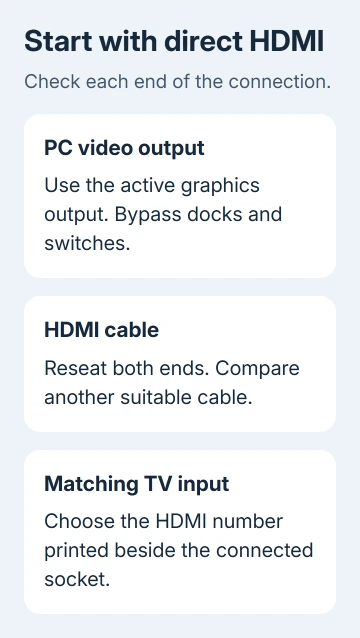
For desktops using a separate graphics card, connect to that card's outputs. The motherboard's HDMI socket needs graphics built into the processor and the right system settings. Having that socket doesn't mean it's active on your PC.
Power down the PC and TV, disconnect HDMI, wait 10 seconds, and reconnect before powering up. Select the TV input again. If a picture returns, try the original connection path one device at a time to see which addition loses it.
I'd try a short direct cable before changing drivers. It's quick and checks whether your PC can send a picture straight to the TV. If the TV remains on No Signal, continue with Windows' output selection and a known-working display.
2. Make Windows send a picture to the TV
On the PC's working screen, press Windows + P and choose Extend. This leaves the existing display available while adding the TV. PC screen only can leave the external screen unused even with a good cable.
For Windows 11, open Settings > System > Display. Expand Multiple displays and select Detect. For Windows 10, open Settings > System > Display and find Detect in the Multiple displays area.
The external display troubleshooting steps recommend output selection and direct hardware checks. When Windows detects the TV, you can select its display tile before changing its settings.
Use Identify if you're unsure which numbered tile represents the TV. Select that display before changing resolution or refresh rate. Adjusting the laptop's own screen won't change the signal being sent to the TV.
With the TV as the only screen, use a known-working monitor or the laptop panel to make these changes if possible. Don't repeatedly choose modes blindly when you can't see the confirmation dialog.
If the desktop is extended successfully, the TV may show only the wallpaper until a window is moved onto it. That's a working signal, not a blank HDMI input. The laptop-to-TV setup guide explains Duplicate and Extend for normal use.
3. Try a lower mode before returning to 4K
On the selected TV's Display page, choose 1920 x 1080 as a temporary resolution if the TV supports it. In Advanced display, choose the TV and a supported 60 Hz refresh rate when available.
In Windows 11 the control is Choose a refresh rate. Windows 10 shows the selected display's refresh-rate control in Advanced display settings. The available rates depend on the connected hardware and current mode.
Turn Use HDR off temporarily for that display. On Windows 11, look in Settings > System > Display > HDR. On Windows 10, use the display's Windows HD Color settings. Test the ordinary desktop before launching a game.
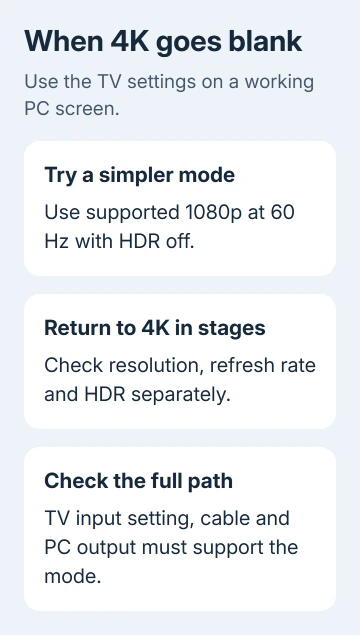
If the TV now works, the connection can carry that simpler mode. That doesn't mean the same cable, adapter, and TV port can handle 4K at your chosen refresh rate with HDR on.
Return to supported 4K resolution, then check refresh rate and HDR separately. Keep changes only with a usable picture. If the screen goes blank, wait for Windows to undo the change when its confirmation timer is available.
Check the TV manual's supported PC timings, which list the resolutions and refresh rates it accepts. A 4K panel doesn't make every input compatible with 4K at 120 Hz. Use the listed rates for that HDMI socket and the PC's video output.
4. Check the TV's enhanced input and cable capacity
Some TVs require an enhanced HDMI setting for higher-bandwidth PC modes. On supported Samsung models, open Settings > All Settings > Connection > External Device Manager > Input Signal Plus and enable the connected port.
Samsung recommends enabling Input Signal Plus in its PC display troubleshooting instructions. Older interfaces and other brands use different menu names. Check the exact model manual instead of searching for the Samsung label on every TV.
Match the cable to the intended output. Premium High Speed certified cables cover common 4K60 connections, while Ultra High Speed certification is the choice for higher-bandwidth HDMI modes such as 4K120 on compatible equipment.
The computer port and any adapter must support the mode too. Replacing only the cable won't add a display mode your graphics hardware doesn't support. Check the PC or graphics-card specifications for the exact HDMI output you're using.
Compare another cable and TV input at the same simple mode. Keep the working combination handy while checking the failed cable or socket's limits. The Windows HDMI settings explanation separates those controls from the physical port.
5. Repair a Windows driver failure and compare devices
For a previously working setup that loses its picture when Windows loads, press Windows + Ctrl + Shift + B once. This resets the graphics driver and may recover the picture. If it doesn't, restart the PC normally.
After a display-driver update causes the failure, open Device Manager > Display adapters. Right-click the adapter and choose Properties > Driver > Roll Back Driver if offered. Restart and retest direct HDMI.
Without rollback, get a matching display driver from the PC or graphics-card maker. Provide the model name and Windows version. Check whether that driver helps before installing another one.
Compare another source on the TV and another display on the PC. Note working cables, sockets, resolutions, and rates. A TV input failing across good sources needs TV service; a PC failing across displays needs PC or graphics support.
Ask the relevant manufacturer to check HDMI output or input failure, and explain which combinations worked and which failed. That's the practical next step when the direct connection still fails at a supported simple mode.
The Short Version
Use direct HDMI, match the TV input, and select Extend. When 1080p works but 4K doesn't, check rate, HDR, enhanced input, and connection capacity. Try driver recovery for a Windows-only fault, then compare another source and display.
Checked November 12, 2026.






