Faded Brother prints often come from Toner Save on a laser or blocked nozzles on an inkjet. Turn off Toner Save for pale laser output; for missing inkjet colors or broken text, print the quality check before cleaning.
A toner cartridge and an ink cartridge need different treatment. Check the model on the printer first, then follow the matching branch. A faint page doesn't automatically mean the drum needs replacing.
In this guide
1. Compare a printer-made page with your document
Print a report or quality check from the printer's own controls. That lets you check the print quality without involving the app on your computer. Compare its black text and color blocks with the faded document.
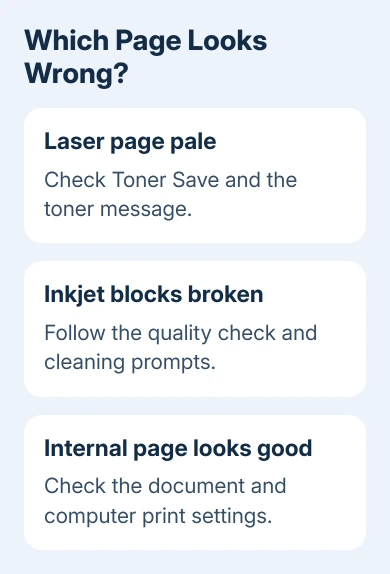
On an inkjet, use its Check Print Quality procedure. On a laser, find the available report under Print Reports or Print Options in the model's manual. Controls and report names vary across Brother families.
If that page looks good, check the computer's print settings and the document next. A faded internal page means you should work on the printer's supplies, quality settings or cleaning path before reinstalling anything on the PC.
For pages with no printing at all, the blank-page checks cover a different starting point. In particular, check print preview when only certain document pages come out empty.
Keep the original document for the final comparison. A small text file is useful for checking black text, but it won't tell you whether a missing cyan or magenta channel has recovered on a color printer.
2. Turn off Toner Save on a laser printer
Toner Save makes printing lighter so each page uses less toner. If the whole page looks evenly pale, check that setting before opening the cartridge compartment. A new cartridge won't fix pale output caused by leaving that setting on.
For the HL-L2460DW family with an LCD, use the up or down control to select General Setup, then press OK. Select Ecology > Toner Save, confirming each choice, select Off, and press Go.
Use the manual for the precise model if its controls differ. The HL-L2400D, for example, doesn't have the same LCD menu. Don't try to reproduce an LCD sequence with unrelated button presses.
Check the computer's print preferences for Toner Save too. Select the printer in Windows 11: Settings > Bluetooth & devices > Printers & scanners, or Windows 10: Settings > Devices > Printers & scanners.
Open Printing preferences and inspect the driver options available for your model. A generic driver may show fewer controls than the driver made for your model. Turn off Toner Save if present, then print the same document again.
If the report becomes darker but one app stays faint, check that app's print dialog. Its saved job settings can differ from the defaults. A normal report is a reason to check those settings before buying supplies.
3. Check toner before spending money on a drum
Read the laser printer's supply message. Replace Toner calls for the correct replacement cartridge. Many Brother models have a separate drum, with its own job and replacement schedule.
Check your model's removal steps, then gently move the toner cartridge as directed to spread the toner inside. Keep it level over disposable paper.
Print another internal page after reinstalling the assembly. If moving the toner around helps only briefly, the cartridge still isn't fresh. For replacement advice, tell support the supply message and how briefly the print improved.
If the printer's maintenance instructions call for cleaning the corona wire, use its sliding cleaning tab and return it to the marked home position. The corona wire helps the laser printing process put toner onto the page.
Don't touch the drum's sensitive surface. Use the cleaning method in the manual for that model instead of wiping every visible roller. If a new correct toner cartridge and the supported cleaning don't help, ask support about the drum next.
The Brother drum replacement guide explains the separate drum job and counter reset. Resetting a counter alone doesn't put fresh toner in the printer or repair faded output.
4. Let an inkjet's pattern choose the cleaning
Brother recommends its print-quality check, with four color blocks that reveal gaps in printed ink. Missing short lines point toward nozzles that need attention.
On DCP-J772DW, DCP-J774DW, MFC-J890DW and MFC-J895DW, open Settings > Maintenance > Improve Print Quality > Check Print Quality, then press Start. Check all four blocks, including black.
On DCP-J572DW, MFC-J491DW and MFC-J497DW, open Settings > General Setup > Maintenance > Impr. PrintQuality > Impr. PrintQuality. Press OK for each selection, then press the right selection control to print.
Use the printed pattern to answer the printer's questions. On these models, missing lines lead to Yes and a choice of the closest pattern for each color. When cleaning is needed, follow its cleaning prompt and print the next check sheet.
If all lines are present, choose No to finish that quality check. Repeated cleaning isn't the answer to a complete pattern with an application-only color problem. Check the paper and job settings in that case.
If the pattern is still poor after cleaning as instructed, fit a new cartridge of the correct type for the affected color, then clean again. Contact customer service if that still doesn't help. Don't touch the print head itself.
5. Match the paper and get model-specific help
Use paper supported by the printer and set the matching paper type in the job. Compare one ordinary document on suitable plain paper before judging a photo printed with different media and quality settings.
I'd keep the latest internal page for support. Give them the full model, whether it's laser or inkjet, the exact supply message, and whether the computer document differs from the printer-made page.
Ask Brother customer service for the model's faint-print procedure and the next consumable to check. Use that advice to decide which part needs replacing, rather than buying toner, a drum or ink without knowing which one your printer needs.
The Short Version
Compare an internal page first. On a laser, check Toner Save and toner before the drum. On an inkjet, follow the color-block quality check and its cleaning prompts. A normal internal page sends you back to the document and driver settings.
Checked November 16, 2026.