A Brother printer not printing black can have blocked inkjet nozzles or an ink-supply problem. Print its internal quality sheet first; a laser needs toner checks, while a good sheet points toward the app or computer.
Check whether the machine uses liquid ink or toner before maintenance. Printhead cleaning applies to inkjets. A laser has no equivalent ink nozzles, so an inkjet cleaning routine won't fix its black output.
In this guide
1. Compare an internal sheet with the document
Use the printer's own menu or button sequence to print a quality or test sheet. This doesn't depend on Word, a PDF reader, or the computer's print driver. Keep the sheet for comparison after the next step.
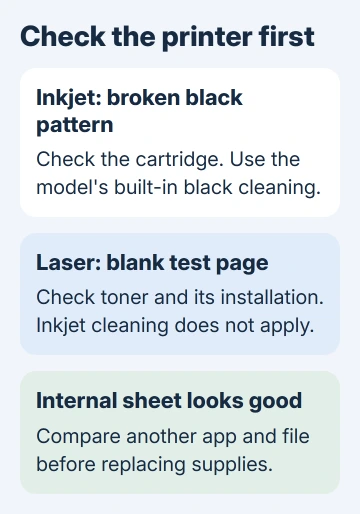
On older inkjet models such as the MFC-490CW, open Ink Management > Test Print > Print Quality and press Color Start. Models with a Menu key may place Ink inside that menu. Touchscreen versions use the ink indicator.
For the MFC-J1205W, MFC-J1205WXL, and MFC-J1215W, press Stop and Paper together. When the Ink light blinks, press Paper to print the quality sheet. These models use buttons for this task instead of an Ink menu.
Check the black pattern for gaps, even if some black text prints. Good color patterns with a broken black pattern point toward the black ink supply or nozzles. If colors have gaps too, those channels also need attention.
For a laser model, print the test page described in its own manual. Don't hunt for an Ink or Print Quality Check Sheet command that belongs to a different machine. Record any Toner, Drum, or cover message on the display.
If the internal sheet looks right, continue with section 5's app and computer checks. A successful internal print means the machine can put black on paper, so buying a cartridge isn't the first useful response to that result.
2. Check the black cartridge and the supply message
Read the exact message on the printer. Replace Ink, Cannot Detect, and gaps in a color pattern point to different problems. Start with any message that stops the printer from recognizing or using the cartridge.
If black stopped after replacement, compare the cartridge's position with the installation instructions. Check its model compatibility too. A new cartridge can still be incorrectly seated or unsuitable for that machine.
Follow the Brother ink-cartridge replacement steps when the printer uses ink. Follow your cartridge's instructions for removing protective material, since the parts you remove differ between cartridges.
For a laser printer, check the toner message instead. A black-only laser relies on its black toner supply for the whole page. The Brother toner replacement guide covers that cartridge and its separate drum assembly.
After the supply warning clears, print another internal sheet. A broken inkjet black pattern needs its built-in cleaning routine. If the cartridge still isn't recognized, finish the printer's cartridge-detection checks first.
3. Run the inkjet's model-specific black cleaning
Use the printer's maintenance controls. On supported older inkjets, choose Ink Management > Cleaning > Black. Select All instead only when the other colors need cleaning too. The sequence should match the manual for the exact machine.
For the MFC-J1205W, MFC-J1205WXL, and MFC-J1215W, the model's cleaning procedure uses buttons: press Stop and Paper together, then press Mono Copy to clean black. Color Copy cleans all four colors on these models.
On those button-only models, the Power, Warning, and Ink lights appear for one second, then Ink blinks. Wait for those lights before choosing cleaning. Don't borrow a stronger button sequence from another model.
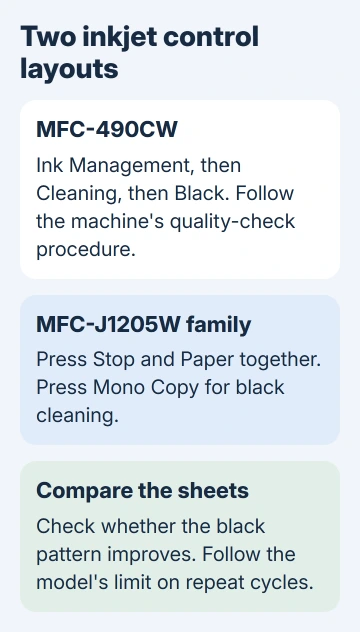
Let the cycle finish and check the new quality sheet. Compare the same black pattern with the first sheet. More complete marks mean the routine is helping; an unchanged blank pattern needs a different next step.
Use only the number of repeat cycles allowed by the model's procedure. Cleaning consumes ink. I'd keep the two sheets side by side rather than running cycles simply because the machine still has ink available.
For the older MFC-490CW, check whether the pattern has improved before repeating cleaning or calling support. The J1205W family has a separate Special cleaning stage for a pattern that remains poor after its ordinary cleaning routine.
4. Treat laser output as a toner or drum problem
On a laser, check that the toner cartridge sits correctly inside its drum unit and that both are installed correctly. If replacement triggered the fault, revisit that model's instructions, starting with preparation of the new cartridge.
Distinguish a completely blank internal page from a narrow white stripe or faded text. Look for that pattern on your model's troubleshooting page. Resetting a drum counter won't refill toner or restore a blank page.
Use the printer's exact model when choosing replacement supplies. Some Brother families have separate toner and drum parts, and replacing one doesn't automatically mean the other needs replacing.
If the internal page stays blank with the supply correctly installed, report that to Brother. Don't dismantle the laser assembly or apply inkjet cleaning fluid. Explain that the page is blank even when you print it from the machine itself.
5. Check the app only when the printer's sheet is good
Print a short plain-text document from another app. Select the Brother printer in the print dialog, then use an ordinary paper setting and the normal print preset. Compare that page with the troublesome file.
If another file prints black, check the failed file's text color, page selection, and preview. Missing PDF content in preview calls for file or viewer checks before changing the printer's maintenance settings.
On Windows, Microsoft's app-specific printing guide explains the Windows checks when only Word or another program fails. A failure in just one app calls for software checks; gaps on the printer's own test sheet call for ink-system checks.
When several computer apps fail but the internal sheet stays good, check the selected printer entry and install the model's driver for your Windows or macOS version. Test a simple document before restoring any unusual print presets.
6. Stop when the pattern points to service
Select the full model on Brother Support and open its missing-black or print-quality page. When the allowed cleaning fails, request the next supported cleaning or service step. Send photos of the first and latest sheets.
The J1205W family's Special cleaning consumes much more ink and follows ordinary cleaning. Read its own procedure before attempting it. Ask about warranty coverage or authorized service if that cleaning leaves gaps in the black pattern.
Include the cartridge type, any displayed error, and whether the fault began after replacement or a long period without printing. Support can use that history to judge whether to check the supply or arrange a machine repair.
The Short Version
Print an internal sheet first. Missing black there needs inkjet cartridge and cleaning checks, or toner checks on a laser. A good internal sheet means checking the app, selected printer, and driver instead.
Checked November 16, 2026.