

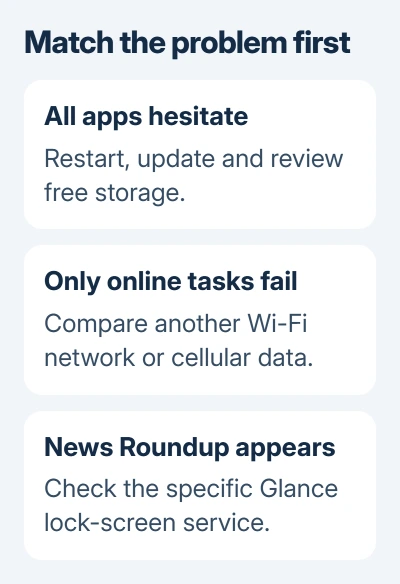
Lag, dropped calls and unwanted Motorola lock-screen content need different repairs. Updates and storage cleanup can help slow apps; when only online tasks struggle, check the connection first.
That doesn't make every Motorola a bad phone. It means the model name and the particular failure matter more than the brand alone. Start with the thing your phone does badly, then decide whether it's fixable or a limit you can't live with.
In this guide
Name the failure before judging the phone
Open Settings > About phone and note the complete model name and Android version. Two phones sold under the Moto G name can have different hardware and software, so advice for an Edge or Razr isn't automatically right for yours.
Describe the problem in one concrete sentence: the camera takes too long to open, downloaded videos stutter, calls disconnect, or battery charge disappears overnight. Then you'll know exactly what to try again after making a change.
A missing feature is a different question. Search Settings for its name and check its availability on your exact model. Reinstalling apps won't add a hardware feature, and a reset doesn't change the processor or camera fitted to the phone.
I'd judge the phone by the job it fails at. A screen that feels slow while opening an app and a video that buffers while the controls stay responsive don't point to the same repair.
1. Fix lag that affects the whole phone
Use the power menu to restart, then repeat the failed action. When Power brings up an assistant, look for the power control in Quick Settings. An assistant shortcut can make a working Power button seem broken.
Next, check for a system update. The documented ThinkPhone Android 13 route is Settings > System updates. Some older Motorola software uses System > Advanced > System updates. Settings search can find the entry when yours differs.
Update downloaded apps in Play Store > profile picture > Manage apps & device. System updates and app updates are separate; completing one doesn't update everything on the other list.
Open Settings > Storage to see what's occupying the space. Delete finished downloads or move files after checking their saved copies. Leave unfamiliar system folders alone; a technical name doesn't make one disposable.
Google's slow Android troubleshooting notes that having under 10% free storage can cause problems. That means room for files on your phone, not how much working memory your apps are using.
Check the same action afterward. If Settings and several built-in apps still hesitate, move to safe mode. If only one app remains slow, repair that app through its own controls.
2. Repair the app that's making the phone feel bad
Hold the affected app's icon and open App info. Check its permissions and whether an update is available. If it still hangs, choose Force stop, reopen it and check the troublesome action again.
For a recurring app problem, open Storage & cache > Clear cache in its app-info screen. Some versions shorten the storage heading. This removes temporary files, giving the app a fresh set when it runs again.
Clear storage or Clear data is a stronger reset that erases local app data. Keep that for an app whose important files and sign-in details you can recover. It isn't interchangeable with clearing the cache.
For an app-only failure, use the developer contact in its Play Store listing. Supply the Motorola model, Android and app versions, and the failed action. Those details help the developer try the same action and see what goes wrong.
3. Check downloaded apps with Motorola's safe mode
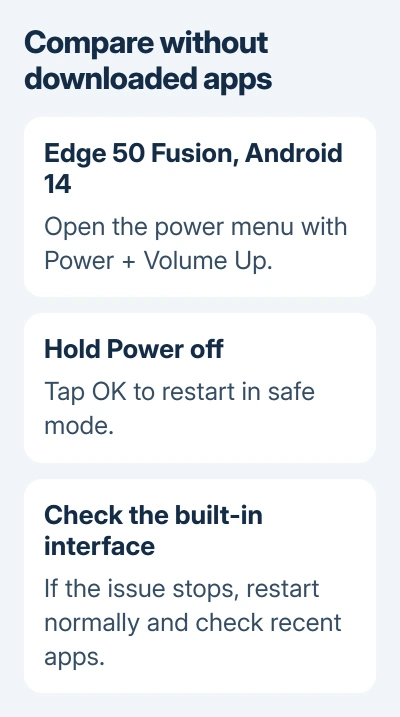
In safe mode, only the original software and apps run. Try opening Settings or using the phone's built-in controls. Downloaded apps won't open in this mode, so use those built-in controls for your comparison.
On the Edge 50 Fusion with Android 14, press Power + Volume Up to open the power menu. Hold Power off, then tap OK to restart in safe mode. The Quick Settings power control is another way into that menu.
The power-menu shortcut varies across Motorola models. Follow the buttons for your exact model; don't substitute a factory-reset or recovery sequence for entering safe mode.
If the problem disappears, a downloaded app could be causing it. Restart normally and remove recent additions individually, restarting between removals. Note which removal helps so you can reinstall useful apps that weren't causing it.
If the problem stays in safe mode, stop blaming a recently installed app. Report that result to Motorola with the actions that still fail. It helps support choose between system repair and a hardware assessment.
4. Treat bad internet and unwanted content separately
Try the failing online action on a different Wi-Fi connection, or use cellular data. If it works there while offline apps remain responsive, check that connection before cleaning up the phone again.
For example, a streaming video that buffers only on home Wi-Fi doesn't show that the phone can't play video. Ask the internet provider to check that connection if other devices struggle there too.
For a recurring News Roundup panel, follow the Motorola Glance controls. That's a specific lock-screen service, rather than a reason to disable random Google apps or erase your accounts.
For battery complaints, open Settings > Battery and review app usage. If one app uses a lot of charge while the phone is idle, check that app first. A battery that struggles through your usual day can need a battery assessment instead.
The Android battery-usage checks explain that distinction. Record which apps appear and when the drain happens before asking for a battery assessment.
Decide when repair or replacement makes sense
An update can't add missing hardware, and cleaning storage won't change a camera's physical capabilities. If a feature you need isn't supported by your exact model, ask about that requirement before choosing a replacement.
Persistent crashes, charging failures or poor calls need Motorola Support. Supply the model, software build and a repeatable example. Ask for the relevant battery, charging, microphone or radio check, including warranty coverage.
The Short Version
Match the complaint to the failing part. Update and free storage for general lag, repair one app separately, and compare safe mode. Connection problems, Glance content and battery wear each need their own checks before judging the phone.
Checked November 16, 2026.
 If you have any business, I can build it online






