

An invalid class string, ProgID: Word.Application error means another program can't connect to desktop Word by its registered name. Open Word from Start first. If it works, try re-registering Word with its supported /r switch.
The error can appear in a counting, invoicing or reporting program while Word opens documents normally. If Word won't open, use section 1's startup checks. These steps are for Windows desktop Word; the web and Mac apps work differently.
In this guide
1. Check whether desktop Word opens on its own
Search Start for Word and open the installed application. Create a blank document, type a few words, then save the file in a familiar folder. Next, open a document that the other program couldn't process.
If both documents open, Word can run and read those files. The failing connection from the other program still needs attention, but I'd leave Word's default template alone at this point.
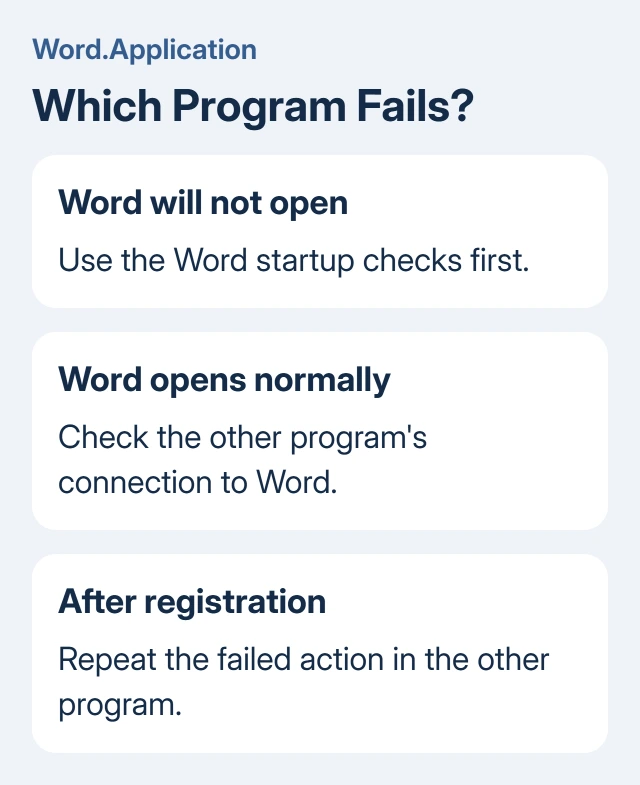
If Word never opens, use the Word startup checks. That procedure covers Safe Mode, add-ins and templates. Return to the external program once Word opens normally again.
A browser tab displaying Word isn't the desktop application. Check the external program's requirements for installed Word and a supported Office edition. A working browser document doesn't mean desktop Word is installed.
Keep the full error text, including Word.Application, when you report the problem. That name tells you which application the other program is trying to use. A different name in the message calls for a different application check.
2. Use Word's own count when that finishes the job
For a counting program, load your document in the installed Word app, then choose Review > Word Count. You can finish the count there while you work on the connection problem.
Highlight the required passage to exclude the rest of the document from your count. With nothing selected, the count covers the document. Check whether the requirement is for words or characters before copying a total into an invoice.
The Word counting controls include more than the running total on the status bar. For selection boundaries and detailed statistics, use the full Word count walkthrough.
I'd use that route to finish a simple count before changing the Office installation. It won't replace an invoicing program's pricing rules or batch processing, so keep those parts of the job separate from the count itself.
If the same document opens and counts correctly here, tell the external program's support team that result. If only one file fails in both programs, keep a copy and ask about that file's format before treating every document as broken.
3. Re-register Word with its own switch
Word.Application is a ProgID, a name Windows programs use to request a particular application. Re-registering Word refreshes its Windows registration. It updates how other programs connect to Word, without changing which app opens your documents.
Microsoft's current Office command-line reference lists /r in the Word table for this purpose. Save any work, then close both Word and the program displaying the error.
- Press Windows + R to open Run.
- Enter
winword /r, leaving one space before/r. - Press Enter and allow the setup process to finish.
- Open Word normally, then retry the failing operation from the external program.
The command starts Word, runs Office Setup, updates the Windows registry, where its registration is stored, and closes Word. That closing step is normal; don't expect a document window to stay open.
Retry the same count, report or export in the other program. It should finish without the error if registration fixed the connection. If the message returns, check installation and compatibility next instead of repeating the command.
If Windows can't find winword, use the full path to your installed WINWORD.EXE, enclosed in straight double quotes, followed by a space and /r. The reference explains locating the executable and adding switches to its path.
Use the path on your own PC. Office folders vary by installation, so a path copied from someone else's computer can point to a missing folder. On a managed PC, ask IT to handle setup prompts that require permissions you don't have.
4. Repair Office when registration isn't enough
If registration finishes but the connection still fails, try Office repair. Close your Office work first because repair can affect the whole installed suite.
In Windows 11, right-click Start > Installed apps. Locate the entry for Microsoft 365, Office or standalone Word. Use its three-dot menu > Modify.
In Windows 10, right-click Start > Apps and Features. Select your Microsoft 365 or Office entry, then choose Modify. Select standalone Word by its own name when it wasn't installed as part of a suite.
For a Click-to-Run installation, which uses Office's streaming installer, Quick Repair checks and replaces damaged files. Online Repair is the more complete repair option. An MSI-based installation instead offers Repair > Continue.
Follow the prompts for the installation type you see. After repair, open Word normally and retry the failed operation in the other program. Word launching successfully isn't enough; the other program must complete its task too.
If repair fails or needs administrator access, give IT the error from the repair process as well as the original message. That helps IT tell a failed repair apart from a repair that finished but didn't fix the connection.
5. Give the application maker the remaining failure
When Word opens and registration or repair hasn't restored the connection, contact the maker of the counting, invoicing or reporting program. Ask which desktop Office versions and installation types its Word integration supports.
Include the program and Windows versions, the Office product installed and the operation that triggers the message. Say whether all documents fail, whether Word opens them directly and what happened after registration and repair.
Don't replace 64-bit Office with 32-bit Office because of this message alone. Ask the application maker about supported versions before making that change. This error doesn't tell you which of those Office versions the program needs.
If several unrelated programs still can't connect, ask IT or Microsoft Support to check the installed desktop Office product and its registration. If only one program fails, ask its maker to check how it connects to Word.
The Short Version
Open desktop Word directly first. Use its own word counter for an urgent count, then try Word's /r registration switch for the external connection. Repair Office if needed and give the application maker the exact failure and results.
Checked November 16, 2026.
 If you have any business, I can build it online






