Widgets.exe errors that appear just after a game closes can be caused by Razer Cortex relaunching background apps.
If several apps open together and the messages name missing MSVCP140_APP.dll or similar files, remove Cortex and repeat the same game-exit check first. The original owner confirmed that this worked.
An error at Windows sign-in without Cortex is a different case. That needs Windows component updates and, if files are damaged, the built-in repair tools. The timing of the pop-up helps you choose the right route.
In this guide
1. Remove Razer Cortex when the error follows game exit
Open Settings > Apps > Installed apps, find Razer Cortex, open its three-dot menu, and choose Uninstall. Follow the uninstaller, restart Windows, then launch and close the game that usually triggers the error.
On an older Windows 11 build, the app list may be named Apps & features. Use the entry for Cortex itself. Leave your game launcher and game files in place while making this comparison.
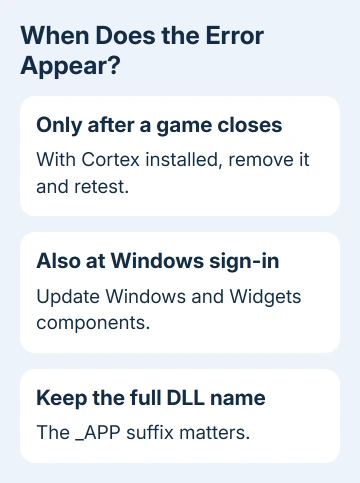
An owner in the original Widgets.exe thread confirmed that removing Cortex stopped the problem after an adviser pointed to its handling of background apps.
The same report included Teams, Edge, and several gaming utilities opening together after a game closed. If that pattern matches your PC, I'd check Cortex before reinstalling unrelated Microsoft components.
After the restart, check whether the DLL messages and the group of apps opening have both stopped. If both stop, leave Cortex removed while finishing your checks. Ask Razer support about the app-restoration behavior before reinstalling it.
If Cortex isn't installed, or removing it changes nothing, continue with the Windows checks. This particular fix doesn't explain every error that happens to mention Widgets.exe.
2. Record the complete DLL name and when it appears
Read the error box carefully. The thread listed MSVCP140_APP.dll, VCRUNTIME140_1_APP.dll, CONCRT140_APP.dll, and VCRUNTIME140_APP.dll. Keep the _APP part when recording the name.
Similar-looking DLL names can belong to different components. A page about VCRUNTIME140.dll without the suffix isn't automatically a match for a Widgets.exe message naming VCRUNTIME140_APP.dll.
Write down whether the error appears at sign-in, when opening Widgets with Windows + W, or only after leaving a game. Also note whether other applications launch at the same moment.
Don't download individual DLLs from file-sharing or DLL download sites. A replacement file can be the wrong version, and it won't fix whatever keeps launching the app.
The original owner had already reinstalled Widgets without solving the fault. They also reported that installing the two suggested Visual C++ redistributables didn't resolve it.
Since those installs didn't help, pay attention to what happens just before the error appears.
If your message names a different application, record that executable as well. The error title tells you which program failed to open, but not what tried to open it.
3. Update Windows and the components used by Widgets
In Settings, select Windows Update, then run Check for updates. Apply the available Windows updates, including any requested restart. Then open Widgets with Windows + W and check whether the same error returns.
Next open the Microsoft Store app. Find Windows Web Experience Pack through its search or Library, and choose Update if it is offered. If your Store lists Start Experiences App updates, install those as well.
Microsoft's Windows Web Experience Pack instructions describe updating that component through the Store. Current Widgets guidance also calls for the latest Start Experiences App.
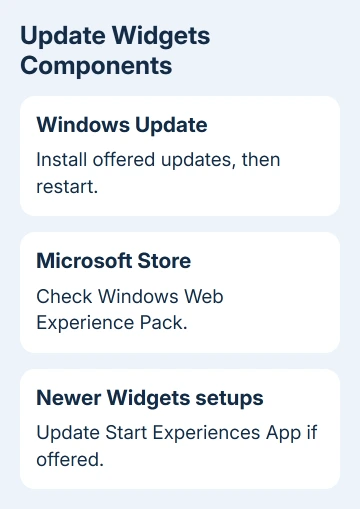
Update installs the newer version available for your PC. If the Store offers no update, move to the repair check rather than trying to install an old package found in a forum reply.
Open Widgets again after the updates, then repeat the game-exit check if that was the original trigger. A working Widgets board at sign-in and a failure only after gaming still points back toward the gaming setup.
4. Repair damaged Windows files with DISM, then SFC
Use this step when the error also happens outside games, Windows reports damaged files, or other built-in features fail. Search Start for Command Prompt, right-click it, choose Run as administrator, and accept the prompt.
Start with this repair command, allowing it to complete:
DISM.exe /Online /Cleanup-Image /RestoreHealthDISM repairs the component files Windows needs for other system repairs. After it reports successful completion, run:
sfc /scannowSFC checks for damaged copies of Windows' protected files and replaces them when possible. Leave its window open until verification finishes, then restart Windows. Open Widgets or close your game again, whichever first brought up the error.
SFC can repair files while the game-exit pop-ups continue. In the original thread, Windows files were repaired, but the remaining app launches stopped only after the Cortex change.
If SFC reports no integrity violations, it hasn't found damaged protected files. If the error continues, don't keep rerunning SFC without changing anything else.
Keep its result with the full error text for support. Also record any result saying damaged files remain unrepaired.
5. Check the result without removing more gaming software
After making the main change, open the same game and close it the same way. Removing several utilities together leaves you unsure which removal helped. It can also disrupt parts of your gaming setup that didn't need changing.
For a failure affecting one game only, verify that game's current support advice through its launcher or publisher. For the same pop-up after several games, concentrate on shared utilities and Windows components.
If Cortex remains listed after removal, check the leftover app-entry guidance. An old entry in the app list doesn't necessarily mean the utility is still running.
Give Razer or Windows support the useful details
If removing Cortex stops the messages, send Razer support the Cortex version, affected games, and the list of apps that were reopening. Ask about background-app restoration after a game ends.
If the error continues without Cortex, open Get Help from Start and request Windows support for a Widgets.exe missing-DLL error. Include the exact DLL names, Windows build from winver, and the DISM/SFC results.
When several built-in Windows features are also failing, use the separate File Explorer recovery guide if Explorer is also having problems. Don't describe a working game as broken just because the error happens after it closes.
The Short Version
For Widgets.exe errors after gaming with several apps reopening, remove Razer Cortex first. Otherwise update Windows and Widgets components, then use DISM followed by SFC when file damage is suspected.
Keep the full DLL name and the trigger for support.
Checked November 16, 2026.
 If you have any business, I can build it online