

A laggy HP Spectre x360 touchpad can have a loose connection even when Windows logs a driver named oem12.inf. Check that the pad is enabled, then test it outside Windows before reinstalling the operating system.
Owners with this model family reported lasting improvement after reconnecting the touchpad cable. The driver filename alone doesn't identify a bad driver.
If the touchpad fails in hardware diagnostics too, it needs a different repair than a pad that only fails in Windows. Compare the results before deciding whether to work on drivers or arrange service.
In this guide
1. Enable the touchpad and get a usable pointer
Connect a USB mouse or use the touchscreen while checking settings. With the keyboard, press Windows + I, then use Tab, the cursor keys, Space and Enter to move through controls.
On Windows 11, open Settings > Bluetooth & devices > Touchpad and turn Touchpad on. Expand its options and enable the mouse-connected exception so the temporary USB mouse doesn't switch off the pad.
On Windows 10, use Settings > Devices > Touchpad. The driver determines which controls appear. If the page is missing, note that for the driver check. It doesn't automatically mean the hardware is broken.
Restart the computer and compare pointer movement, physical clicks and two-finger scrolling. If movement is smooth and only a gesture fails, use the touchpad gesture settings instead of treating the whole device as dead.
If every movement is delayed or the pad stops responding intermittently, continue. Note whether a normal restart gets it working again and how long that lasts. Those details will help if you need a repair.
2. Read oem12.inf as a package name, not a diagnosis
The original owner's Spectre x360 13.5-inch 14-ef0000 used Synaptics driver 19.5.35.94. Its event details named oem12.inf, mouhid and SynTP, and the touchpad lagged or stopped responding.
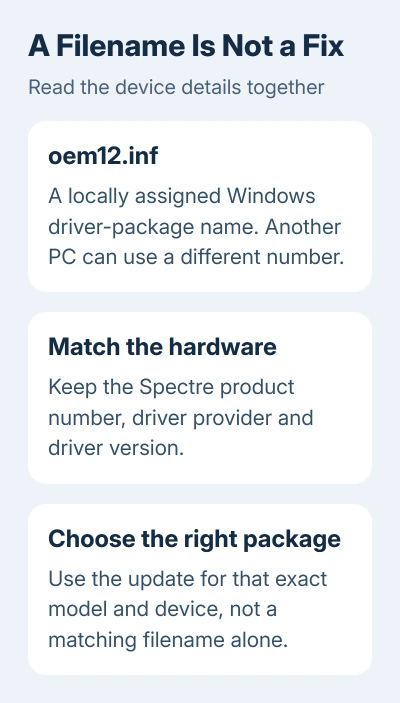
Windows gives third-party driver packages local names such as oem12.inf. That number belongs to the Windows installation. Another Spectre can use different digits for the same hardware, or those digits for a completely different device.
Open Device Manager from Start's right-click menu. Check Mice and other pointing devices and Human Interface Devices for the touchpad or a device showing a warning. Open Properties and read General > Device status.
Then open Driver and note its provider, date and version. Use those details with the laptop's full product number when asking HP about a replacement package.
Don't download an oem12.inf file from a driver archive or delete a package just because its name matches the forum report. Match the driver to your device, rather than relying on that locally assigned filename.
3. Run the touchpad test outside Windows
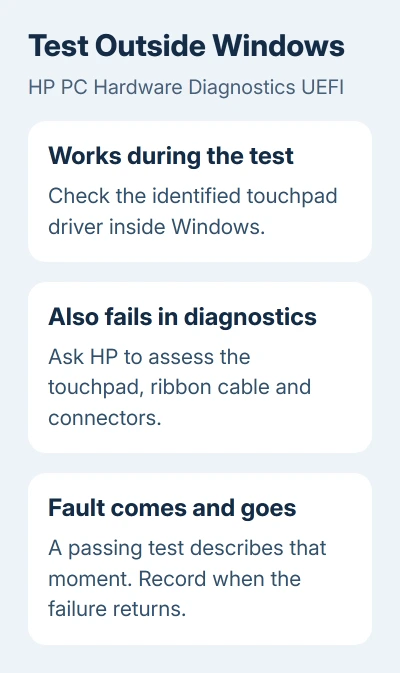
Save your work and turn off the laptop. Turn it on and repeatedly press Esc to open the startup menu, then F2 for HP PC Hardware Diagnostics UEFI. Some models also open diagnostics by pressing F2 during startup.
Open Component Tests and select the available mouse, touchpad or input-device test. Follow its movement and click instructions. An unresponsive pad doesn't prevent selecting the test with your keyboard.
HP's touchpad troubleshooting page includes testing with its UEFI diagnostics. UEFI is the software that runs before Windows starts, so this test doesn't use your installed Windows touchpad driver.
Record any failure ID and the result. If the full component-test menu isn't available, tell HP which diagnostics version or menu you see. Tell support if you couldn't find the test, rather than reporting that the touchpad failed it.
For an intermittent fault, a passing test means it worked during that test. If possible, run the test when the lag is occurring. One owner described the pad failing in this pre-Windows environment too.
If the touchpad fails there, move to the repair section. I'd compare these results before reinstalling Windows. Software repairs can't reseat an internal connector.
4. Repair the driver when the pad works outside Windows
Start with Windows Update and HP's installed Support Assistant, using updates matched to the full product number. A BIOS release for another Spectre model isn't interchangeable with yours.
If installing a touchpad-driver update started the trouble, open that device's Properties > Driver > Roll Back Driver. Confirm and restart. A grayed-out Roll Back Driver button can't restore the older package.
For a reinstall, follow Microsoft's touchpad repair steps: open the touchpad's Device Manager entry, choose Uninstall device, then restart to let Windows attempt its installation again.
Leave any driver-package removal checkbox unchecked for this first attempt. After restarting, check both movement and clicking again. If the device remains missing, use Action > Scan for hardware changes and report the result to HP.
The general Windows touchpad checks cover disabled controls and other pointer problems. Repeating those settings won't address a pad that has already failed outside Windows.
5. Ask HP to inspect the touchpad cable and connectors
Two owners in the original discussion reported improvement after reconnecting internal touchpad connections. The first also had a BIOS update around that time, so it's unclear which change helped.
The second described reseating connectors and securing them, followed by no further problems at the time of their reply. Other owners reported that driver changes, BIOS updates or a Windows reinstall hadn't solved their symptoms.
Ask for a cable inspection instead of repeating Windows reinstalls. HP or a qualified repair shop can check the ribbon cable, both connectors and the touchpad assembly for your exact model.
Check warranty service before opening the laptop. Internal access involves the bottom cover and battery connection, and instructions for an older Spectre x360 13 don't automatically apply to a 14-ef0000.
Tell the technician your diagnostics result, whether the fault comes and goes, and any pattern you've noticed during normal use. Don't press harder on the pad or flex the case to make a failing connection work.
Does another Windows reinstall make sense?
Contact HP through Support Assistant. Provide the product number, warranty status, driver version and diagnostics failure ID. Request a touchpad-and-cable assessment for failures outside Windows or repeated trouble after driver repair.
Keep the event details if you have them, but lead with the failed test and the actual symptom. Those are more useful to a technician than oem12.inf on its own.
The Short Version
Enable the pad, then try HP's pre-Windows component test. Match drivers to the actual touchpad and Spectre model. Failure outside Windows or recurring lag calls for HP to inspect the cable and connectors.
Checked November 16, 2026.
 If you have any business, I can build it online






