

Outlook's missing Arrange By control often means sorting moved into the message list's All or Filter menu. Open it to choose Date or From; in classic Outlook, a Quick Access Toolbar shortcut can keep sorting within easy reach.
The shortcut restores sorting access without recreating the old display. New Outlook uses a different interface, so confirm your Outlook edition before customizing the classic app's toolbar.
A missing Outlook mention indicator needs its account and column checked separately from the relocated sorting menu.
In this guide
1. Open the sorting menu that matches your Outlook
Click Mail, then select Inbox in the main Outlook window. An open message has its own commands. Changing that window's toolbar won't add a sorting control to your Inbox.
In current new Outlook for Windows, select Filter in the message pane's upper controls and choose the sort you want. Sender, date, subject and size are among the available choices. Your messages should change order when you select one.
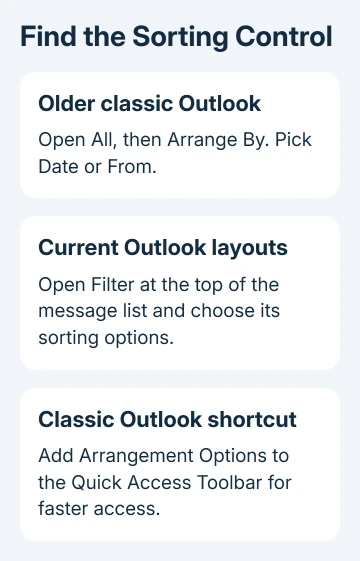
In classic Outlook, check the message list's top menu too. Current help calls this the Filter dropdown. Older Outlook 2016 layouts use All > Arrange By, followed by choices such as Date and From.
Microsoft describes the current app versions in its sorting instructions. Match your visible controls instead of hunting for a dropdown from an older screenshot.
Select From and check whether messages now sit together by sender. Then choose Date to return to a time-based list. This checks that sorting itself works before you spend time restoring a faster way to reach it.
If all the top commands are missing, first bring the Outlook ribbon back. A collapsed ribbon is a separate problem from one sorting control moving into a menu.
2. Recognize the older Outlook 2016 interface change
Classic Outlook has a File tab. Open File > Office Account to check its version. The documented Outlook 2016 change affected version 1703, build 7967.2161 and later, when sorting and filtering moved into All.
That change made space for Focused Inbox. It doesn't mean turning Focused Inbox off will restore the old dropdown. In the original discussion, an adviser took back that suggestion after checking how the interface had changed.
Owners also reported that resetting the view, adding columns, restarting and repairing Office didn't bring the previous control back. I'd use the working sorting menu before attempting an Office repair for this symptom alone.
If your mail is there but in a different order, change the sorting. If messages are genuinely absent, use the missing-email checks rather than assuming the toolbar will recover them.
For frequent sorting in classic Outlook, continue with a toolbar shortcut. New Outlook doesn't use this classic ribbon-customization procedure; keep using its Filter menu instead.
3. Add Arrangement Options to classic Outlook's toolbar
In the main classic Outlook window, open File > Options > Quick Access Toolbar. This is the small command toolbar, separate from the Quick Steps group used to run mail actions.
Change Choose commands from to All Commands. Look for Arrangement Options, select it and choose Add, then OK. Some older layouts also list it when the command source is set to View Tab.
Click the new toolbar command while Inbox is selected. It should offer arrangements such as Date and From. Choose a different arrangement and check that your messages change order to confirm the button works.
One owner in an Arrange By discussion confirmed this shortcut worked, as did later replies. The shortcut works, but it doesn't show the current sort label the way the old control did.
If Arrangement Options isn't listed, use the ribbon route in the next section. Command names vary across the older builds in that discussion. Try the alternative command if that name is missing; rebuilding your mailbox isn't necessary.
One later owner reported a crash after trying a posted customization. If Outlook becomes unstable immediately after adding the shortcut, remove that added command through Quick Access Toolbar options and use the built-in sorting menu.
4. Use the documented Arrange By ribbon route instead
Right-click the classic Outlook ribbon and choose Customize the Ribbon. In the right-hand Main Tabs list, select Home (Mail) and choose New Group. Rename the group Arrange so you'll recognize it later.
In Choose commands from, select All Commands. The older documented procedure lists several Arrange By entries and specifies the third one. Select it and choose Add to place it in your new group.
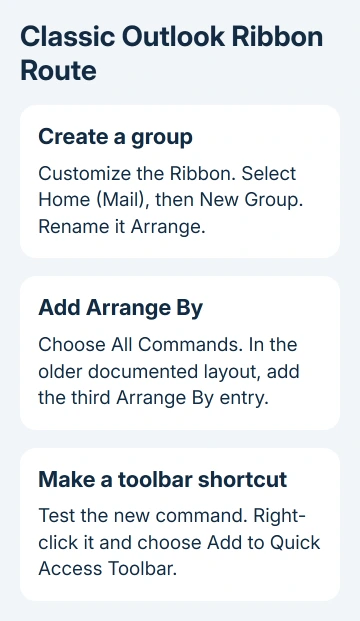
Choose OK and test the resulting Arrange By command on the Home ribbon. If it opens the desired sorting choices, right-click that button and select Add to Quick Access Toolbar.
This route is in the documented filtering workaround. It describes Outlook 2016's older layout; don't expect its exact duplicate-command list in every current build.
Keep only the shortcut that works in your app. Adding several similarly named buttons makes the toolbar harder to use without giving you more ways to sort the same messages.
Use the toolbar's position setting if you'd prefer it between the ribbon and the message list. Its location is a preference; test whether the button changes the intended folder's arrangement.
5. Check the folder's order and grouping separately
Switch to another mail folder and check its order before assuming it matches Inbox. In the older changed layout, All can remain the menu label even after a different sort is chosen. Open its arrangement choices to check.
Sorting and grouping aren't the same setting. Sorting changes the sequence of messages; grouping adds sections such as date or sender groups. In classic Outlook, View > Arrangement > Arrange By > Show in Groups changes that grouped display.
If Date is selected but the newest messages aren't where expected, check the sort direction in that folder's controls. Then inspect a few known messages. The messages should move into the order you've chosen.
For an unavailable button or repeated crashes, give support the Outlook edition, version/build, the added command and whether All or Filter still sorts. Use Help > Contact Support where available, or your work mailbox's help desk.
The Short Version
Use All or Filter to reach sorting first. Classic Outlook can add Arrangement Options or Arrange By to its Quick Access Toolbar. Check the folder's order afterward; the shortcut doesn't recreate the entire old dropdown.
Checked November 16, 2026.






