

Optional features moved from Apps to System in Windows 11. Open Settings > System > Optional features first. If that entry is absent too, try the direct Run address before repairing Settings.
Settings restrictions can block access to the page. A feature missing from the list needs a different check: it could be installed already, managed through another menu, or unavailable in your version.
In this guide
1. Look under System instead of Apps
Press Windows + I to open Settings, select System, and scroll through the right-hand pane for Optional features. On an older Windows 11 installation, it may still be under Apps. The location depends on the updates installed.
A missing entry under Apps doesn't mean Windows has lost its features. Microsoft's current add or remove features instructions put this page under System and explain that other supported builds can show different navigation.
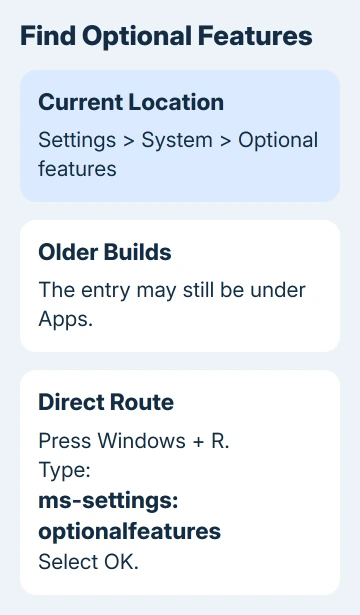
Several owners in the original discussion confirmed that looking under System solved their search. Later replies also describe a blank window or a missing entry under System, so changing menus isn't the answer to every case.
When the page opens, look for Installed features and Add an optional feature. Those headings tell you you're on the right page. If they're visible, continue with section 3 to find the component you wanted.
2. Open the page directly from Run
I'd use this shortcut before resetting Settings. It asks Windows to open the exact page, which avoids hunting through a layout that has changed.
- Press Windows + R.
- Type
ms-settings:optionalfeaturesinto Open. - Select OK.
This is a Settings address, not a PowerShell repair command. It doesn't install anything or change a setting. A working page opens in the Settings app, even though you launched it from Run.
If that works, the features are still accessible. Use the page normally; you don't need to recreate an Apps menu entry. If it opens the main Settings page instead, keep that result for the policy check in section 5.
If Settings closes or shows an error, note exactly what happens. A crash needs different help from a hidden navigation item. Don't start uninstalling Windows components to repair a page that hasn't opened.
3. Search the installed list, then the add list
The search box under Installed features only searches components already added to your PC. An empty result there doesn't mean Windows can't install the feature.
Search the installed list for the name you need. If it appears, expand its entry to check it rather than trying to add another copy. For example, an installed media component and the app that opens your files aren't always the same thing.
The guide to the two Windows Media Player apps explains that mix-up, including the older player offered as an optional feature.
For a component that's absent from the installed list:
- Select View features beside Add an optional feature.
- Use the search in the new window to find the component.
- Select its checkbox, then choose Next.
- Review the selection and select Add.
Keep the PC online while it downloads. Optional features use Windows Update to get their files, so reaching the page and downloading a component are two different stages. Follow a restart request if one appears.
If the download fails after you select Add, you've found the right page. Write down the feature name and full error code. For error 0x800f0954, check the feature's download source instead of searching for another Settings location.
4. Distinguish a missing component from a missing page
Optional features isn't a list of every program Windows can run. If the page opens but your search returns nothing, check whether that item belongs in this list before changing the PC.
Some components use the separate Turn Windows features on or off dialog. Press Start, search for Windows Features, and open that result to inspect its checkbox list. Opening the dialog doesn't enable anything.
If that checkbox dialog reports a path or permission failure, check OptionalFeatures.exe itself; changing the Settings location cannot repair that program.
.NET Framework 3.5 is one example. Windows 11 releases before 26H1 offer it in the Windows Features dialog. From 26H1 onward, it needs a separate installer; that checkbox route no longer applies.
Check your release with Windows + R, winver, then OK before following the steps. Make sure they match both the component's name and your Windows release. Don't enable a different component with a similar name.
Some older features have also been removed. For example, Windows 11 24H2 removed WordPad. Moving between Apps and System won't bring an unavailable component into the list.
For ordinary apps, use Settings > Apps > Installed apps to manage an existing installation. Optional features is the wrong destination for removing a VPN app or fixing permission to install programs outside the Store.
5. Check restrictions when direct access fails
An organization can hide Settings pages on its PCs through policy, meaning rules set by the administrator. Opening the page through Run doesn't get around those rules. A blocked page can send you to the Settings home page instead.
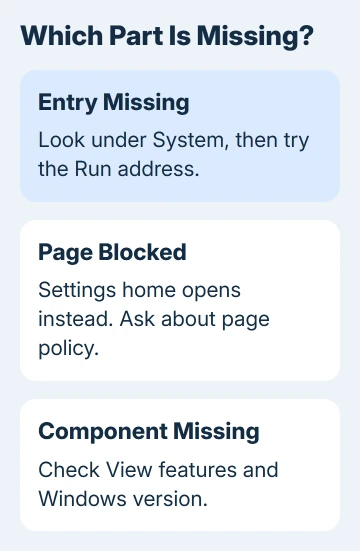
Ask IT to check Settings Page Visibility and the Hide Windows Features policy. Send IT the exact Run address you tried. Say whether it opened the feature list, took you to Settings home, or showed an error.
On a personal Windows 11 Pro PC, check whether a customization tool hid pages. If you applied its Settings-page restriction yourself, undo that change through the same tool. Leave organization policies to the device's administrator.
One owner reported that starting a disabled update service restored the list; the direct address worked too. I'd still check the page's location and Run address before changing services. Ask IT about a managed update service.
When the page still won't load
Open Get Help from Start and describe the missing Optional features page. Include the Windows version from winver, the component you want, and the result of ms-settings:optionalfeatures.
Say whether Settings crashes, the page is blank, or only the add list fails. For a company PC, send IT those details. Those details help IT check page restrictions and where Windows downloads the feature's files.
The Short Version
Look under System first, then use the direct Run address if navigation fails. Check Installed features separately from View features. A missing component needs its own availability check; a blocked page needs its policy checked.
Checked November 16, 2026.






