

A missing iCloud tab in classic Outlook can mean the calendar add-in isn't loading or its connection needs rebuilding. Check the add-in first. If it's active, close Outlook and toggle calendar syncing off and on in iCloud for Windows.
New Outlook uses a different setup and doesn't need the classic iCloud ribbon tab. Check which Outlook app you're using first, especially if iCloud email works but your contacts and calendars don't.
In this guide
1. Restore the iCloud Outlook Add-in
In classic Outlook, open File > Options > Add-ins. Find iCloud Outlook Add-in and check whether it's under Active, Inactive, or Disabled Application Add-ins. These headings tell you whether Outlook is loading the add-in.
Use the Manage list near the lower edge to select COM Add-ins, then choose Go. Check iCloud Outlook Add-in, select OK, and restart Outlook. Open Calendar and look for your iCloud calendar list.
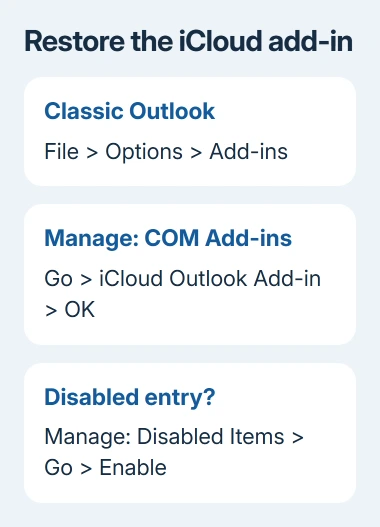
If the entry is disabled and the checkbox won't restore it, switch Manage to Disabled Items, then choose Go. Select the iCloud entry, choose Enable, then return to COM Add-ins and check its box.
One owner restored the missing tab through Disabled Items in the original discussion. Another had an active add-in and still couldn't sync, so the next step matters too.
An active entry means the add-in has loaded. Its connection to your Apple Account can still fail even when the add-in is running. If the tab returns but events don't, keep going rather than repeatedly enabling the same checkbox.
2. Reconnect Contacts and Calendars in iCloud
Close Outlook completely, then open iCloud for Windows. Turn off Contacts and Calendars and select Apply. Wait a few seconds, turn that option back on, and select Apply again. Reopen Outlook after setup finishes.
The Outlook troubleshooting steps recommend this reset for calendar and contact syncing. It rebuilds that connection without making you reinstall Office.
Check a familiar event in the iCloud calendar, rather than a separate calendar stored only in Outlook. A restored tab with the wrong calendar selected can look like another failed setup.
If only the calendar list is hidden, restore Outlook's folder pane before resetting more settings. A collapsed navigation pane and an absent iCloud add-in are different problems.
If iCloud doesn't offer Contacts and Calendars at all, it may not have detected a supported classic Outlook installation. Tell support if that option is missing. Changing mail settings won't make it appear.
For a setup prompt saying no default mail client, check the classic Outlook profile and app defaults before repeating the calendar reset.
3. Check the account and default data file
Open iCloud for Windows and compare the signed-in Apple Account against the one holding your events on the iPhone or Mac. Different accounts have different calendars, even when both devices can receive your email.
In classic Outlook, open File > Info > Account Settings > Data Files. Check the Comments column. If iCloud is marked as the default data file, select your normal non-iCloud data file and choose Set as Default.
Restart the computer after correcting that setting. The default data file is where Outlook keeps its main data. It isn't the setting for which email address you send from.
For recent edits that haven't appeared on another device, select Refresh in Outlook. Compare one event's title and time on both devices to see whether syncing has resumed.
An event that appears at the wrong hour needs a time-zone check rather than a missing-event fix. Check Outlook's calendar time zone if the same appointment appears at different hours after syncing returns.
4. Sign out only after protecting local iCloud files
With the add-in active but calendars still missing, an owner restored syncing by signing out of iCloud for Windows and signing back in. Close Outlook before doing it, then reopen Outlook after signing in and finishing calendar setup.
Before signing out, make separate copies of important iCloud files and export calendar or contact changes that haven't synced. Check that everything you need is on another device or in your backup, especially those unsynced changes.
Read the sign-out message carefully: it can remove iCloud content from this PC, including downloaded copies. Don't dismiss it just because an older reply did.
Use the same Apple Account when signing in again and approve its verification prompt. Turn on Contacts and Calendars, apply the setup, and check the same existing event in Outlook and on your other device.
I'd try the calendar-only reset before this full sign-out. It changes less and avoids interrupting the other iCloud services on the PC. If signing back in doesn't restore syncing, tell support you tried it rather than doing it again.
5. Use the correct setup for new Outlook
New Outlook doesn't load the classic COM add-in, the extra Windows component that supplies the old iCloud tab. You can connect iCloud mail, calendars, and contacts directly through its account setup.
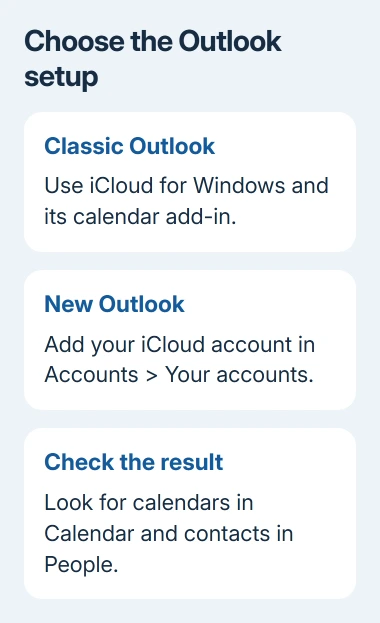
Open File > Settings > Accounts > Your accounts > Add Accounts. Enter your iCloud email address and select Continue. Complete the Apple Account sign-in and two-factor authentication, review the permission request, then choose Done.
Check Calendar for the iCloud calendars and People for contacts. For this direct Apple sign-in flow, an app-specific password isn't needed. That differs from instructions for setting up iCloud Mail manually.
On an ARM-based Windows PC, iCloud for Windows runs through x86 emulation and some features may not work as expected. Tell support the processor type as well as the Outlook version if the calendar option is missing.
For continued classic setup failures, ask Apple Support about iCloud calendar integration. Give the Outlook and iCloud versions, add-in status, and whether Contacts and Calendars appears. Avoid outdated third-party installers.
The Short Version
Restore classic Outlook's iCloud add-in, then reconnect Contacts and Calendars if needed. Back up local data before an iCloud sign-out. New Outlook connects the account directly and doesn't use the old tab.
Checked November 16, 2026.






