

Word 2010 can show a substitute font even while the Home tab still names the intended one. Check Font Substitution first; if the fonts look right in Draft view but wrong in Print Layout, a separate compatibility problem may be involved.
Installing a missing font can fix the substitution. If the fonts are already installed, try a different file format instead. Make changes in a copy, keeping the original as your reference.
In this guide
1. Check which font Word is actually substituting
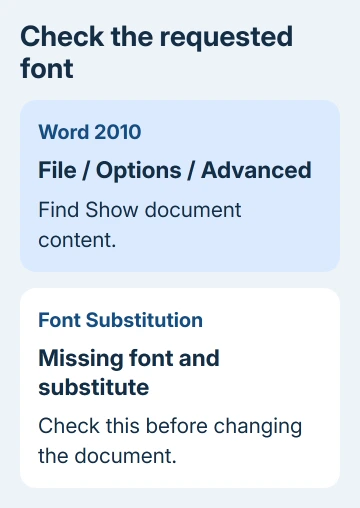
Open a troublesome document in Word 2010 for Windows. Choose File > Options > Advanced, find Show document content, and select Font Substitution.
The font name on the Home tab tells you which font the document asks for. It doesn't mean that Windows has that font available. The substitution dialog tells you whether Word is using another font in its place.
Write down both the missing font and its replacement. A heading that should use a narrow typeface can wrap onto another line when the replacement has wider letters. Changing margins won't put the intended letters back.
If the dialog reports missing fonts, continue with step 2. If it reports no substitution, compare View > Draft with View > Print Layout and go to step 3 when only the page view looks wrong.
Try an ordinary installed font in a new blank document too. This tells you whether only imported documents look wrong or the problem affects new documents as well.
Write down the affected font's full family name. Similar names aren't interchangeable, and a missing bold or italic face can make just part of a document look different.
2. Restore the font or choose an available replacement
Open C:\Windows\Fonts in Windows Explorer and look for the family named in the substitution dialog. Open its entry to inspect the available faces. A document can request a font that never came with this computer.
Get the missing font from its licensed installer, the font publisher, or the person who supplied the document. Use the font installation steps if you have a legitimate font file ready.
Close Word after installing it, reopen the same document, and check Font Substitution again. The useful result is that Word no longer lists that font as missing and the affected text displays as expected.
If the original font isn't available, choose an installed substitute in the substitution dialog. Review the affected pages afterward. A replacement can be readable without preserving the original line breaks or page count.
One owner in the original font discussion worked around an older PostScript font problem by selecting a TrueType substitute. That's a replacement route, rather than a repair of the original font.
Don't replace every font in the document just because one heading is wrong. Start with the family the dialog identifies, then check the title, body text, tables, and special symbols that use it.
If the font is present but Word still reports it missing, ask the font supplier about reinstalling that particular family. Having a file in Fonts and having a usable font installation aren't always the same thing.
3. Try a compatibility copy when Draft looks correct
This branch matches a more specific symptom: an older document looks correct in Draft, yet Print Layout displays a different-looking font even though the formatting name hasn't changed.
An owner reported that saving the troublesome file in Compatibility Mode solved this display problem. That report doesn't mean every Word 2010 font fault needs the old format, but it gives you a reversible comparison.
Choose File > Save As. Name this version separately, then select Word 97-2003 Document (*.doc). Read the compatibility warning before completing the save, then reopen that copy in Print Layout.
The title bar should identify Compatibility Mode. Compare the exact heading or paragraph that looked wrong, rather than judging from the first page alone. Check the page count and any equations, drawings, or tables too.
Keep the original .docx file. Saving to .doc can change newer document features, so the copy is useful only if it preserves the content you need as well as improving the font display.
For an existing .doc, saving it in that same format won't help. Return to the substitution check, or compare it in a supported desktop Word installation with the required fonts installed.
I'd try this separate copy before making changes that affect the entire Office installation. It tells you whether the document's format changes the symptom without resetting your other work.
4. Separate document formatting from a wider Word fault
Select a small affected phrase and check its font and bold setting on Home. If the text looks the way those controls say it should, the document's formatting may be the problem rather than font substitution.
For a font that changes only in new documents, use the default-font settings. Changing the default doesn't repair old documents that request another font.
If every document is affected, keep one small sample that shows the failure. Write down whether Draft, Print Layout, and the print preview look the same. That gives a technician more to work with than just the font-name screenshot.
Tiny pages with a disabled zoom slider are a separate display issue: check Word page movement rather than replacing fonts.
The original thread also includes reports of success after deleting a broad Office registry branch. That resets preferences across Office, so it would change far too much for one document's font problem.
For a managed computer, ask IT to check the affected font installation and Office installation with your sample. Give them the intended family name, the substitution result, and whether the compatibility copy changed the appearance.
Office 2010 is out of support. If the font is available and the document still displays incorrectly, ask your document owner or IT team to compare it in a supported Word installation before you spend time reformatting the whole document.
The Short Version
Check Font Substitution before changing the document. Restore a missing font or select an available replacement. When only Print Layout is wrong, compare a separately saved compatibility copy and keep the original document intact.
Checked November 16, 2026.






