

A Brother scanner that stops after Windows 11 24H2 can have a scanning-driver problem even while printing works. Install current Windows updates, then check the imaging driver Windows selected.
Selecting the listed Microsoft eSCL class driver restored scanning for one owner. The same steps didn't help another owner's MFC-9340CDW, so stick to compatible choices listed for your scanner.
In this guide
1. Check the Windows version and finish its updates
Press Windows+R, enter winver, and press Enter. Keep the displayed version and OS build in your notes. Keep those details with the Brother model number and whether you're using USB, Wi-Fi or Ethernet.
The original thread dates to January 2025. For a scanner failing today, check its current Windows build and driver. Not every scanning failure after 24H2 has the same cause.
Ricoh and Fujitsu fi/SP models need their PaperStream USB repair, which follows a separate Windows-build and driver sequence.
The eSCL name refers to a way the computer communicates with a scanner. The driver Windows selects for that communication can matter even when the printer half of the same machine already works.
Open Settings > Windows Update > Check for updates. Apply the available updates for your supported release and follow any restart prompt. Don't hunt for an old standalone update when a later cumulative update already includes its fixes.
Microsoft's scanner installation instructions explain checking the scanning function separately. For an unsupported Windows release, follow the supported upgrade offered by Windows Update.
If the scanner now appears and produces a saved scan, the update addressed your case. If printing works but scanning still fails, keep your working print connection and check the scanner separately.
2. Compare a copy with a scan from the computer
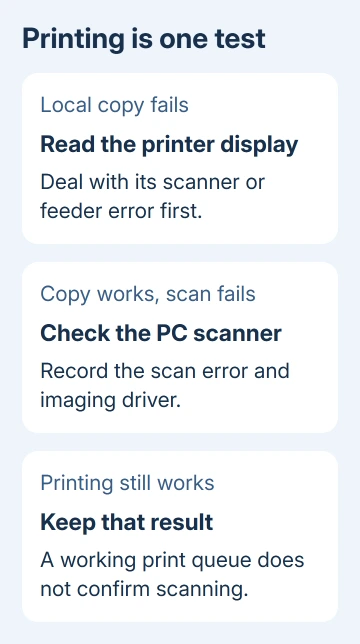
Use the Brother machine's Copy function with a simple page on its glass. On an all-in-one, a successful copy confirms that it can read the page without the Windows scanner driver.
If copying also fails, read the machine's display and clear its scanner or feeder message first. Changing a PC driver can't release jammed paper or mend a mechanism that also fails during copying.
If copying works, try scanning from the PC and record the full error. Note whether the app lists the Brother scanner, shows no scanner, or starts a scan and then loses communication. Use what happens during the scan to guide your next step.
For USB, connect the machine directly to the computer for this comparison. For a network connection, confirm that the PC and Brother machine are on the same intended network.
Printing over one connection doesn't guarantee the scanning app selected it too.
Open Brother Utilities, if installed, and check the model shown in its model selection. A previous Brother device can remain listed after a replacement or software migration. Select the machine you're actually testing.
For failures that also affect ordinary printing, the Brother troubleshooting sequence covers the printer's own reports and queue. Keep this article's driver workaround for the scanner side.
3. Select the existing scanner driver in Device Manager
Right-click Start and choose Device Manager. Expand Imaging devices if that category is present, and identify the Brother scanner entry. Record its name and current driver before changing it.
One owner got scanning working with these steps:
- Right-click the scanner entry and choose Disable device.
- Right-click that same entry again and choose Update driver.
- Select Browse my computer for drivers.
- Choose Let me pick from a list of available drivers on my computer.
- Select the compatible listed scanner driver and choose Next.
- Restart the PC after the driver loads successfully.
The owner selected Microsoft eSCL class driver. Their post spells it eSEL; eSCL is the scanner communication name. Choose from your computer's compatible list rather than treating that post's spelling as a driver to download.
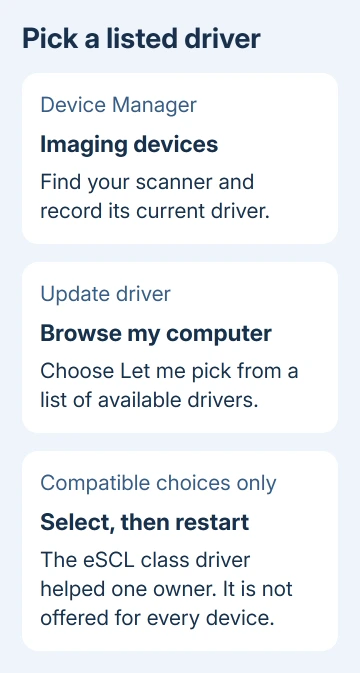
Don't uncheck compatibility or force an unrelated model's driver. If that compatible choice isn't offered, cancel and use the model's supported installer in the next section. Different connections can expose different driver choices.
After restarting, return to Device Manager and confirm the scanner isn't left disabled. If it is, right-click its entry and choose Enable device. Open Brother Utilities or your scanning app and try saving one page.
If your scanner isn't listed under Imaging devices, you can't follow these steps for it yet.
Look for a device warning or an unrecognized device, then continue with the correct software package rather than selecting a printer entry at random.
4. Repair the scanner software for the exact model
Open Brother's support downloads and search for the complete model number printed on the machine. Confirm the operating system and architecture the page offers before downloading.
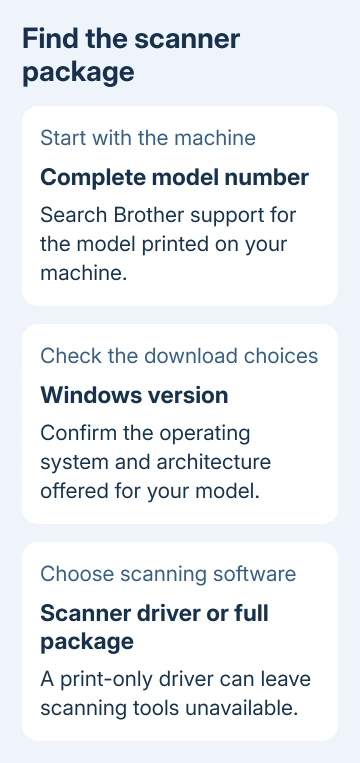
Look for the supported scanner driver or Full Driver & Software Package for that model. The choices vary by device and region. A print-only driver can restore printing while leaving the scanning tools unavailable.
Run the supported installer and follow its connection instructions. For USB installations, connect the cable when setup requests it. For network setup, select the actual machine rather than an old entry with a similar name.
If setup offers repair, use it before removing software. If it requires removal first, use its model-specific removal procedure after recording your working connection. Avoid registry edits copied from an unrelated printer repair.
The Brother connection guide helps confirm USB versus network setup. Getting a new print queue isn't the final check here: open the scanning app, scan a page, and confirm the saved file opens.
I'd stop repeating an installer that fails at the same point. Save the precise message and the point where it appears, then give support that information with the driver comparison result.
5. Ask support to check the scanner installation
If the scanner still fails, open Get Help from Start. Describe a Brother scanner driver installation failure after Windows 11 24H2.
Use the contact option offered after the suggested help when a support route is available for your account and region.
Send the Windows build, Brother model, connection type, Device Manager entry and full error. Include whether local copying works, whether printing works, and whether the compatible eSCL driver was offered or failed.
Ask Brother support which scanner package and connection are supported for that exact Windows version.
If they refer you to Microsoft, send the case details and ask for help installing the scanner driver. Make clear that the problem is scanning, not general printer setup.
For a work-managed PC, give these details to IT before removing drivers. They can check software deployment and installation restrictions while preserving the working printer configuration.
The Short Version
Update Windows, test copying at the machine, and check which compatible imaging driver the PC selected. The eSCL selection helped one owner but not every model.
Use your exact model's scanner package. If it still fails, send support the failed step and Windows build.
Checked November 16, 2026.
 If you have any business, I can build it online






