

Startup Apps can disappear from Windows 11 Settings when startup-task controls are disabled or missing. Compare Task Manager: if both places have lost their controls, check startup-policy values before resetting Windows.
A single missing app is a different problem. The app may need to add its startup entry, or you may need a shortcut. A missing Startup page affects the controls themselves.
In this guide
1. Compare Settings with Task Manager
Open Settings > Apps > Startup. If Startup isn't listed, right-click Start, open Task Manager, and select Startup apps. Older Task Manager layouts put this in a tab called Startup.
Look for the program you want to control. Select it and check whether Enable or Disable is available. An empty list, a missing Settings page, and a disabled button are useful details to record separately.
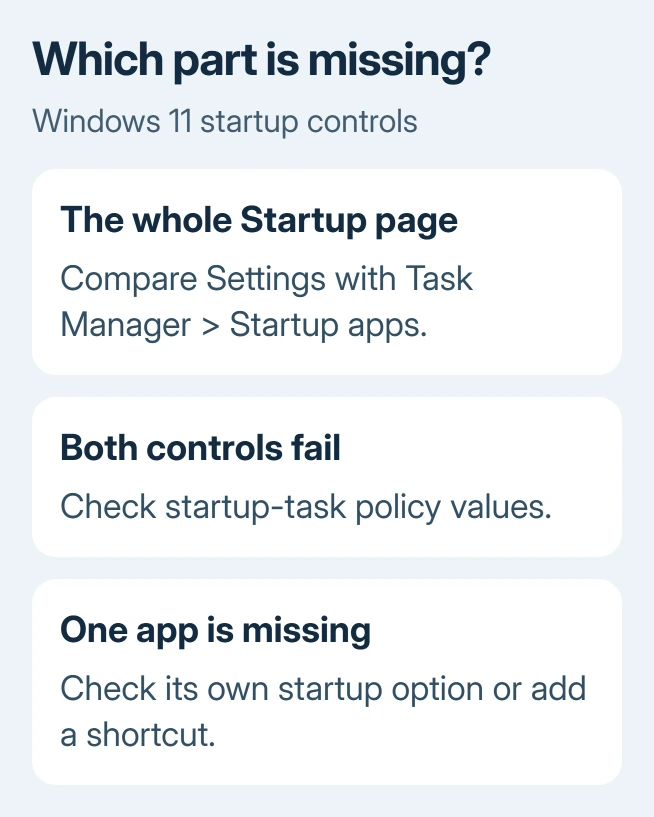
If Task Manager still works, use it to manage the listed apps for now. It offers the same startup list as Settings, so a PC reset isn't needed just to stop an unwanted program from opening at sign-in.
If neither place lets you change startup behavior, continue to the policy check. Owners who restored the page through startup-task registry values reported this combination of symptoms.
For a PC that starts slowly but still has working controls, review the startup workload instead. Missing controls and too many enabled apps call for different repairs.
2. Check who controls the PC before changing policy
Open Settings > Accounts > Access work or school and check whether an organization manages the computer. A company can control startup settings across its PCs, leaving those controls unavailable to you.
Ask IT to inspect startup-task policies on a managed PC. Report the missing Settings page and whether Task Manager and the app's autostart switch are also disabled. That helps IT tell missing controls from an app that won't launch.
Think back to any Windows customization or debloating tool you used before the page disappeared. Record its name and selected changes. Follow that tool's undo instructions for the change before replacing unrelated Windows settings.
Don't copy an entire policy key from another computer. It contains settings unrelated to startup apps, including security controls. The targeted values in the next section avoid importing somebody else's whole configuration.
3. Restore the four startup-task values on a personal PC
Create a registry backup before editing. Press Windows + R, enter regedit, and accept the administrator prompt. Navigate to this key, then select it and use File > Export with Selected branch chosen:
HKEY_LOCAL_MACHINE\SOFTWARE\Microsoft\Windows\CurrentVersion\Policies\SystemWrite down the existing type and data for the four names listed next, including any that aren't present. If you need to undo the repair, your record will show which values you changed and which you added.
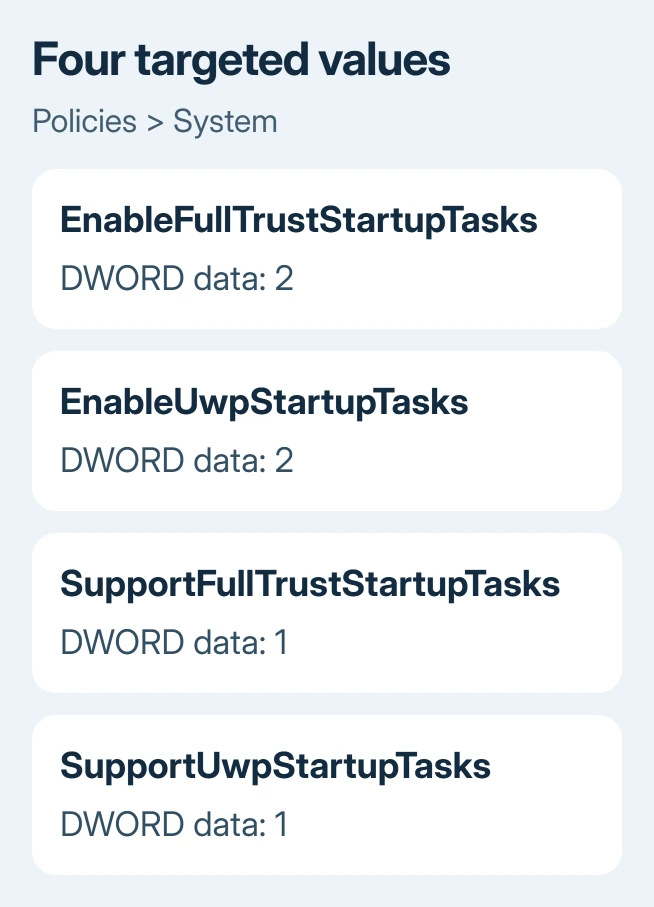
In the right pane, create or edit these DWORD (32-bit) Values. The type stays DWORD (32-bit) even on 64-bit Windows:
| Value name | Value data |
|---|---|
| EnableFullTrustStartupTasks | 2 |
| EnableUwpStartupTasks | 2 |
| SupportFullTrustStartupTasks | 1 |
| SupportUwpStartupTasks | 1 |
Double-click each value, enter its data, and choose OK. For 1 and 2, the Decimal and Hexadecimal choices represent the same number. Leave other values in the System key alone.
Microsoft's Teams startup guidance uses this four-value configuration to restore disabled startup options in its virtual desktop example.
One owner restored the page by copying many policy entries; another succeeded with a smaller pair. Those reports didn't show which entry made the difference. The four-value example changes startup controls without importing other entries.
Restart and reopen Settings > Apps > Startup. Look for the restored page and usable switches, then check Task Manager. Try changing the intended app to confirm its controls work.
4. Treat one missing app as an app-entry problem
If Startup is present but your program isn't listed, launch that program normally and look in its settings for a start-at-sign-in option. Some apps need their first launch before a startup task becomes available.
If a program hasn't added its own startup entry, use the documented Startup folder route. This adds a shortcut for sign-in; it doesn't repair a missing Settings page.
Press Windows + R, enter shell:appsfolder, and leave the application list open. Open Run again, enter shell:startup, and place a shortcut to the desired app in that folder.
Use shell:startup for your own account. The separate shell:common startup folder affects all accounts that sign in to the computer. Choose the folder for the accounts you want instead of putting duplicate shortcuts in both locations.
Sign out and back in to check whether the program launches. To stop that shortcut from launching it later, remove the shortcut from the Startup folder. Removing it there doesn't uninstall the application.
If the entry is an error about a removed Logitech component, repair the stale LogiLDA startup reference. An error left by an old program needs a different fix from restoring the startup controls.
When the page still doesn't return
One owner reported that all four additions restored Startup immediately, but vanished after restarting. Check the values again after a restart. If they disappear, ask IT or the customization tool's support team what's replacing them.
If the values stayed as entered, open Get Help and request help with a missing Apps > Startup page. Include the Windows build from winver, the four recorded values, and the Task Manager comparison.
The asker said resetting Settings, registering apps again and repairing Windows without removing apps or files hadn't helped. I'd check the targeted startup controls before repeating those repairs or resetting the PC.
The Short Version
Use Task Manager while its controls work. If both interfaces fail, check management policy and the four startup-task values. For one missing app, check its startup registration or shortcut.
Checked November 16, 2026.






