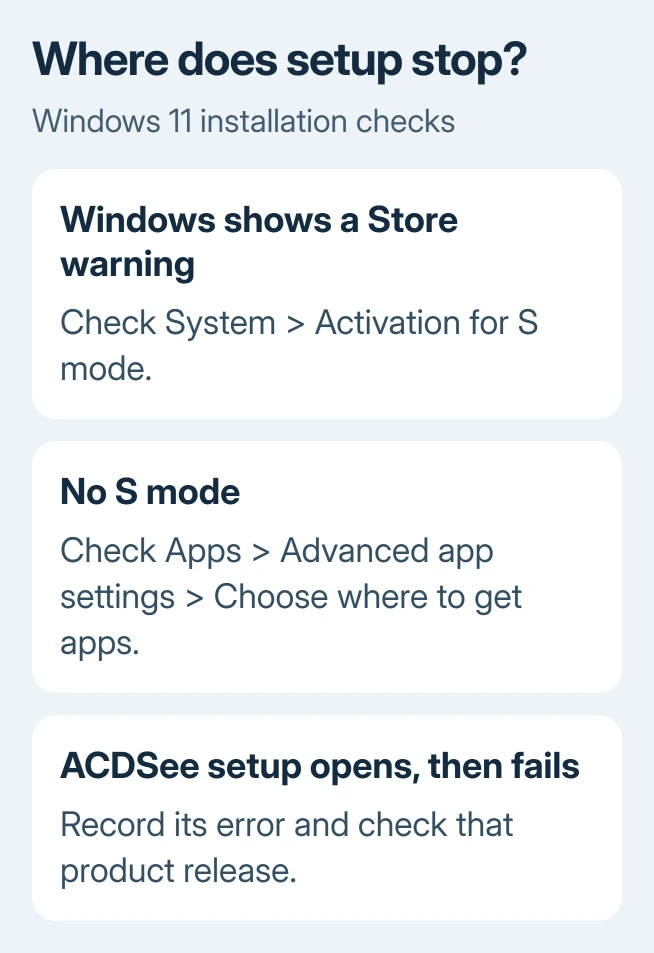
A new Windows 11 laptop can block the ACDSee installer because it's running in S mode, which allows apps only from Microsoft Store. Check Settings > System > Activation first; leaving S mode is free, but the change is permanent.
Without S mode, a Store-only app setting can produce a similar block. An installer that opens and then fails needs a different check, so let the message on screen guide your next step.
In this guide
1. Identify whether Windows blocks the installer
Launch the installer and read its complete message. A message directing you to Microsoft Store points to a Windows restriction. If ACDSee setup itself opens and reports an error, it has passed that first restriction.
Open Settings > System > Activation and check the Windows edition and S mode information. Windows 11 S mode is available only with Home. If your PC runs Windows 11 Pro, something else is causing the Store-only installation warning.
One owner in the ACDSee discussion confirmed the problem was resolved after S mode was identified and removed. That restriction also explained why their app-source dropdown was missing; ACDSee itself didn't need repairing.
Follow the switch-out procedure when S mode is listed. Otherwise, check the app-source setting. Keep a copy of an error message that names a component or gives a code; you'll need that detail if setup itself fails later.
2. Leave S mode only if you want desktop installers
Leaving S mode is permanent. Afterward, that installation of Windows won't let you turn S mode back on. Decide whether you want to allow desktop software before starting the switch.
The switch-out instructions include a link to the Microsoft Store page you need. On that page, select Get and wait for the confirmation.
The switch itself has no charge. You don't need to purchase Windows 11 Pro to install an ordinary desktop app on Windows 11 Home after leaving S mode.
The S mode FAQ also describes the route through Settings > System > Activation and its Store link. Avoid the separate paid edition-upgrade offer.
After the Store confirms the switch, run your ACDSee installer again. At this stage, you're checking that Windows lets the desktop installer start. If setup then reports an error, work from that message.
If the Store can't complete the switch, note its exact message and use Get Help for an S mode switching problem. On an organization's device, ask its administrator whether leaving S mode is allowed before attempting another route.
3. Change the app-source setting outside S mode
Open Settings > Apps > Advanced app settings. Next to Choose where to get apps, select Anywhere if you want Windows to allow installers from outside Microsoft Store without recommending a Store app.
Other choices permit non-Store apps while displaying a warning. The Microsoft Store only (Recommended) restricts installation. Choose the behavior you want without changing unrelated app permissions.
Retry ACDSee setup after closing Settings. If setup opens without the Store-only warning, Windows is no longer blocking it for that reason. Check the download came from ACDSee before continuing.
If Choose where to get apps is missing, return to Activation and check S mode again. An unavailable selector isn't a reason to paste registry edits intended for a different edition or a managed computer.
Another desktop app can encounter the same Windows restriction. The Winamp installation guide explains how to distinguish a Store warning from a separate installer failure.
4. Match the ACDSee installer to the product you own
Use ACDSee's website or the downloads in your acdID account for the edition and release you're installing. Home, Professional, Ultimate and the Mac product aren't interchangeable downloads, despite the shared Photo Studio name.
For an older release you bought, start with the download for that purchase. A new laptop doesn't automatically require buying the newest release, and downloading a newer trial won't tell you whether your older license can activate it.
Check the system requirements for that specific release before assuming Windows 11 is unsupported. The current Home product page lists requirements and product support alongside its download information.
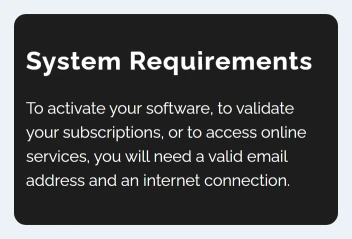
Current Home requirements name 64-bit Intel or AMD hardware. For Snapdragon or another ARM PC, ask ACDSee about your release instead of assuming Windows app emulation covers its requirements.
Windows 11's Settings > System > About page shows the processor and system type. Record those along with the product name. That tells support what hardware you're using without changing any settings.
If other desktop installers are also blocked, return to the Windows restriction. If only one ACDSee package fails after setup starts, check that package's requirements and work from its error message.
5. Separate setup failure from activation failure
A setup error before installation finishes needs the installer filename, the stage it reached and the complete message. Download a fresh copy from the official source if the saved package is incomplete or the download didn't finish.
If ACDSee is already installed and opens to a license or account prompt, the Windows Store restriction has been cleared. Use the account and license for the installed release; reinstalling Windows won't give you a license for that release.
Keep your photo library and any existing catalog backups while sorting out installation. Deleting a catalog isn't part of leaving S mode or changing where Windows gets apps.
The Rollo driver installation checks explain a similar point: allowing desktop installers and meeting a program's hardware requirements are separate checks.
For a remaining ACDSee error, choose Contact Customer Support from its product support page. Send the release and edition, Windows build from winver, processor type and exact error. Say whether setup starts or Windows blocks it first.
The Short Version
Check S mode in Activation and leave it through the Store only if you're ready for the permanent change. Otherwise review Choose where to get apps. Once setup starts, work from its error and the ACDSee release requirements.
Checked November 16, 2026.
 If you have any business, I can build it online