

Pasting a OneNote page link into Planner can fail when the clipboard contains both a web address and an onenote: app address. Paste it into Notepad first, then copy only the complete https:// address into the task's link field.
If Planner accepts the link but opens the notebook's first page, check that you copied a page link rather than a notebook link. An access-denied page is a separate sharing problem, even when the address is valid.
In this guide
1. Copy just the web address from the OneNote link
Separating the addresses with a plain-text editor worked for one owner posting in Microsoft's forum. They copied the HTTPS address and left out the app-specific address.
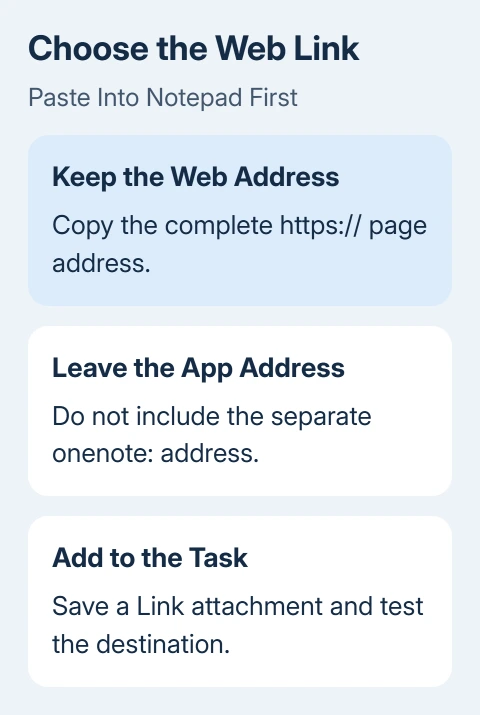
- In the Windows desktop OneNote app, right-click the intended page's tab or page-list entry.
- Choose Copy Link to Page.
- Open Notepad and paste the copied content.
- If it contains two addresses, select only the complete one beginning with
https://. - Copy that address, open the Planner task, and add it as a link attachment.
Don't copy the onenote: prefix or combine both addresses in a single field. Planner needs a web URL for this attachment. Copying through a plain-text editor makes the address visible without adding document formatting.
Your OneNote version may supply only one address. If it is already a complete HTTPS page link, keep it intact and try it. Don't create another address or try to convert the app-specific one manually.
For the opposite goal, make OneNote links open in the desktop app with its internal page picker or the confirmed Office repair.
Check the beginning and end of a long URL carefully. Notepad can wrap it over several display lines, so a visible line break on screen doesn't always mark the end of the address. Avoid selecting a page title along with it.
When the attachment saves, open it from the task and confirm the intended page appears. Saving confirms that Planner accepted the address. Opening it confirms that it leads to the right page.
2. Replace a notebook link with a page link
A valid notebook link can still open the wrong place. Return to OneNote and select the actual page containing the notes your coworkers need. Use the page's Copy Link to Page command rather than the notebook's link command.
Microsoft's OneNote link instructions distinguish notebook, section, page, and paragraph links. Choose the level that matches what the task should open.
A copied address that won't paste back into your notes needs OneNote's Insert Link workaround, separate from Planner's URL field.
If the notebook contains similarly named pages, check the section and page title before copying. Give the attachment a useful label, such as the meeting date or task notes, without changing the destination address.
Don't shorten the URL by deleting everything after a question mark, ampersand, or number sign. Those parts can carry the destination information. A shorter address that saves successfully can still lose the specific page you meant to share.
If a page was moved or the notebook reorganized, copy a fresh link from its current location. Test that new address before replacing several tasks, so you don't repeat a broken destination across the plan.
If the fresh HTTPS address still opens the notebook's first page, report that as a wrong-page problem rather than an invalid-URL error. They can look related during a task update, but they fail at different stages.
3. Add the address through the task's link control
Open the task details in Planner. In plans that offer these attachment choices, select Add attachment > Link. Enter the web address in the URL field and the label in the display-text field, then save it.
Some layouts place Add attachment inside an Attachments area. The important choice is a link attachment, rather than a local file upload or a SharePoint file selection. Use the controls available in the plan you're editing.
Pasting into the task title or its description doesn't test the same attachment field. For an existing broken attachment, save its replacement first. Delete the earlier entry only after the new link opens correctly.
Planner's attachment instructions describe the file, link, and SharePoint choices. A task linked from Teams can still require you to open its details to reach those controls.
If the link saves and opens the correct page for you, ask a person assigned to the task to try it too. That checks whether they have access too. A link that works for you can still be blocked for someone else.
If the URL is rejected immediately, return to Notepad and check for extra text, both link forms pasted together, or an incomplete selection. If the complete HTTPS link is still rejected, keep it for the support report.
4. Check notebook access when the link is valid
A Planner attachment doesn't grant access to the OneNote notebook. The recipient needs permission to the notebook in its OneDrive or SharePoint location and must open it under the correct work account.
Have the recipient confirm the account shown in the browser. If they can open other tasks but this notebook asks for access, ask the notebook owner to review its sharing permissions. Don't solve it by making company notes public.
Use the OneDrive sharing guide when the notebook or its containing folder is shared through OneDrive. Check the intended audience and access level rather than just sending the same link again.
OneNote page links direct people to a location; they don't limit access to just that page. Review notebook permissions with that in mind before linking sensitive notes in a plan with a wider membership.
If the owner and recipient both have access but land on different pages, compare the exact saved attachment address. A task can retain an earlier notebook-level link even after you copied a better page-level one elsewhere.
For broader access trouble from another computer, the OneDrive access guide helps distinguish account storage from the device you're using. Keep work and personal identities separate throughout that check.
5. Escalate a complete HTTPS link that still fails
The 2018 discussion also reported Planner rejecting links with certain symbols. Its accepted answer promised a fix, but the discussion didn't confirm its release. Don't remove legitimate URL characters based on that old status.
I'd keep one failing task and a freshly copied address for support to compare. Include whether the address is rejected before saving, opens the wrong page after saving, or produces an access error for a recipient.
Have your organization's administrator report the Planner failure, including the task, OneNote version, browser, and exact message. Share private notebook URLs through the organization's support channel rather than posting them publicly.
If the fresh link opens correctly outside Planner but fails inside the task, include that result. Support can then check how Planner accepts or opens the link, since the same address works outside the task.
The Short Version
Copy the page link into Notepad and use only its complete HTTPS address in Planner. Test the destination after saving. A wrong page needs a fresh page link; access denied needs notebook permissions checked.
Checked November 16, 2026.
 If you have any business, I can build it online






